18 Jul 2026
Post by Aurorina
Introduction
Is your iPhone 12 not ringing, causing missed calls and interruptions? This frustrating problem is common but generally easy to fix. In this guide, we’ll explore several reasons why your device might be silent and provide detailed troubleshooting steps. This comprehensive guide will have your iPhone 12 ringing again in no time, helping you regain control of your connectivity.
Common Reasons for a Silent iPhone 12
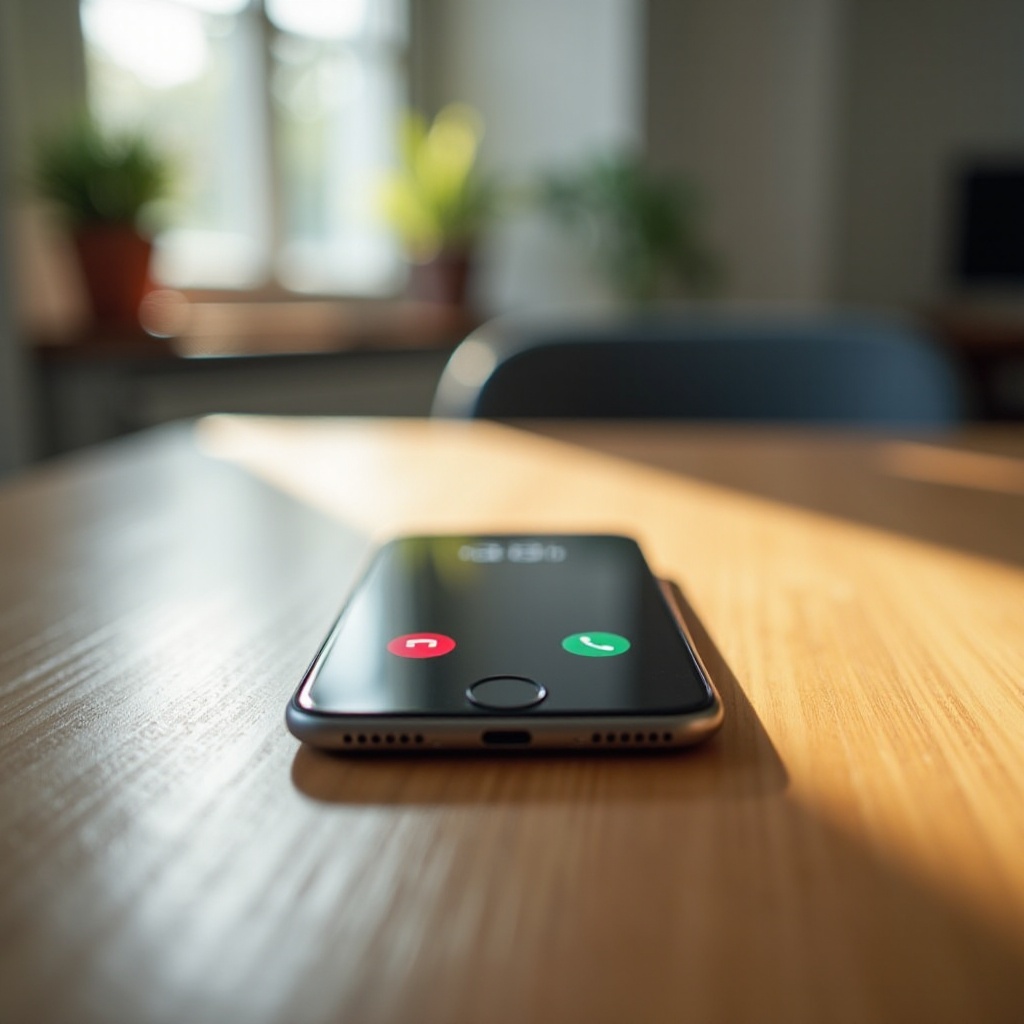
Before diving into solutions, it’s vital to grasp why your iPhone 12 might not be ringing. By understanding these causes, you can pinpoint and address the root of the problem more effectively.
-
Silent Mode or Ringer Switch: Accidental toggling to silent mode is a frequent cause.
-
Volume Settings: Inadvertently low or muted volume can lead to missed calls as well.
-
Do Not Disturb Mode: When activated, this mode silences all calls and alerts.
-
Ringtone Settings: An inaudible ringtone or vibration setting can cause missed calls.
-
Software Glitches: Occasional iOS bugs can interfere with sound notifications.
-
Hardware Issues: Damage or obstructions near the speaker can affect ringer functionality.
With these factors in mind, you’re better equipped to troubleshoot your device efficiently.
Essential Checks and Quick Fixes
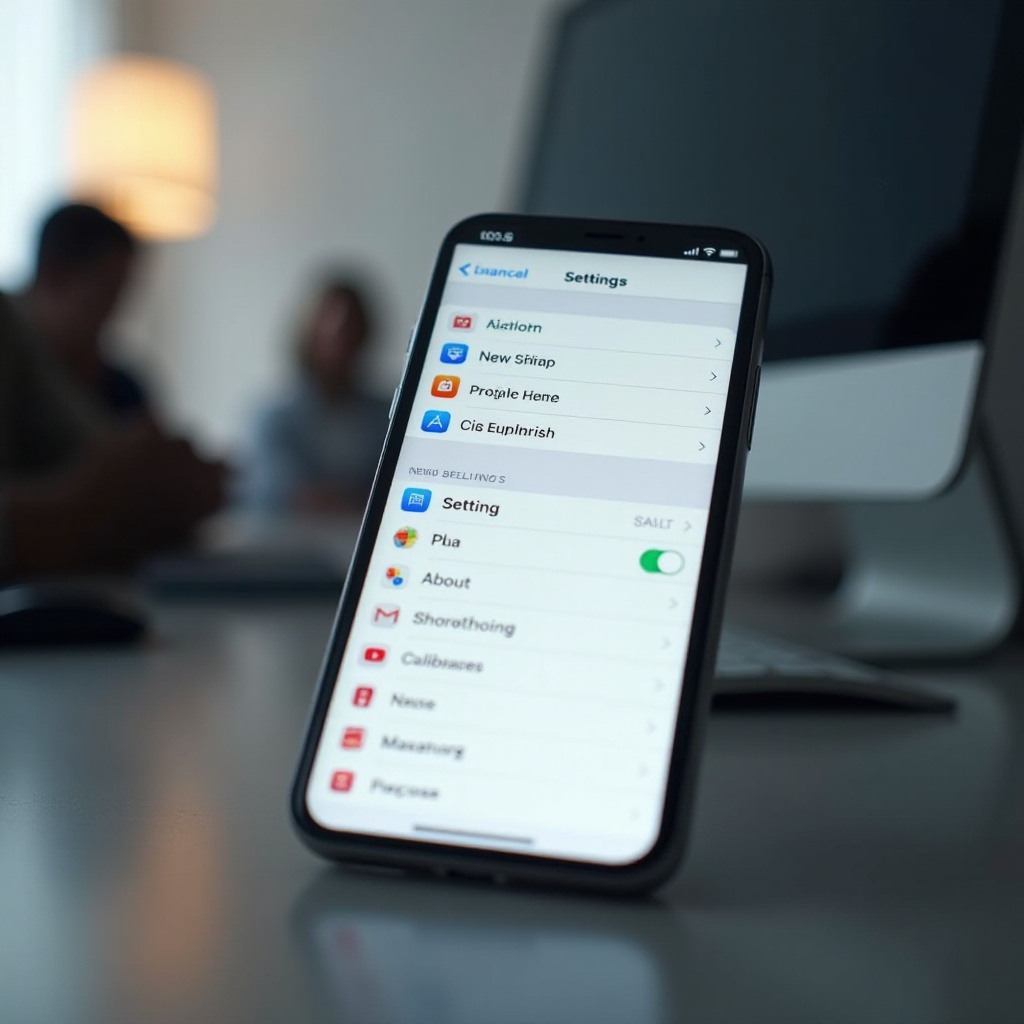
Starting with fundamental checks can often solve the problem without further intervention. Let’s explore these quick solutions.
Verify the Silent Mode and Ringer Switch
The ringer switch located on the iPhone’s side may be the issue if it’s set to silent (orange strip visible).
Modify Volume Settings
-
Increase Volume Levels: Use your iPhone’s volume buttons to ensure the sound is on.
-
Check in Settings: Access Settings > Sounds & Haptics, and confirm the Ringer and Alerts slider isn’t set to the minimum position.
Evaluate Ringtone Preferences
-
Select a Different Ringtone: Navigate to Settings > Sounds & Haptics and choose a louder ringtone.
-
Enable Vibration: In the same menu, activate ‘Vibrate on Ring’ to help prevent missing calls.
Once these initial tests are done, software glitches may be the next potential cause to explore.
Advanced Software Troubleshooting
If basic checks don’t reveal the issue, software-related troubleshooting may be required.
Review and Adjust Do Not Disturb Settings
-
Check Status: Open the Control Center and verify that Do Not Disturb is disabled.
-
Modify Timing: If scheduled, go to Settings > Focus > Do Not Disturb and either adjust or disable the schedule.
Ensure iOS is Updated
Updating iOS can resolve software bugs affecting your phone’s ringer.
- Look for Updates: Visit Settings > General > Software Update and apply any available updates.
Resetting Network Settings
Out-of-date or incorrect network settings could contribute to the issue.
- Reset Steps: Access Settings > General > Transfer or Reset iPhone > Reset > Reset Network Settings.
If the software adjustments don’t yield results, examining potential hardware issues is the next step.
Addressing Hardware Concerns
Issues unresolved by software adjustments might hint at hardware problems requiring your attention.
Check External Speakers for Blockages
-
Clean Carefully: Debris or lint could block the speaker; clean gently with a soft brush.
-
Speaker Function Test: Play audio or a video to confirm clear sound output.
Assess for Physical or Moisture Damage
-
Inspect Thoroughly: Look for physical damage or water exposure.
-
Dry Thoroughly: If water exposure is suspected, power off your device and allow it to dry completely.
When hardware issues persist, it may be necessary to seek professional help.
Seeking Professional Help
Some problems are best handled by experts. Here’s when to consider professional assistance.
Conducting Apple Diagnostics
Run an Apple Diagnostic to uncover hardware issues.
- Set Up Diagnostics: Connect your iPhone to a computer and use iTunes or Finder to conduct the test.
Visit Apple Support for Professional Insight
If diagnostics show hardware issues, or if problems remain, schedule professional assistance.
- Use Apple Support Services: Set up an appointment at an Apple Store or authorized service provider.
Professional diagnostics can offer precise solutions to complex issues. Let’s conclude with a summary and frequent queries.
Conclusion
Though resolving iPhone 12 ringing issues seems daunting, most problems are easily fixable. By methodically checking settings and troubleshooting software and hardware, you can swiftly address the issue. For complex problems needing further insight, Apple’s expertise is invaluable. We hope this comprehensive guide helps you restore your iPhone 12’s functionality and stay connected without disruptions.
Frequently Asked Questions
Why does my iPhone 12 go directly to voicemail without ringing?
This might happen if Do Not Disturb is activated or there’s an issue with network settings. Check these settings and reset network configurations if needed.
What should I do if my iPhone 12 rings but I can’t hear it?
This can result from low volume settings or speaker obstructions. Ensure the volume is up and that speakers are clean and unobstructed.
How can I test if my iPhone 12 speaker is working properly?
Play music or make a call to test the earpiece and speaker functionality. If sound is unclear, clean and inspect your speakers for damage.