13 Jul 2026
Post by Aurorina
Introduction
The HDMI port on motherboards is essential for enabling high-quality audio and video connections between computers and high-definition displays. When these ports malfunction, it can significantly disrupt productivity, be it during entertainment activities like watching films on a large screen or while delivering crucial presentations. Therefore, this guide aims to equip you with step-by-step troubleshooting strategies to diagnose issues and restore the functionality of your HDMI ports. Additionally, we will explore some advanced solutions if the basic troubleshooting steps do not yield desired results. Finally, preventive measures will be provided to avoid potential future troubles related to HDMI ports. Let’s delve into the details to ensure your HDMI port is operational.
Understanding HDMI Ports on Motherboards
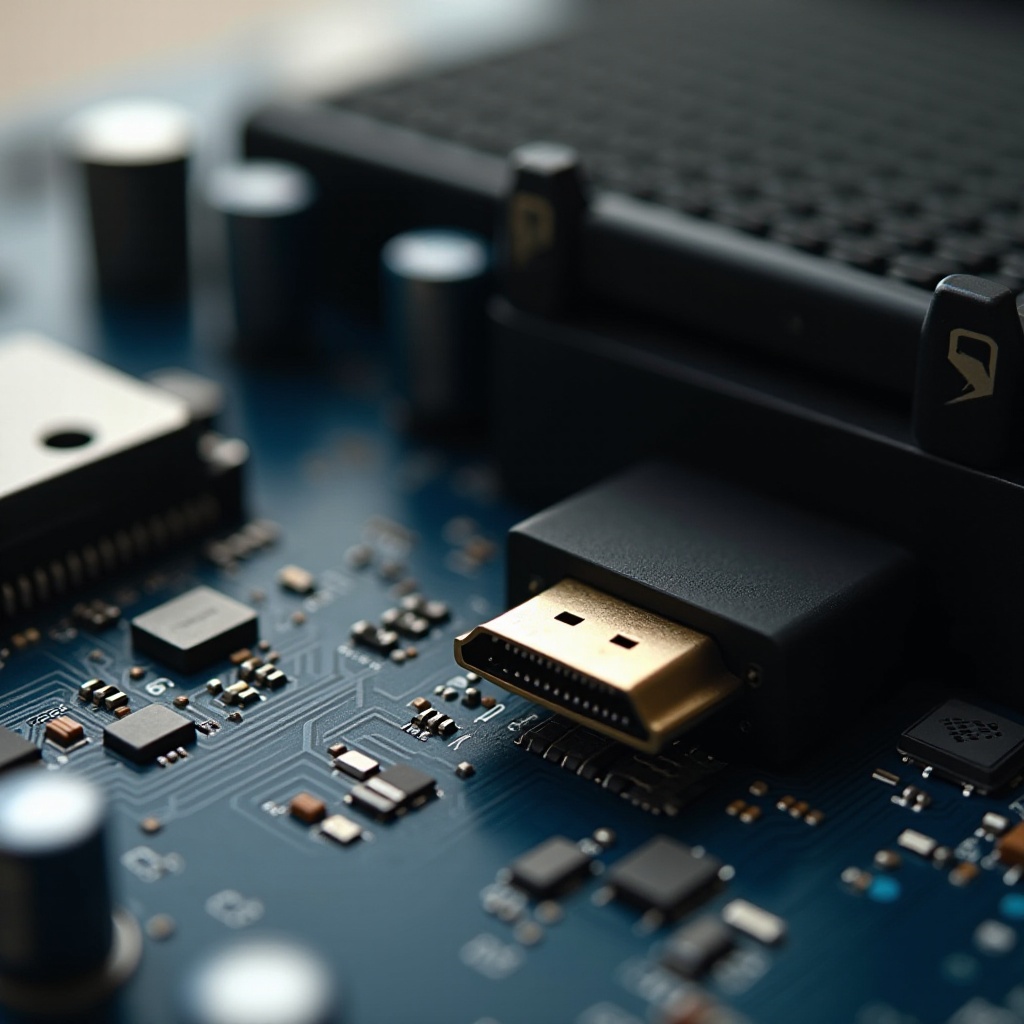
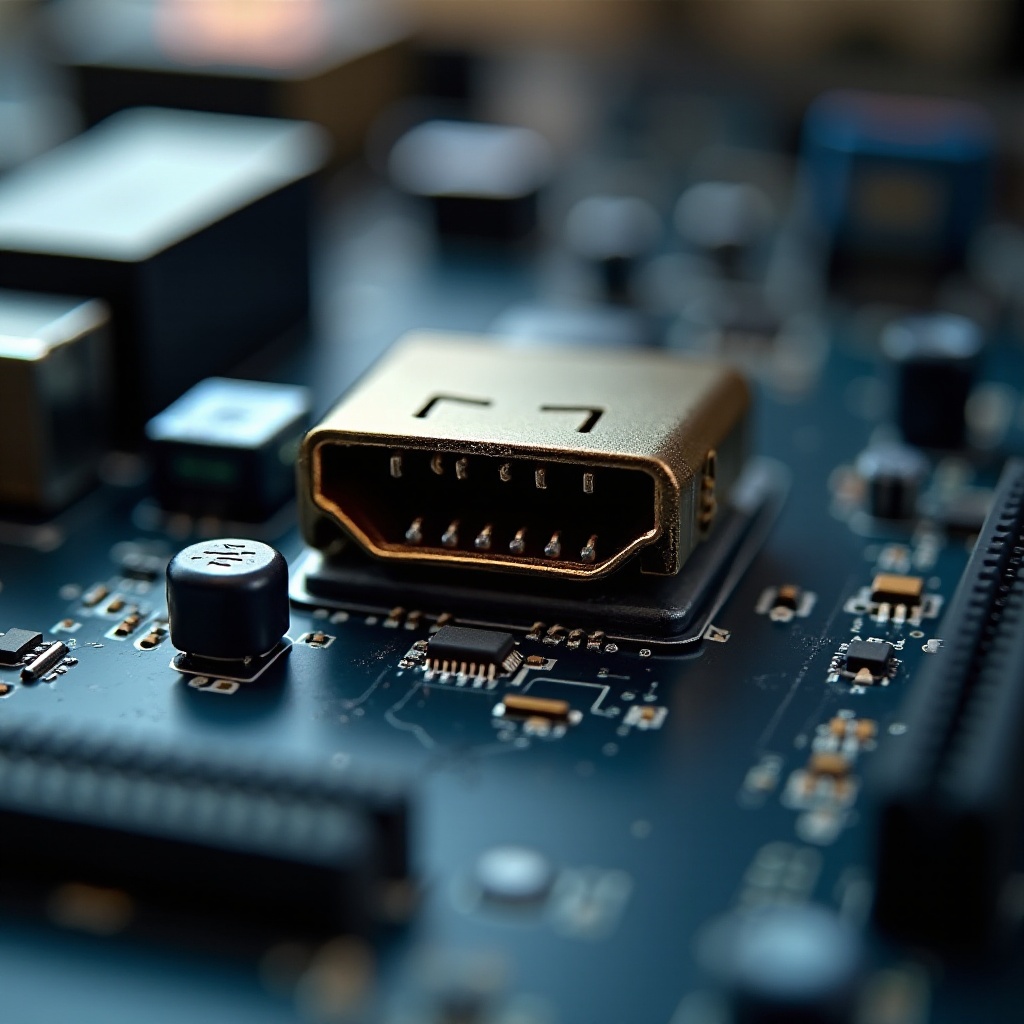
HDMI ports are a significant component in motherboards facilitating seamless connections between your computer and external display devices by transmitting high-definition audio and video signals. Typically linked directly to the integrated graphics on the CPU, the functionality of the HDMI port is paramount in systems that use integrated graphics lacking a dedicated GPU. Understanding the configuration and functionality of your motherboard’s HDMI port assists in troubleshooting whether the issue stems from the motherboard itself, the integrated graphics, or other connected components. This foundational understanding leads to more targeted troubleshooting.
Common Causes of HDMI Port Malfunction
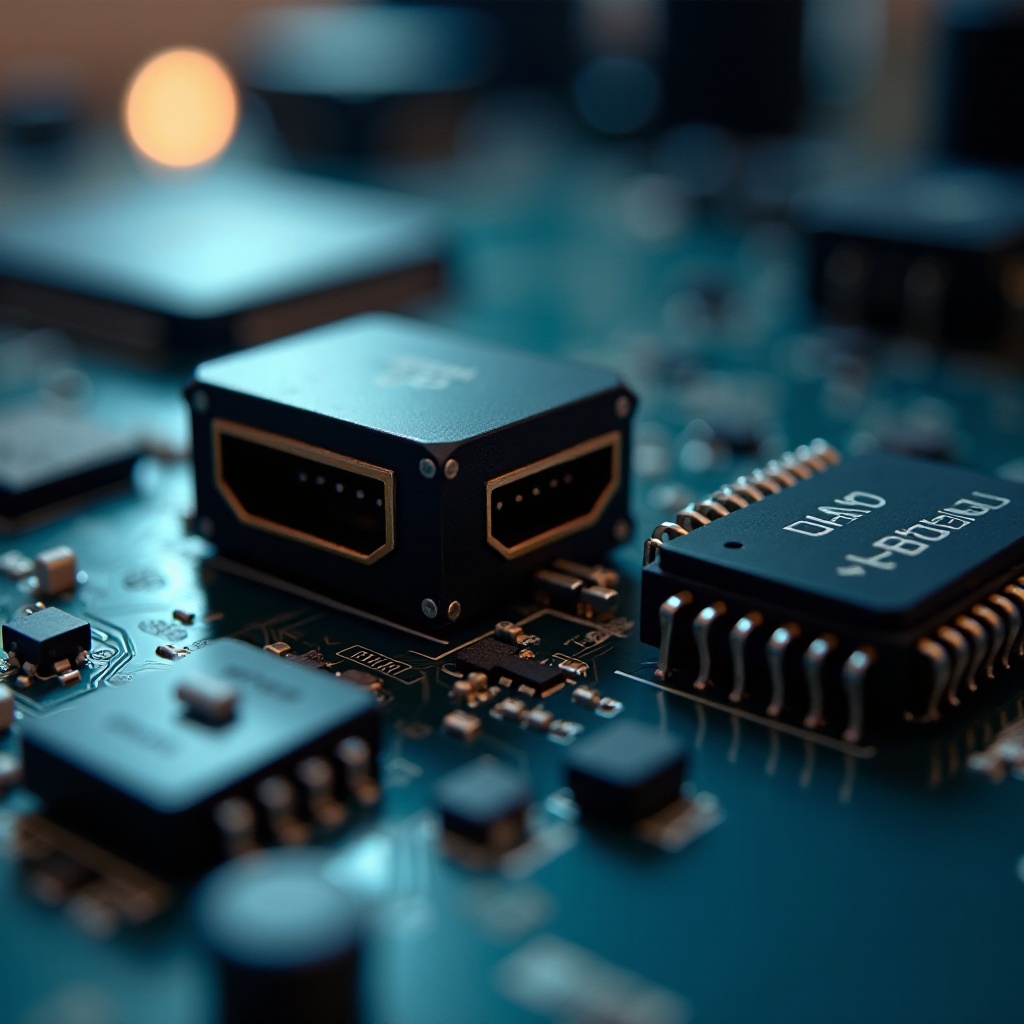
There are several common reasons why an HDMI port might not work on a motherboard:
-
Loose Connections: Physical disconnections or cable damage can impede the transmission of signals accurately.
-
Outdated or Corrupted Drivers: The performance of HDMI ports can be compromised by outdated or malfunctioning graphics drivers.
-
Incorrect BIOS Settings: If the HDMI port is wrongly configured or disabled in the BIOS, it could lead to malfunction.
Familiarity with these causes paves the way for more efficient troubleshooting through targeted solutions and adjustments in system settings.
Step-by-Step Troubleshooting Guide
When faced with a non-functional HDMI port, follow these systematic troubleshooting steps:
Checking Physical Connections
-
Inspect the HDMI Cable: Ensure secure connections between the HDMI cable, the motherboard, and the display device. Examine the cable for visible damage or wear and tear.
-
Test Different Ports and Devices: Try connecting the HDMI cable to a different device or use another cable to eliminate the possibility of faults with the cable or port.
Updating Graphics Drivers
-
Visit the Manufacturer’s Website: Navigate to the official websites of your motherboard or graphics card manufacturers to explore available driver updates.
-
Driver Installation: Download and install the latest drivers, then reboot your system to evaluate whether the HDMI port issues have been resolved.
Verifying BIOS Settings
-
Access BIOS/UEFI: Restart the computer and use the respective key (often Del, F2, or ESC) to enter BIOS/UEFI settings.
-
Enable Integrated Graphics: In the graphic settings, ensure the option for integrated graphics is activated, which might reactivate the HDMI port.
Executing these straightforward steps can often identify and solve basic connectivity and configuration issues.
Advanced Solutions for HDMI Port Issues
For persistent issues with HDMI port functionality, explore these advanced solutions:
Reseating or Replacing the Motherboard
-
Reseating: Power down your machine, carefully remove and then reseat the motherboard securely to check if the connections are firm and all components are undamaged.
-
Replacement: If the HDMI port remains inactive considering a motherboard replacement, especially if under warranty, could be necessary for substantial hardware damage.
Utilizing Professional Repair Services
- Contact a Technician: Engage a qualified technician for diagnosing and rectifying HDMI port issues. They utilize specific tools and skills ideal for handling complex hardware cases.
Professional help offers more detailed evaluations and solutions when standard troubleshooting steps prove inadequate.
Preventive Measures for HDMI Port Problems
Preventing potential HDMI port issues involves several proactive steps. Regular system driver updates ensure continued compatibility. Handle all cables gently to avoid undue wear or damage. Routine inspections of port connections help identify dust or debris obstructions that can be cleared promptly. These simple yet effective measures help to prolong the life and functionality of HDMI ports.
Conclusion
While addressing HDMI port malfunctions might initially appear daunting, understanding the requirements can significantly guide the troubleshooting process. Begin by verifying connections, drivers, and BIOS settings. If these initial steps fail, consider advanced methods or professional intervention to prevent further complications. Consistently maintaining your system and taking preventative actions is essential to avoid future issues, ensuring a smooth, ongoing operation of your setup.
Frequently Asked Questions
Why is my motherboard’s HDMI port not displaying anything?
Possible causes include a damaged HDMI cable, incorrect BIOS settings, or outdated graphics drivers. Verify connections, update drivers, and check BIOS settings.
How can I update my motherboard’s graphics drivers?
Visit the manufacturer’s website for your motherboard or graphics card, download the latest drivers, and install them to update your graphics software.
Should I replace my motherboard if the HDMI port is faulty?
Consider replacement if the troubleshooting steps fail, especially if the warranty covers your motherboard or if professional repairs are ineffective.