12 Aug 2026
Post by Aurorina
Introduction
Power loading is a BIOS option that puzzles many PC builders. You toggle it, reboot, and hope your random shutdowns stop. Or you keep it off to cut idle power and keep the system quiet. The symptoms it targets are disruptive: idle crashes, sleep failures, boot loops, and odd USB glitches.
You can make a clear decision without guesswork. This guide explains what the setting does, why some power supplies need help at very low load, and how power loading interacts with ErP, CPU C-states, and Windows sleep modes. You also get a fast decision flow, vendor menu paths, and a safe test routine. Follow the steps and choose the setting that delivers both stability and efficiency for your build.
What Is BIOS Power Loading and How It Works
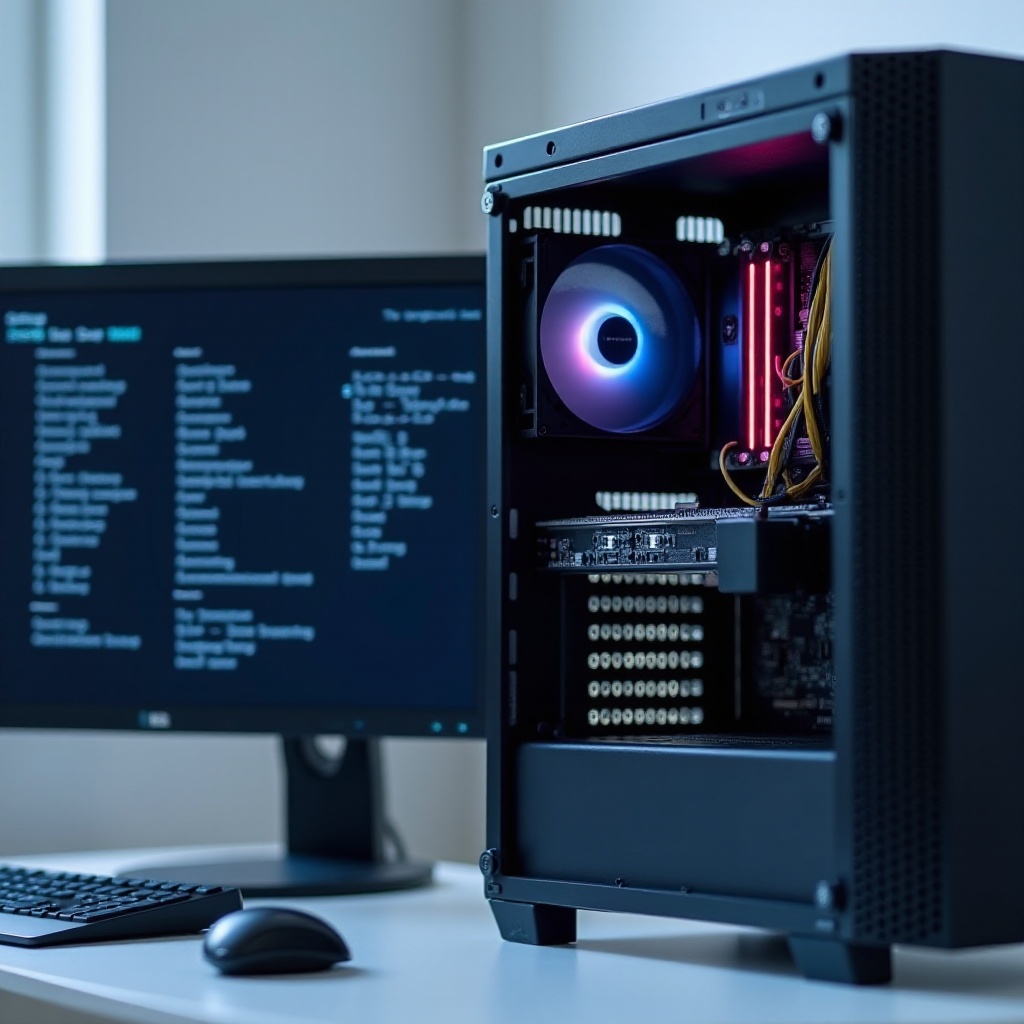
Now that you know what the article will solve, start with the basics. Power loading tells the motherboard to add a small artificial load at idle so the power supply stays in its sweet spot. Some PSUs do not regulate well at ultra-low draw. The small nudge makes voltages steadier during deep idle and sleep transitions.
Definition and purpose in modern motherboards
Motherboards include power loading to improve stability when the PC sips only a few watts. The board increases baseline current a little so the PSU holds tight regulation. The goal is simple: fewer idle crashes, fewer wake failures, and smoother low-power behavior.
Minimum-load behavior on PSU rails (12V/5V/3.3V)
Every PSU has minimum load expectations for rails like 12V, 5V, and 3.3V. Modern systems rely mostly on 12V, but deep idle can pull so little power that one or more rails fall out of ideal control. By adding a small constant draw, the motherboard lifts the system above that floor so voltage remains steady when the CPU enters deep package C-states or when devices power down.
Why some PSUs need extra idle load
Older or budget units, and some compact SFX designs, can behave poorly at single-digit watt loads. Group-regulated PSUs balance rails together and may drift when only one rail carries a tiny load. Extra baseline draw helps them hold spec. The fix often prevents idle shutdowns, erratic sleep or wake behavior, and random device dropouts.
Should You Turn Power Loading On or Off? Quick Answer and Decision Flow
With the technical picture in place, you need an action plan. Most modern builds with quality DC-to-DC PSUs do not need power loading. Leaving it off saves a few watts and may reduce coil whine. If your PC crashes only at idle and runs fine under load, enabling power loading is a safe, fast test that frequently restores stability.
TL;DR recommendation for most builds
- Use a reputable Gold or better PSU: keep power loading off unless you see idle issues.
- If you get idle crashes, sleep or wake failures, or boot loops with no load problems, enable power loading and retest.
- If enabling it fixes the problem but you want maximum efficiency, fine-tune ErP and C-states to regain low-power performance.
Fast decision tree for common scenarios
1) New, high-quality PSU and stable system: keep off.
2) New motherboard plus older PSU with idle faults: enable, test stability.
3) Small-form-factor build with ultra-low idle and sleep issues: enable first, then tune C-states and ErP.
4) Energy-saving priority and no instability: keep off; consider enabling ErP for lower standby draw.
5) Issues persist after enabling: update BIOS, check cables, and evaluate the PSU; continue with troubleshooting.
Signs you chose the right setting
- The PC idles for at least 60 minutes without shutdowns.
- Multiple successful sleep and wake cycles.
- No unexpected reboots or critical power errors in logs.
- Idle power and noise match your goals.
When to Enable Power Loading: Scenarios and Symptoms
You have a quick rule of thumb, but symptoms matter. This section bridges policy with real-world signs that point to a low-load issue that power loading can fix.
Older or group-regulated PSUs showing idle instability
Many older ATX units and low-cost PSUs struggle when the system draws only a few watts. You may see black screens while browsing, sudden resets on the desktop, or freezes when the display goes to sleep. Enabling power loading stabilizes low-load voltage behavior and often stops these issues.
Ultra-low-idle systems and S0ix or Modern Standby quirks
Office mini PCs, HTPCs, and eco-tuned desktops can idle in the single-digit watt range. When Windows uses Modern Standby, the CPU dives into deep package C-states. PSUs that dislike that tiny load may tick, squeal, or lose regulation. Power loading adds a buffer that helps those deep power states work reliably.
Mixed new motherboard with old PSU combinations
Pairing a fresh platform with a much older PSU can reveal limits the old unit never faced. Deep idle and aggressive power management expose weak regulation. If replacing the PSU is not immediate, power loading is a simple mitigation that buys stability while you plan an upgrade.
When to Leave Power Loading Off: Modern Builds and Efficiency Goals
After covering the problem cases, shift to optimization. If your system uses a high-quality PSU and shows no idle issues, enabling power loading offers little value and may add noise or watts you do not need.
DC-to-DC 80 Plus Gold, Platinum, or Titanium PSUs
Modern designs handle low loads well. They maintain stable voltage across rails without help, even in deep idle. Enabling power loading here usually raises idle draw a little and can alter coil whine character without improving stability.
Energy-saving priorities and ErP compliance
If you want the lowest possible standby and shutdown power, keep power loading off and enable ErP where appropriate. That combination often delivers excellent efficiency while keeping the system stable.
Silent or low-heat builds focused on low idle watts
Quiet PCs, media boxes, and always-on home servers benefit from minimal idle draw. Even a small extra load adds some heat and fan activity. If your system is already stable, leave power loading off and enjoy the quieter baseline.
How Power Loading Interacts with ErP, C-states, and Windows Sleep Modes
Power behavior is a system of linked settings. Once you decide on power loading, check adjacent options that influence idle and sleep.
ErP S5 versus S4 plus S5 and USB power in sleep
ErP reduces power in shutdown and some sleep states. S5 focuses on full shutdown; S4 plus S5 can also limit hibernation draw. Enabling ErP may disable USB charging while off and can change wake behavior. If you turned on power loading to stabilize idle, test ErP both on and off to balance stability with standby efficiency.
CPU package C-states, CPPC, and PCIe ASPM
Deep C-states and PCIe ASPM cut power but also drive voltages low. Weak PSUs may struggle with those extremes. If power loading is off and you see issues, disable the deepest package C-states or ASPM temporarily to test. If power loading is on and stable, re-enable power saving features to claw back efficiency, then verify again.
Windows 11 Modern Standby versus legacy S3
Some boards offer Modern Standby alongside legacy S3. Modern Standby keeps parts of the system semi-active while aiming for low power. If you face wake failures, test both sleep modes. Combine those tests with power loading on and off to find the best pairing. Always validate wake sources like keyboard, mouse, and network.
Vendor Menu Paths and Setting Names (ASUS, ASRock, MSI, Gigabyte)
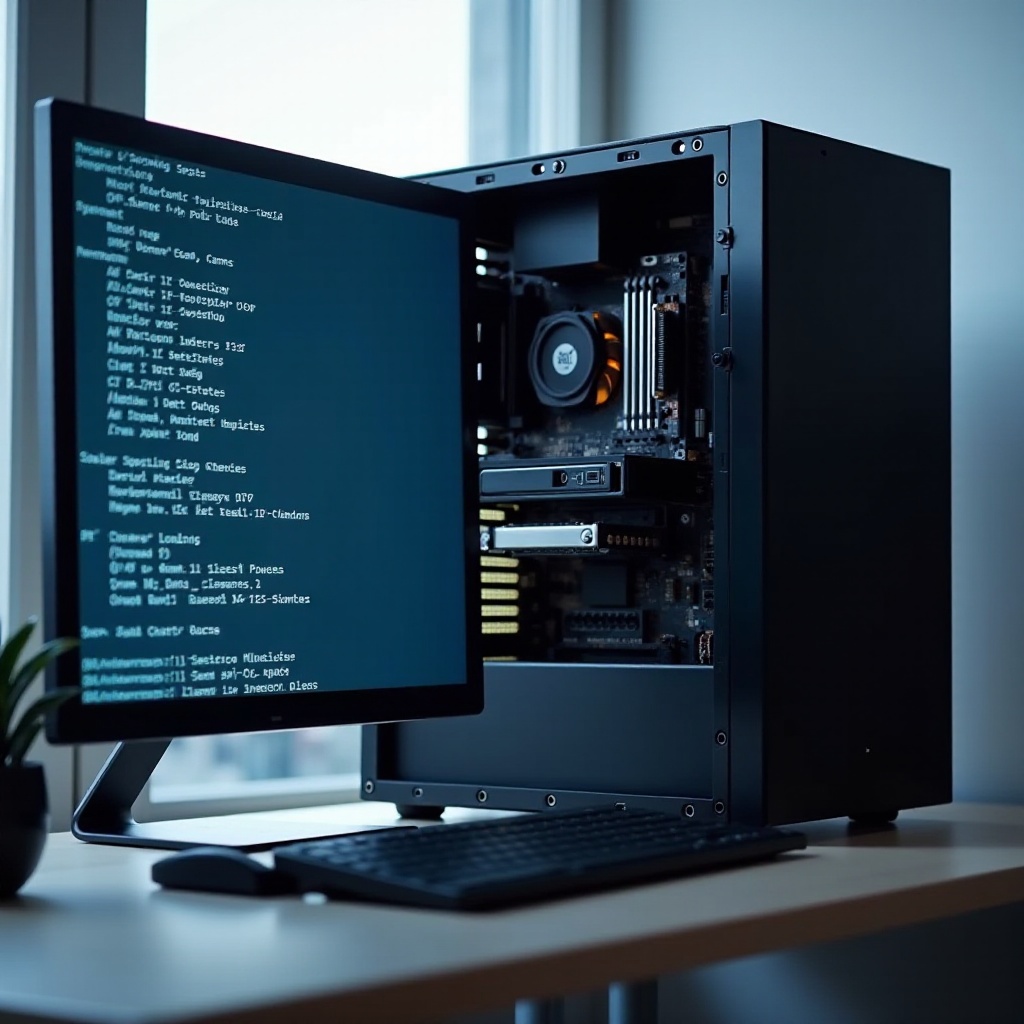
You know what to change; now locate it without hunting. Names and locations vary by vendor and BIOS version, so treat the following as guidelines.
ASUS: Advanced or AI Tweaker paths and naming
On many ASUS boards, look under Advanced sections such as Platform Misc Configuration, or in AI Tweaker power controls. Some models group power loading with power supply idle control. If your board supports BIOS search, use keywords like power loading or power supply idle.
ASRock and MSI equivalents and common labels
ASRock often places the option under Advanced, CPU Configuration, or Chipset power menus. Look for labels such as power loading or power supply idle control. MSI typically lists it under Settings, Advanced, and Power. Wording varies, so verify in your manual if you cannot find it quickly.
Gigabyte wording and alternative terms
Gigabyte may present the option in Tweaker or Advanced CPU settings. Names range from power loading to low power idle control. If you still cannot locate it, scan the PDF manual or use on-screen search if available. Always save changes and note what you toggled.
Step-by-Step Testing and Tuning Procedure
You need a clean process to judge results. A simple routine isolates variables and stops you from chasing ghosts.
Update BIOS, clear CMOS, set XMP or EXPO last
1) Update to the latest stable BIOS from your vendor.
2) Clear CMOS to remove lingering quirks.
3) Load optimized defaults.
4) Set only storage mode and boot order.
5) Avoid any overclock for now. Add XMP or EXPO after stability checks.
Idle soak, sleep or hibernate cycles, cold boots
1) Pick your initial power loading choice based on the decision flow.
2) Let the system idle at the desktop for 30 to 60 minutes without input.
3) Put the PC to sleep for 5 minutes, then wake it. Repeat three times.
4) Shut down for 10 minutes, then cold boot. Repeat once.
5) Watch for resets, long black screens, or device reconnect noises.
Compare wall-meter idle watts and event logs
- Use a wall meter to record idle watts with power loading on and off.
- Check Event Viewer for critical power errors or driver faults.
- Listen for coil whine or buzzing; small load changes can alter noise.
- Keep a simple log. Record settings and results after each run.
Use-Case Recommendations (Gaming, Workstation, SFF or HTPC, Home Server or NAS)
With a test routine ready, tailor your defaults by build type. Each profile balances stability, noise, and efficiency.
Gaming desktop with high-draw GPUs
- Default: power loading off if idle is stable.
- Enable only if you see desktop crashes or sleep issues.
- Keep deep C-states on for low idle power; validate background downloads, RGB, and peripherals after changes.
Creator or workstation stability and productivity
- Default: off, then test long idle and repeated sleep or wake during updates.
- If you use external audio or capture devices, verify USB stability. If dropouts appear at idle, enable power loading before turning off C-states.
- Aim for reliable wake so scheduled renders or backups resume correctly.
SFF or ITX HTPC and office mini PCs
- Default: on if you target ultra-low idle and plan to use Modern Standby.
- After achieving stability, try off to shave watts; keep whichever remains stable over several days.
- Validate HDMI audio, CEC adapters, and remote wake behavior.
Home server or NAS uptime and remote access
- Default: off if you never see idle faults, to minimize heat and noise.
- If the server drops off the network or fails Wake-on-LAN, enable power loading and retest.
- Confirm NIC power settings, ErP, and BIOS wake options.
Troubleshooting Matrix: If You See X, Try Y
Even with a plan, some systems push back. Use structured steps to isolate the cause.
Random shutdowns or reboots at idle
- Enable power loading and retest for at least an hour of idle and multiple sleep cycles.
- If the issue persists, disable the deepest CPU package C-states temporarily.
- Test without a UPS, try a different wall outlet, and check for loose power cables.
- Swap in a known-good PSU to confirm or rule out power supply weakness.
Sleep or wake failures, boot loops, black screens
- Enable power loading if it is off.
- Test Modern Standby and legacy S3 if the board supports both.
- Toggle ErP off for testing; once stable, turn it back on if you want lower standby draw.
- Update chipset, management engine, platform firmware, and GPU drivers.
USB dropouts, audio pops, NIC disconnects
- Enable power loading and monitor behavior at idle.
- Temporarily disable USB selective suspend in the OS; retest.
- Move devices to different ports or controllers.
- Re-enable power saving features one by one once stability returns.
Pros and Cons at a Glance
You have many levers. Summarize the trade-offs before you lock your final choice.
Stability benefits and compatibility
- Adds a safety margin at low loads.
- Fixes idle crashes and improves sleep reliability on sensitive PSUs.
- Helps mixed old-PSU and new-board builds until you upgrade.
Efficiency trade-offs and idle power draw
- Increases idle power slightly, depending on the board.
- May reduce the best possible ErP or modern standby efficiency.
- Can change low-load fan behavior and thermal baseline.
Noise and thermal considerations
- Extra load can alter coil whine pitch or intensity.
- Slightly higher idle draw adds a small amount of heat.
- Balance acoustics with reliability for your environment.
Conclusion
Power loading is a targeted fix, not a cure-all. Most modern PCs with quality PSUs run best with it off because that choice keeps idle power and noise low. If your system fails only at idle or during sleep and wake, enabling power loading is a low-risk test that often restores stability quickly.
You now know how the setting works, how it interacts with ErP, C-states, and Windows sleep modes, and where to find it in popular BIOS menus. Use the step-by-step routine to validate your choice and log results. If issues persist, follow the troubleshooting path and evaluate the PSU. Aim for a balance: a PC that sleeps, wakes, and idles reliably while staying efficient and quiet for your workload and space.
Frequently Asked Questions
Is enabling BIOS power loading safe for my components?
Yes. The setting adds a small artificial load within normal operating limits and does not overvolt parts. Monitor temperatures and noise after changes, and turn it off if you dislike the side effects.
Will power loading affect idle power draw and coil whine?
It can raise idle power slightly. The exact change depends on the motherboard and PSU. Some users also notice a shift in coil whine pitch. If you want the lowest watts, keep it off unless you need the stability.
What if turning power loading on does not fix my idle crashes?
Update BIOS and drivers, test different sleep modes, and toggle deep C-states or PCIe ASPM. Check cabling and try a different outlet without a UPS. If problems persist, swap in a known-good PSU to rule out power supply weakness.