21 Sep 2026
Post by Aurorina
Introduction
Turning a Windows PC into a hotspot is a fast way to get other devices online when your router is out of reach, a hotel limits devices, or a mobile plan runs short. Windows 11 and Windows 10 include a built‑in Mobile Hotspot feature that can share your PC’s internet connection over Wi‑Fi, Bluetooth, or Ethernet. You can use a wired Ethernet source for stability, or share a Wi‑Fi link when a cable is not available. Either way, a few settings control the name, password, and band so you can balance range and speed.
This guide explains how to use PC as hotspot with clear steps and plain language. You will start with the Settings app, then learn wired and wireless sharing methods. After that, you will customize the hotspot for performance and safety, manage connected devices, and apply best practices. If something goes wrong, use the troubleshooting playbook and advanced options to fix or automate your setup. First, let us clarify what a PC hotspot is and the situations where it delivers the most value.
What Is a PC Hotspot and When to Use It
A PC hotspot is software access point functionality that turns your Windows computer into a small Wi‑Fi router. The system takes your active internet uplink and shares it with nearby devices. Windows provides network address translation and hands out private IP addresses via Internet Connection Sharing, so your clients can browse and stream through the PC.
Use a PC hotspot when you need quick, local coverage and have a reliable uplink:
– You have a fast Ethernet wall jack in a dorm or hotel and want to bring phones and tablets online.
– A venue allows only one device on Wi‑Fi, but your PC can sign in and then share the connection.
– Your phone hotspot is blocked or throttled by a carrier and you need an alternative.
– You want a separate SSID with a unique password for guests or work devices without touching your home router.
A hotspot is not a long‑term replacement for a router. It is best for a handful of devices and short sessions. Coverage is limited to the room or nearby area, and laptop power settings can end the session if the device sleeps. If a lightweight, temporary network fits your plan, confirm that your system and policies support sharing before you flip the switch.
Requirements and Compatibility: Windows 11/10, Wi‑Fi Adapters, and Network Policies
A smooth setup starts with compatible hardware, fresh drivers, and clear policies. Check these basics before you begin:
– Windows version: Windows 11 and Windows 10 both include the Mobile Hotspot feature in Settings.
– Wi‑Fi adapter support: Most modern adapters support Wi‑Fi Direct or SoftAP. Update drivers from your PC manufacturer or the adapter vendor for best stability.
– Uplink type: Sharing Ethernet over Wi‑Fi usually works on a single adapter. Sharing Wi‑Fi over Wi‑Fi can be limited by drivers and may require a second adapter.
– Admin rights: You need administrator access to enable sharing and install or update drivers.
– Work or school policies: Managed devices may disable ICS or Mobile Hotspot. If you see greyed‑out controls or access denied messages, consult IT.
– Security tools: VPNs, endpoint firewalls, and security suites can block sharing. Be ready to pause or configure them during testing.
With these items in check, the built‑in Settings path is the fastest way to get online. The next section walks through that simple process step by step.
Method 1: How to Use PC as Hotspot from Windows Settings (Step-by-Step)
The Mobile Hotspot control in Settings is the first choice for most users because it is quick, visual, and reliable. It supports sharing an Ethernet or Wi‑Fi uplink over Wi‑Fi, Bluetooth, or Ethernet.
Open Settings > Network & Internet > Mobile Hotspot
1) Press Windows key + I to open Settings.
2) Select ‘Network & Internet’.
3) Click ‘Mobile Hotspot’.
Choose the internet connection to share (Wi‑Fi or Ethernet)
1) In ‘Mobile Hotspot’, set ‘Share my internet connection from’ to the active uplink. If you have a cable plugged in, choose ‘Ethernet’ for maximum stability.
2) If the dropdown is inactive, confirm that your PC is online and the adapter is enabled.
Share over Wi‑Fi; set network name, password, and band
1) Set ‘Share over’ to ‘Wi‑Fi’ for best speed and compatibility.
2) Click ‘Properties’ to change the ‘Network name’ (SSID) and ‘Network password’ to something unique and strong.
3) If the band control appears, pick 2.4 GHz for range or 5 GHz for speed when all clients support it.
Turn Mobile Hotspot on and verify with a second device
1) Toggle ‘Mobile Hotspot’ to On.
2) On a phone or tablet, open Wi‑Fi settings, select the SSID you set, enter the password, and connect.
3) Load a web page to confirm internet access.
This covers the most common scenario. When you have access to a wired jack, sharing Ethernet over Wi‑Fi provides even better reliability and frees your adapter to focus on broadcasting the signal.
Method 2: Share Ethernet Over Wi‑Fi from a PC
Connecting your PC to Ethernet and broadcasting over Wi‑Fi is the most stable combination. The uplink stays steady, and the Wi‑Fi radio does not juggle both upstream and hotspot duties.
Connect PC to Ethernet and enable Mobile Hotspot
- Plug an Ethernet cable from your router or a wall jack into the PC.
- Follow the steps in Method 1 to open ‘Mobile Hotspot’ and select ‘Ethernet’ as the source.
- Keep a laptop plugged into AC power to avoid sleep or performance throttling.
Optimize placement, channel, and interference
- Place the PC on a desk in the open. Avoid tucking it into cabinets or behind metal objects.
- Keep it away from microwaves, cordless phone bases, and thick walls that block signal.
- For range problems, prefer 2.4 GHz. For close devices and speed, try 5 GHz.
Once you are comfortable with Ethernet sharing, you might want to share a Wi‑Fi uplink over Wi‑Fi in places where no cable is available. That scenario requires more attention to adapter support and sometimes a second radio.
Method 3: Share Wi‑Fi Over Wi‑Fi (SoftAP) — Support and Workarounds
Sharing Wi‑Fi over the same adapter that connects to Wi‑Fi depends on driver and hardware features. Some adapters support concurrent operation, while others do not. When support is limited, a second Wi‑Fi adapter usually solves it.
Check adapter capabilities; consider a second Wi‑Fi adapter
- Open PowerShell and run: Get‑NetAdapter | Format‑Table Name, Status to confirm your adapters and states.
- Update Wi‑Fi drivers from your PC maker or the adapter vendor. Driver improvements often re‑enable hotspot features.
- If the hotspot will not start or clients fail to get internet, plug in a low‑cost USB Wi‑Fi adapter and dedicate it to hosting.
Use ICS with separate adapters for uplink and hotspot
- Connect to the internet with Adapter A (Wi‑Fi or Ethernet).
- Use Adapter B (USB Wi‑Fi) to broadcast the hotspot SSID.
- Enable ‘Mobile Hotspot’ and select the correct source so Windows binds ICS to the hosted network.
Use a travel router if Wi‑Fi‑to‑Wi‑Fi is restricted
- Some public and enterprise networks block sharing or use captive portals that do not pass through to clients.
- A travel router can handle captive portals, clone MAC addresses, and manage bridging more reliably than a PC.
- This approach offloads routing and increases device capacity when Windows limitations get in the way.
If wireless airwaves are crowded or you only need to connect one nearby device, Bluetooth or a direct Ethernet link can fill the gap.
Method 4: Share Internet Over Bluetooth or Ethernet (Tethering Alternatives)
Alternative shares are useful when Wi‑Fi is congested, the client does not have Wi‑Fi, or you want a simple wired link.
Enable Bluetooth tethering from Settings
- Open ‘Settings’ > ‘Network & Internet’ > ‘Mobile Hotspot’.
- Set ‘Share over’ to ‘Bluetooth’. Pair your phone, tablet, or another PC.
- Expect low bandwidth suitable for messaging, light email, and simple browsing. Performance is often under a few megabits per second.
Share internet over Ethernet to another device
- Run a standard Ethernet cable from your PC to another PC or a device with an Ethernet port.
- Enable sharing in ‘Mobile Hotspot’ or through ICS. This method provides stable, low‑latency throughput.
With your hotspot live, you will get better results by tuning its identity and behavior so clients can connect quickly and your data stays protected.
Customize Your Hotspot: SSID, Password, Band, and Metered Options
Small changes to the broadcast name, key strength, and band selection make a big difference in user experience and security.
Change network name (SSID) and password
- Pick a clear SSID that you and your guests can recognize, such as ‘Office‑Hotspot‑PC’.
- Set a strong, unique password of at least 12 characters with a mix of letters, numbers, and symbols.
- Avoid personal info, reused credentials, and default names that attract attention.
Choose 2.4 GHz vs 5 GHz and channel considerations
- Use 2.4 GHz when you need maximum range through walls and floors, especially for older devices.
- Use 5 GHz for higher speeds at short range when all clients support it.
- If clients disconnect or show weak signal, switch bands and test again. Relocate the PC to reduce interference.
Toggle power saving and metered connection
- In ‘Settings’ > ‘System’ > ‘Power’, prevent sleep while plugged in so the hotspot does not drop.
- Mark your uplink as metered if you pay by the gigabyte. This encourages Windows and apps to use less data.
After basic customization, connecting phones and laptops should take only a few taps. Managing who connects keeps performance consistent.
Connect and Manage Client Devices (Phones, Tablets, Other PCs)
Connecting devices is simple when your SSID is visible and the key is correct. Limit the number of clients to maintain speed and stability.
Connect Android and iOS devices to your PC hotspot
- On Android: open Settings > Network & Internet > Wi‑Fi, select the SSID, enter the password, and connect. Confirm the Wi‑Fi icon appears.
- On iPhone: open Settings > Wi‑Fi, tap your SSID, enter the password, and connect. Load a page to verify.
- On another Windows PC: click the Wi‑Fi icon on the taskbar, pick your SSID, and connect with the password.
View connected devices; block or allow devices
- In ‘Mobile Hotspot’ settings, review the list of connected devices and their MAC addresses.
- Remove or block unknown devices using your security suite when available.
- Keep the device count low for better throughput and lower CPU load on the host PC.
With clients joining smoothly, secure the hotspot to protect your traffic and reduce the chance of misuse.
Security Best Practices: WPA2/3, Password Hygiene, and Isolation
A hotspot opens a door to your network environment. Guard it with encryption, smart passwords, and sensible limits.
Use strong passwords and WPA2/WPA3 encryption
- Windows negotiates WPA2 by default and may use WPA3 when both sides support it.
- Set a long, random passphrase and rotate it after guests leave.
Avoid sharing from open or captive networks
- Clients may fail to get internet when the uplink uses a captive portal that requires a browser sign‑in.
- If you must share from public Wi‑Fi, use a trusted VPN on client devices and limit sensitive tasks.
Keep Windows and drivers updated; limit device count
- Install Windows updates and driver updates to patch security issues.
- Connect only trusted devices, and turn off the hotspot when not in use.
With security handled, you can focus on speed and stability so calls, downloads, and streams perform well.
Performance and Power Tips: Speed, Range, and Battery
Throughput and range depend on radio conditions and power settings. A few simple tweaks keep performance steady.
Reduce interference and choose the less congested band
- Move the PC away from sources of interference and large metal objects.
- Try 5 GHz for short‑range speed, and 2.4 GHz for longer reach. Test both if performance is inconsistent.
Keep laptops plugged in; adjust power settings
- Run on AC power when hosting. Sleep or low‑power modes can disrupt the hotspot.
- In Power settings, set the system to never sleep while plugged in.
Consider a USB Wi‑Fi dongle for a dedicated radio
- A second adapter lets one radio handle the uplink while the other hosts the hotspot.
- This often improves stability and allows more clients without drops.
If problems arise despite these steps, a structured troubleshooting plan helps you isolate the cause and get back online.
Troubleshooting: Fix Common Mobile Hotspot Errors
When the hotspot refuses to start, clients cannot get an IP, or they show ‘connected, no internet’, work through these checks from simple to advanced.
Verify adapter drivers and Wi‑Fi Direct/Hosted Network support
- Update Wi‑Fi drivers from your PC manufacturer or the adapter vendor.
- Open Command Prompt as admin and run: netsh wlan show drivers. Confirm that hosted network or Wi‑Fi Direct capabilities are present. If they are missing, add a modern USB Wi‑Fi adapter.
Restart ICS, WLAN AutoConfig, and required services
- Press the Windows key, type ‘Services’, and open it.
- Restart ‘Internet Connection Sharing (ICS)’ and ‘WLAN AutoConfig’.
- Toggle ‘Mobile Hotspot’ off and on to rebind services.
Reset network settings; test without VPNs and firewalls
- Go to Settings > Network & Internet > Advanced network settings > Network reset. Reboot when prompted.
- Disable VPN clients and third‑party firewalls temporarily, then test the hotspot. Re‑enable protection after testing.
Resolve ‘Connected, no Internet’ on client devices
- Confirm that the host PC has working internet access.
- On the client, forget the SSID and reconnect with the password.
- On the PC, disable and re‑enable the uplink adapter, then retest.
Use netsh commands and Event Viewer for diagnostics
- Run ipconfig /all to confirm the hosted adapter has a 192.168.x.x address and that clients receive DHCP leases.
- Check Event Viewer > Windows Logs > System for entries from NetworkSharing and WLAN services that point to the failure.
- If issues persist, consider using a second Wi‑Fi adapter or the command line and ICS approaches in the next section.
If you want more control, scripting, or reliability with multiple adapters, the advanced methods below provide deeper configuration options.
Advanced Options: ICS, Command Line, and Secondary Adapters
Power users can go beyond the Settings app to configure sharing with classic Control Panel tools, the command line, and automation.
Enable Internet Connection Sharing from adapter properties
- Open Control Panel > Network and Internet > Network Connections.
- Right‑click the internet adapter, choose ‘Properties’, and open the ‘Sharing’ tab.
- Check ‘Allow other network users to connect through this computer’s internet connection’ and choose the hosted network adapter. This binds ICS to your hotspot.
Create and manage a SoftAP with netsh
- Open Command Prompt as admin.
- Configure the hotspot: netsh wlan set hostednetwork mode=allow ssid=MyHotspot key=StrongPass123
- Start it: netsh wlan start hostednetwork
- Use ICS to share your internet adapter to the hosted adapter. Note that some modern drivers prefer Wi‑Fi Direct, so results can vary.
Automate hotspot with PowerShell and Task Scheduler
- Script enabling or disabling ICS and toggling ‘Mobile Hotspot’ with PowerShell.
- Use Task Scheduler triggers such as on AC power, at user logon, or when a specific adapter connects.
- Log script results to a file so you can quickly review changes and debug.
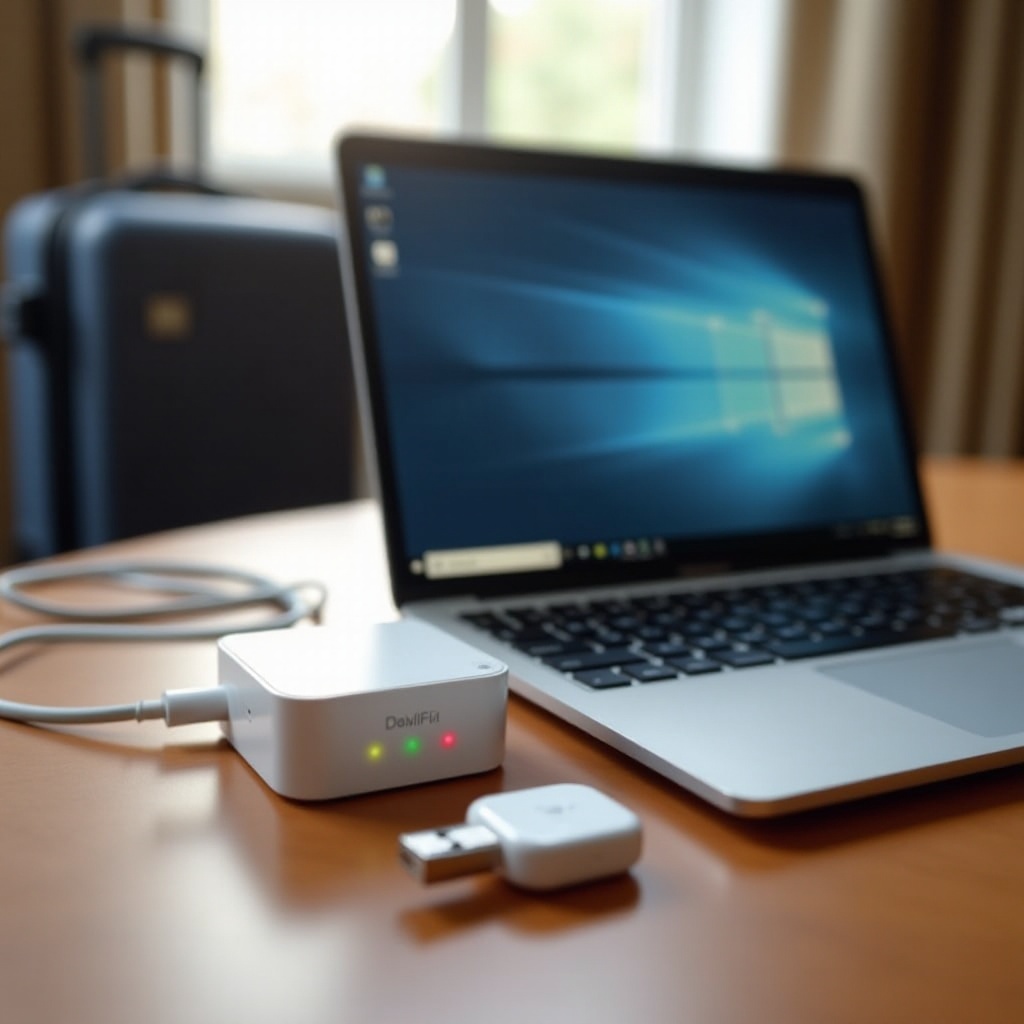
When you need even more coverage, longer uptime, or enterprise‑friendly features, dedicated hardware is often the simplest path.
When to Use a Travel Router or USB Wi‑Fi Adapter Instead
A travel router or an extra USB Wi‑Fi adapter can leap past software limits and deliver stronger signals and more capacity.
Improve coverage, stability, and device capacity
- Travel routers broadcast at higher power than a laptop and handle more clients without taxing your PC.
- They can run 24/7 without sleep interruptions and often include features like dual‑band radios and guest networks.
Bypass OS limitations and enterprise restrictions
- Some networks block ICS or depend on captive portals that break client internet access.
- Travel routers can clone MAC addresses, authenticate once, and keep all your devices online behind the router.
- If your Windows hotspot keeps failing or you need more than a handful of clients, dedicated hardware is often faster to set up and more reliable.
Conclusion
You can turn a Windows PC into a secure hotspot in minutes using the built‑in Mobile Hotspot feature. Start with the Settings method for quick success, choose Ethernet as the source when possible, and set a strong password and clear SSID. Fine‑tune the band and power options to fit your space and devices. Keep drivers and Windows up to date, and limit connected devices for better speed and safety. When problems pop up, follow the troubleshooting steps to verify drivers, restart services, and reset network settings. If you need more control or automation, use ICS and netsh, or add a second Wi‑Fi adapter. For maximum coverage and reliability, consider a compact travel router. With the right approach, you can share your connection confidently and keep everyone online without a dedicated router.
Frequently Asked Questions
Why cannot my Windows Mobile Hotspot share a Wi‑Fi connection?
Many adapters cannot connect to Wi‑Fi and host a hotspot on the same radio at once. Update the Wi‑Fi driver from your PC or adapter vendor. If it still fails, add a USB Wi‑Fi adapter and dedicate it to hosting. Managed work or school devices may also block sharing, so check with IT if options are greyed out.
How many devices can connect to a Windows PC hotspot?
Windows supports several clients, but real‑world limits tend to be 4 to 8 devices. Each device adds overhead and reduces speed, especially on a single‑band adapter. For best performance, connect only what you need. Use 5 GHz for nearby devices. If you must support more clients, use a travel router.
Is it safe to use my PC as a hotspot on public Wi‑Fi?
It can be safe with precautions. Set a strong, unique password, keep Windows and drivers updated, and limit connected devices. Avoid sharing from open or captive networks when possible. If you must, use a trusted VPN on client devices to encrypt traffic, and turn the hotspot off when done.