8 Jul 2026
Post by Aurorina
Introduction
The release of iPadOS 15 introduced a slew of multitasking features designed to help users maximize productivity by facilitating the use of multiple applications simultaneously. However, this increase in functionality can sometimes result in a cluttered interface, especially for those who prefer a streamlined, distraction-free environment. In this guide, we’ll explore how you can disable multitasking features on your iPad running iOS 15 to ensure a more focused user experience. We will also delve into the benefits and potential downsides of turning off multitasking, offering alternatives for maintaining productivity without sacrificing the flexibility iPadOS 15 is known for.

Understanding Multitasking on iPadOS 15
Multitasking features available on iPadOS 15, such as Slide Over, Split View, and the App Switcher, provide users with diverse ways to enhance their operational efficiency. Slide Over allows a quick glance at a secondary app without closing the primary one, while Split View enables parallel functioning of two apps side by side. Meanwhile, the App Switcher presents all open applications at a glance, enabling seamless navigation.
Yet, despite these benefits, some users find this multitasking array contributes to visual clutter, leading to unintentional gestures or app closures that disrupt workflow and concentration. It’s essential to understand these functionalities to make an informed decision about whether to disable them.
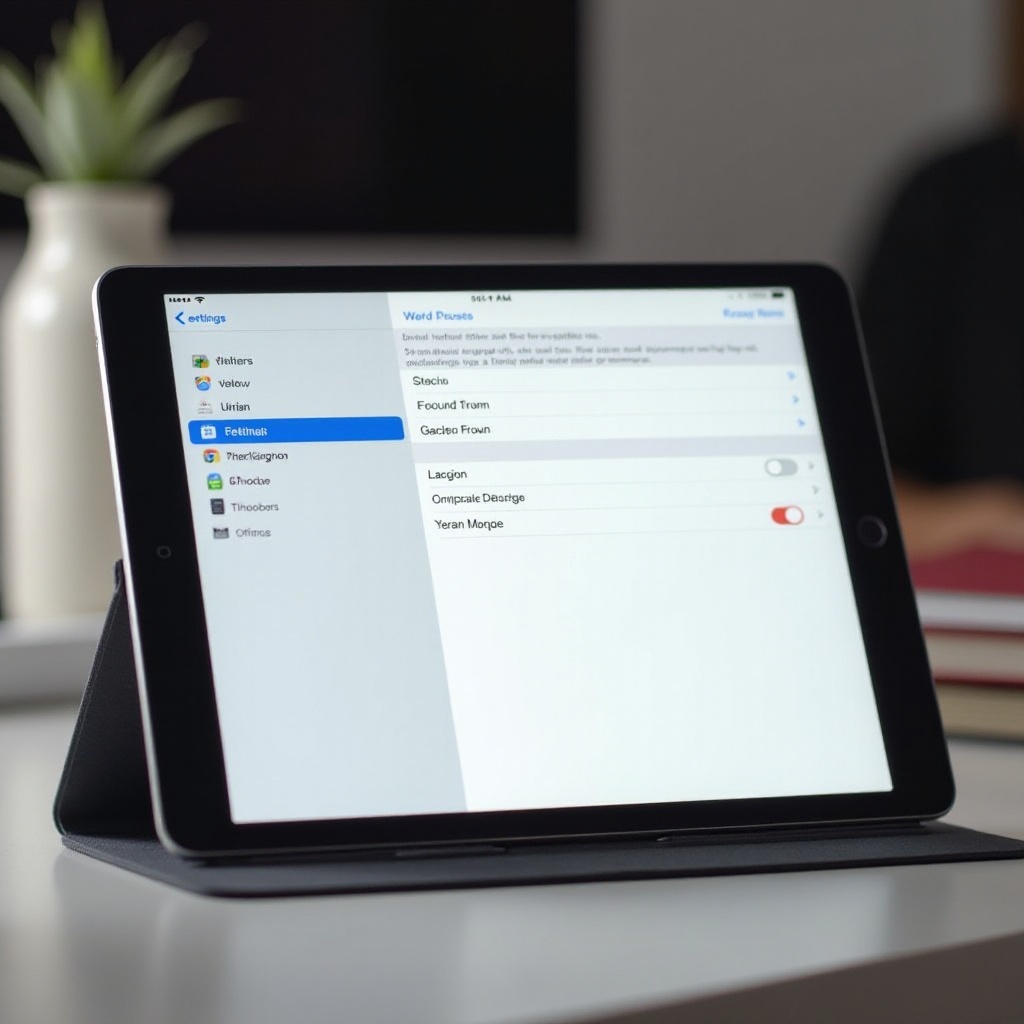
Steps to Disable Multitasking on iOS 15
Opting to disable multitasking can lead to a cleaner interface, thereby enhancing focus. Here’s the process to turn off multitasking features on iPadOS 15:
Accessing the Settings App
- Begin by locating the ‘Settings’ app, prominently marked by a gear icon, on your iPad’s home screen.
Navigating to Home Screen & Dock Settings
- In the Settings menu, scroll to and tap on ‘Home Screen & Dock’.
- This section includes various configuration options related to your iPad’s home screen and dock functionalities.
Turning Off Multitasking Options
- Within the Home Screen & Dock settings, select ‘Multitasking’.
- Several toggles will be presented:
- Allow Multiple Apps: Switch this off to disable Slide Over or Split View.
- Picture in Picture: Toggle this off to prevent videos from playing in Picture in Picture mode.
- Gestures: Switch off gesture-based multitasking controls for a simplified interface.
By disabling these options, your interface will be streamlined, focusing on single app usage, thereby reducing unintentional multitasking activations.
Pros and Cons of Disabling Multitasking
Before deciding to turn off multitasking, weigh both the prospective benefits and drawbacks.
Advantages of a Distraction-Free Environment
- Enhanced Focus: Minimizes pop-ups and new app screens, helping maintain concentration on one task.
- Streamlined Interface: Working with one app at a time simplifies task management.
- Reduced Gesture Conflicts: Less likelihood of mistakenly switching apps or disturbing workflow.
Potential Drawbacks to Consider
- Diminished Versatility: May lose the efficiency of using two apps at once.
- Reduced Fluidity: Task transitions might feel less smooth without multitasking.
- Adjustment Period: Adapting to single-task focus can take some time.
Alternatives to Enhance Focus Without Disabling Multitasking
If turning off multitasking seems too limiting, consider these options to maintain clarity without sacrificing the multitasking capabilities:
Using Focus Mode
Focus Mode permits customization of notifications during different scenarios such as ‘Work’ or ‘Study’, allowing only specific notifications to keep your attention undisturbed.
Managing Notifications Effectively
Selectively control which applications are allowed to send notifications. Head to Settings > Notifications to adjust these settings in alignment with focus preferences. This approach curbs distractions without limiting app functionalities.
Troubleshooting Common Issues
Encounter issues like unsuccessful disabling of features or app crashes? Try these troubleshooting methods:
- Restart Your iPad: Often resolves minor, transient glitches.
- Update iOS: Ensure you have the latest iOS version, which can preempt or remedy bugs.
- Reset Settings: Remarkably effective for resolving configuration-related issues, although it leaves personal data intact.
How to Re-Enable Multitasking Features if Needed
To reinstate multitasking:
- Open ‘Settings’ and return to ‘Home Screen & Dock’.
- Tap on ‘Multitasking’ and restore any previously disabled features by switching them back on.
- Features like Split View and Slide Over will immediately become available.
Conclusion
Deciding to manage multitasking settings on iOS 15 allows for customization of your iPad experience to suit particular productivity requirements. While disabling these features can yield a more concentrated environment, it’s crucial to weigh it against the convenience multitasking might add to your workflow. Ultimately, the choice rests on personal preferences and how they align with your individual usage patterns and goals.
Frequently Asked Questions
Can I selectively disable certain multitasking features on iOS 15?
Yes, you can selectively disable features such as Slide Over, Split View, and Picture in Picture through the multitasking settings in the ‘Home Screen & Dock’ menu.
Will turning off multitasking improve my iPad’s battery life?
Disabling multitasking might marginally extend battery life due to reduced background activity and screen usage, but the difference will likely be minimal for most users.
How does iOS 15 multitasking differ from previous versions?
iOS 15 refines multitasking with an easier app switcher interface and more intuitive controls, enhancing the ease of operating multiple apps compared to earlier iPadOS versions.