8 Jun 2026
Post by Aurorina
Introduction
For MacBook Pro users seeking to expand their storage capacity, external solid-state drives (SSDs) offer a compelling solution. These drives not only boost storage but also enhance the overall performance of your device with their impressive speed and reliability. Whether you’re dealing with large multimedia projects or need more space for personal files, an external SSD can streamline your workflow. This guide explores the important factors to consider when selecting an external SSD for your MacBook Pro, alongside recommendations, setup guidance, and maintenance tips to optimize your storage solution.
Why Opt for an External SSD for Your MacBook Pro?
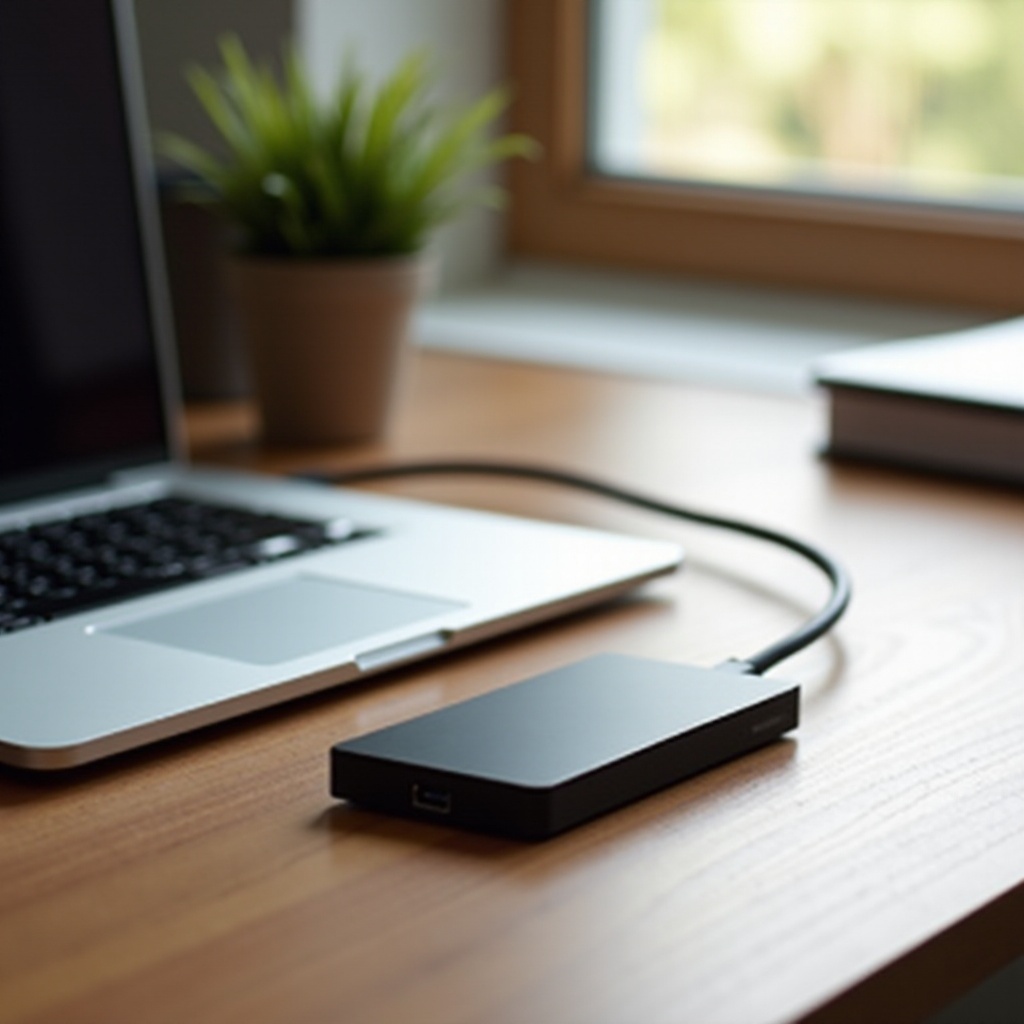
Choosing an external SSD for your MacBook Pro brings significant advantages that make them an irresistible choice. The primary benefit is their speed. SSDs can read and write data much faster than traditional hard drives, which can result in quicker file transfers and more seamless execution of complex tasks. This speed boost is invaluable for users working with high-definition video editing, graphic designs, or others who require consistent and reliable performance. Additionally, the portability and compact design of SSDs make them convenient for users who are constantly on the move. Built without moving parts, SSDs are less susceptible to physical damage, enhancing data security during travel.
Beyond speed and portability, SSDs are known for their durability. These drives can handle more physical stress and are less prone to mechanical failure, offering more peace of mind for your data’s safety. Moreover, their quieter operation, thanks to the absence of moving parts, makes them an attractive choice for a silent workspace.
Key Features to Look for in an External SSD
When selecting an external SSD for your device, consider several critical features to ensure it meets your needs.
-
Compatibility with MacBook Pro: Select SSDs pre-formatted for macOS or those offering software to optimize compatibility. Ensuring direct compatibility simplifies the setup process and enhances reliability.
-
Storage Capacity Options: Whether you require extensive storage for high-definition video or modest space for daily tasks, SSDs offer a range of capacities from 250GB up to 4TB. Tailor your choice based on current needs and future growth potential.
-
Connection Interfaces (USB-C, Thunderbolt): Modern MacBooks often utilize USB-C or Thunderbolt ports. Opt for SSDs with these connections to maximize data transfer rates and performance efficiency while minimizing clutter from adapters.
By weighing these factors, you can pinpoint an SSD solution that effectively integrates with your MacBook Pro, ensuring it supports all your data demands.
Top External SSD Drives for MacBook Pro in 2024
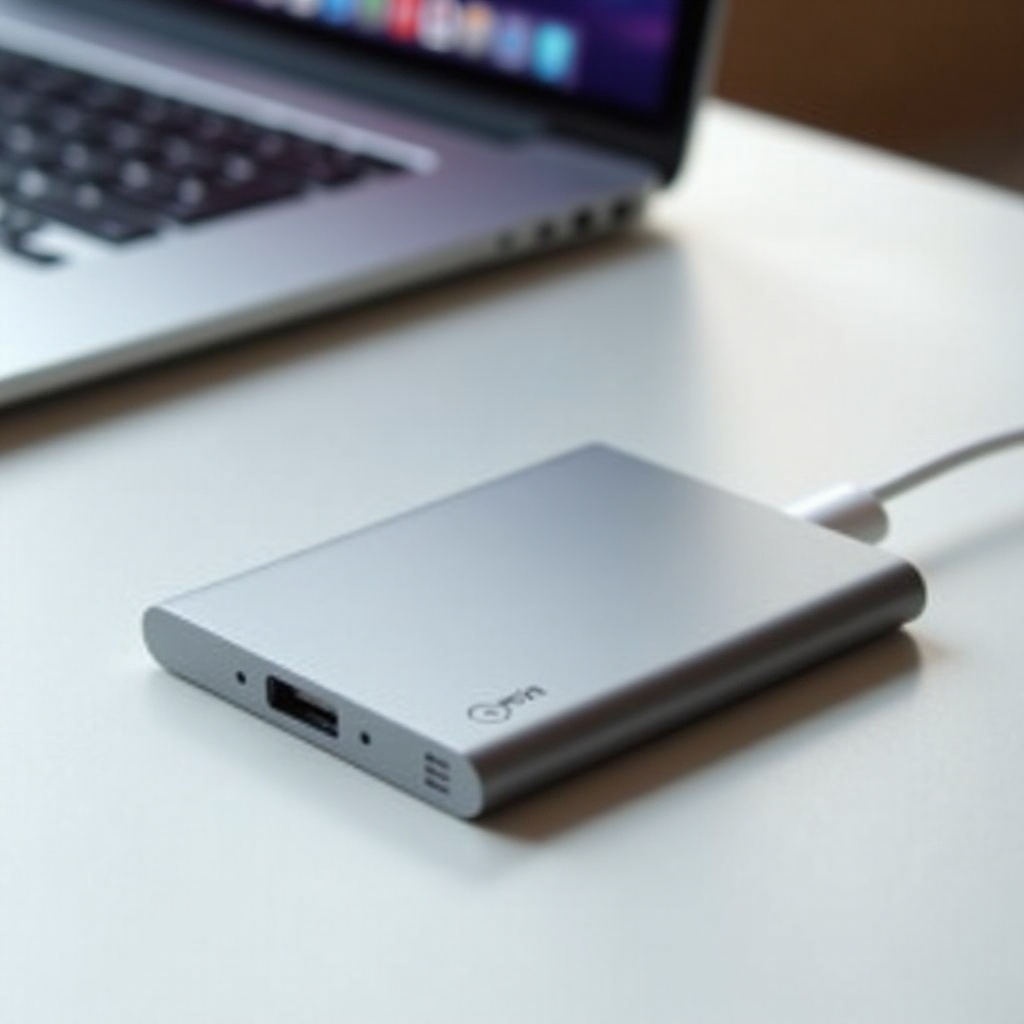
Several SSDs stand out in the crowded market, known for their performance and reliability:
-
Samsung T7 Touch: This SSD combines rapid speeds with enhanced security, featuring a built-in fingerprint sensor. Its compact size, robust durability, and 1050 MB/s read and write capabilities make it a top choice for users valuing both security and performance.
-
SanDisk Extreme Pro V2: Built for durability, this SSD is ideal for harsh environments, offering up to 2000 MB/s data rates through USB 3.2 Gen 2 interfaces. Its water and dust resistance make it a favorite among photographers and filmmakers.
-
Western Digital My Passport SSD: This model emphasizes style and security, delivering speeds up to 1050 MB/s, with flexible compatibility across USB-C and USB-A interfaces. Its sleek design and hardware encryption offer both aesthetic appeal and data protection.
Each of these SSDs presents unique advantages, catering to varied user requirements. Consider your specific needs, from speed to security, to select the drive that best meets your expectations.
How to Set Up and Use Your External SSD with a MacBook Pro
Installing and configuring your external SSD to work seamlessly with your MacBook Pro is straightforward:
- Installation and Format Guide:
- Connect your SSD using the provided cable.
- Open ‘Disk Utility’ on your Mac, and select the SSD from the left-hand menu.
-
Choose ‘Erase,’ then select ‘APFS’ as the format, naming the SSD before finalizing the erasure.
-
Data Transfer Best Practices:
- Use ‘Finder’ to manage file transfers, ensuring organized data management.
- Implement Time Machine for regular, consistent backups, safeguarding against data loss.
- Group files into easily navigable folders for efficient access and management.
This diligence in setup and usage ensures the SSD not only integrates smoothly with your MacBook Pro but also performs optimally, improving productivity and device performance.
Maintaining and Optimizing Your External SSD
Proper maintenance of your SSD is key to extending its lifespan and ensuring consistent performance:
-
Care Tips for Longevity: Protect your investment by avoiding exposure to extreme temperatures, moisture, and physical shocks. Always eject the SSD properly via your MacBook Pro to prevent data corruption.
-
Managing Storage Effectively: Regularly clean unnecessary files and ensure proper organization to maintain efficiency. Though less necessary with SSDs, defragmentation can sometimes benefit in optimizing the drive’s performance.
By following these best practices, your SSD will remain a reliable storage solution, capable of handling your evolving data storage needs for years.
Conclusion
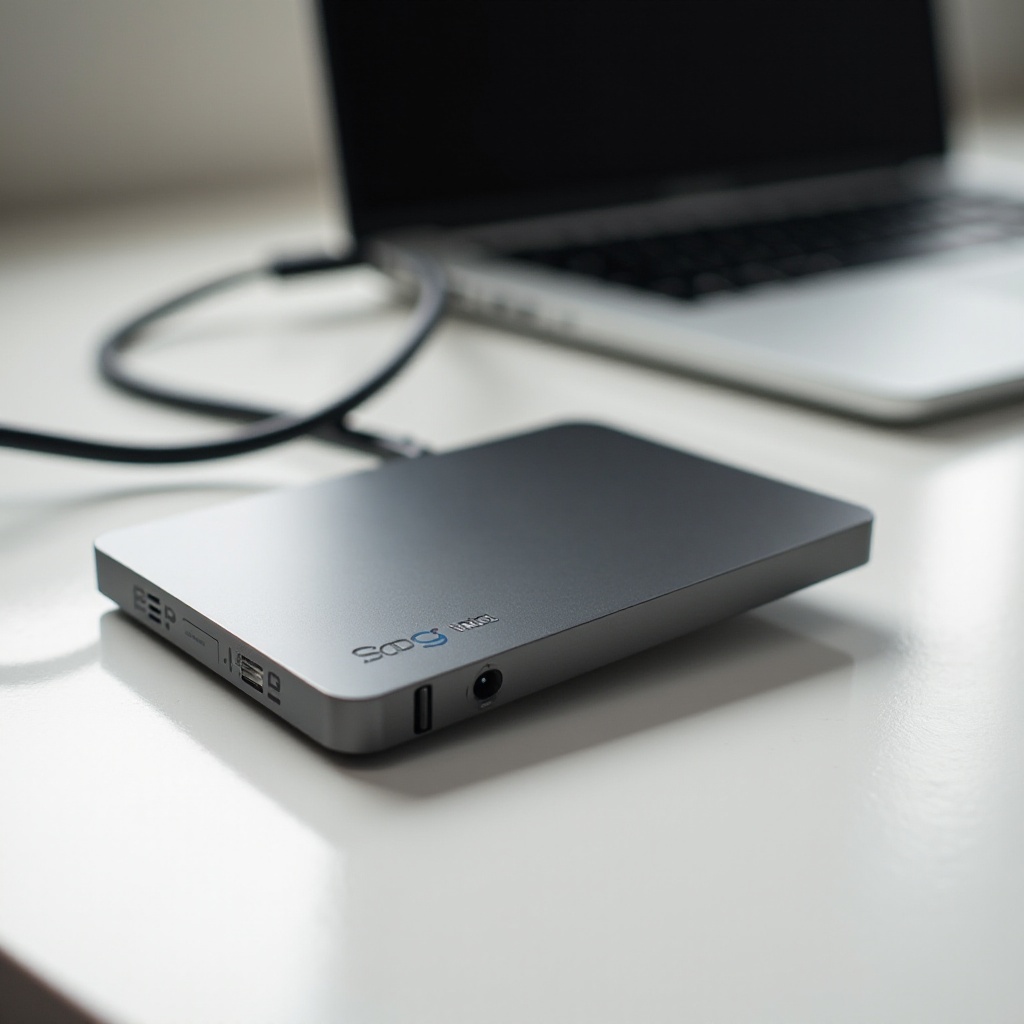
An external SSD drive represents a worthy investment for MacBook Pro users, enhancing storage without hindering performance. By carefully selecting an SSD that fits your particular needs and properly setting it up, you unleash your MacBook Pro’s full potential, maximizing efficiency and storage prowess. Consider your choices wisely, utilizing the information provided here to make an informed decision that will serve your computing needs today and in the future.
Frequently Asked Questions
What is the average lifespan of an external SSD?
Typically, an SSD lasts between 5 to 10 years, depending on usage and care.
Can I use the same SSD with multiple devices?
Yes, just ensure it’s formatted in a universally compatible format or use it with systems that support its existing format.
How do I ensure my data is safe on an external SSD?
Regular backups, using encryption, and safely ejecting the SSD can prevent data loss and corruption.