6 Oct 2026
Post by Aurorina
Introduction
You want your full PC library in your pocket, and you can make it happen. This guide explains how to play PC games on Android using clear, proven methods. You will set up Steam Link for quick local streaming, Moonlight with Sunshine for top quality and control, and cloud services for play without a gaming PC. You will also tune your network, pick the right controller, and fix common issues. Each step uses simple actions with concrete tips so you can jump in fast and get smooth, sharp gameplay.
We will start with the basics you need on your phone, PC, and network. That foundation makes every method more reliable. After that, you will compare the main ways to play and follow step-by-step setups for each. You will end with performance tweaks, troubleshooting, and safety tips. Let us begin with the essentials you should check before you stream.
What You Need Before You Start
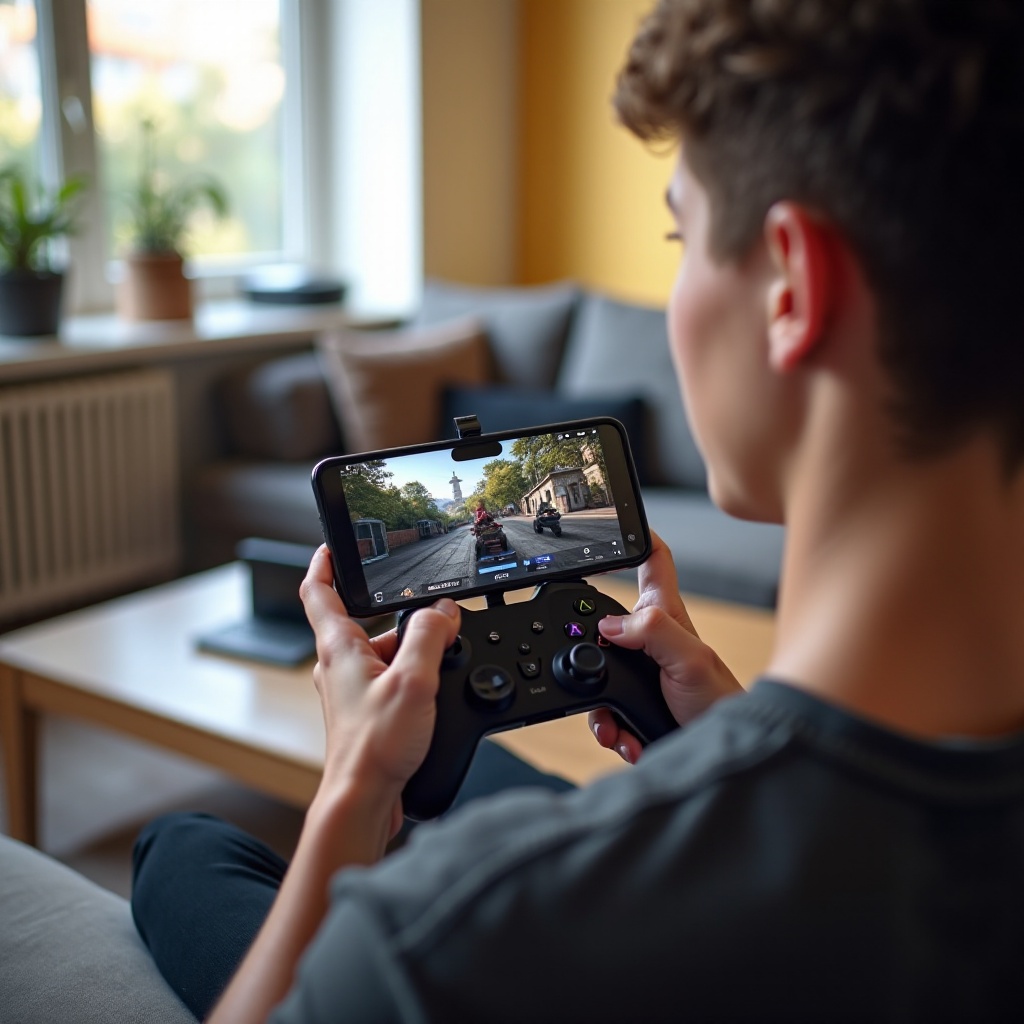
A short checklist saves hours of trial and error. A compatible Android phone, a ready PC, and a strong network do most of the work. If you get these right, Steam Link and Moonlight will feel responsive, and cloud gaming will look clean even on busy home Wi‑Fi. Once this base is set, you can choose the method that suits your budget and needs.
Compatible Android Phone and Display Features
Your phone is your handheld screen and controller, so pick features that help gaming.
– Android 11 or newer and 4 GB RAM or more deliver stable app performance.
– A 1080p or higher display helps with small UI text and detailed scenes.
– A 90 or 120 Hz screen improves motion clarity in fast games.
– A large battery and good thermal design extend long sessions and reduce throttling.
– If you plan to connect a USB‑C controller, confirm your port supports data and charge passthrough.
Gaming PC and OS Requirements
Local streaming leans on your PC for rendering and encoding.
– Use a Windows or Linux PC with a modern GPU that supports hardware encoding.
– NVENC on NVIDIA, AMF on AMD, and Quick Sync on Intel offer smoother, lower latency video.
– Update GPU drivers and install the latest Steam and Sunshine if you choose that route.
– Set a high performance power plan to avoid sudden downclocks during heavy scenes.
Network Checklist: Wi‑Fi 6 or 6E, Ethernet, and 5G Readiness
The network is where most problems start and end.
– Wire your PC to the router with Ethernet when possible to cut packet loss.
– Use 5 GHz or 6 GHz Wi‑Fi on your phone rather than 2.4 GHz.
– Keep the router near your play area with minimal walls between it and the phone.
– For remote play, confirm at least 10 to 25 Mbps upload speed from home.
– On the go, a strong 5G or LTE signal works, but watch your data plan.
With the hardware and network ready, it is time to pick your path. The next section compares the three main ways to play PC games on Android and explains when each one makes sense.
The Main Ways to Play PC Games on Android
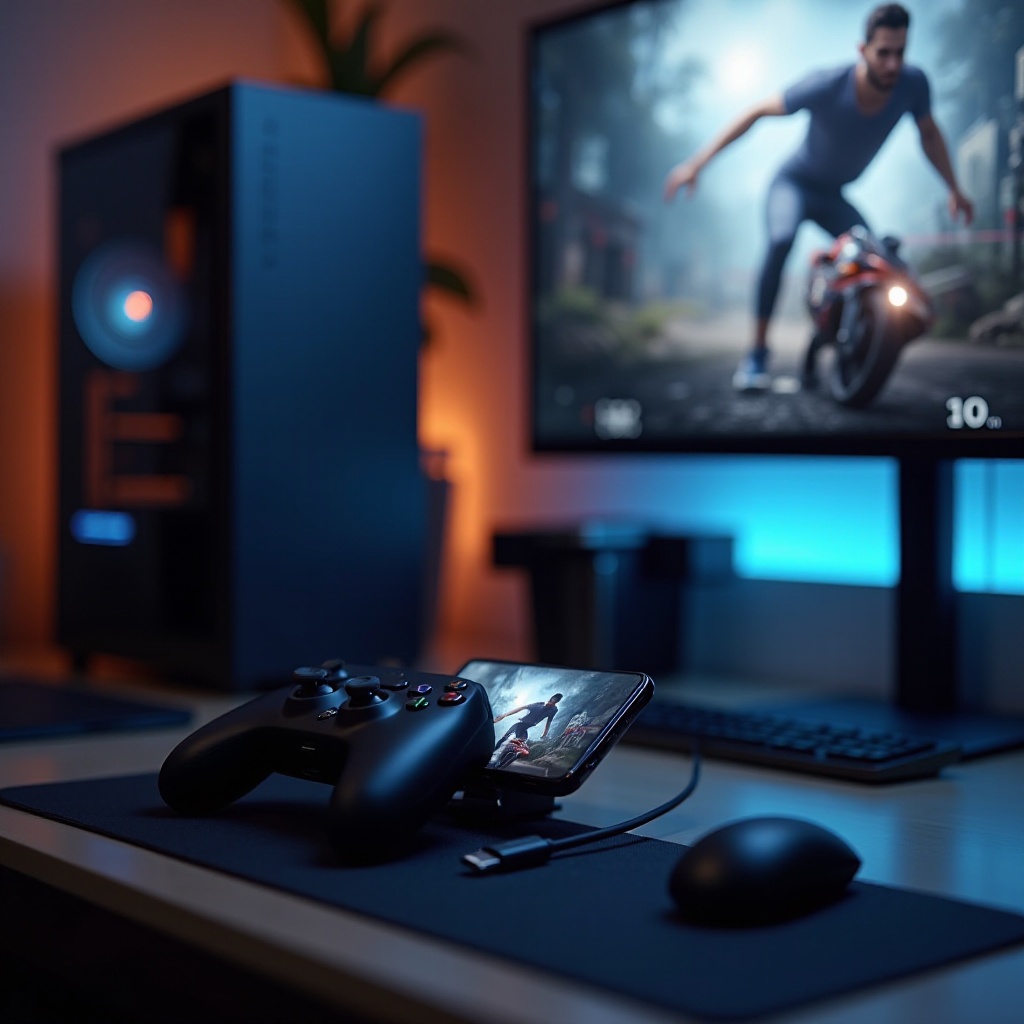
You have three reliable options, each with clear benefits. Steam Link is the fastest start for Steam users on a home network. Moonlight with Sunshine delivers the best quality and control, plus support for NVIDIA, AMD, and Intel GPUs. Cloud gaming lets you play without a gaming PC and works well when you travel. Use this quick guide to choose the method that fits your situation, then move into the setup steps.
Steam Link for Local Streaming
Steam Link streams your Steam library from your PC to your phone over your local network.
– Simple, free, and integrated with Steam Input.
– Good for quick sessions and couch play.
– Easy to pair and tune with minimal settings.
Moonlight and Sunshine for Maximum Control and Quality
Moonlight is a client app for Android, and Sunshine is the open host for your PC.
– Works with NVIDIA, AMD, and Intel GPUs via hardware encoders.
– Offers deep control over bitrate, resolution, codec, HDR, and frame rate.
– Can achieve 120 FPS and AV1 on supported hardware for top latency and quality.
Cloud Gaming: GeForce NOW, Xbox Cloud Gaming, and Amazon Luna
Cloud services run the game in a data center and stream video to your phone.
– No gaming PC required, only a stable connection.
– GeForce NOW streams supported games you own.
– Xbox Cloud Gaming streams a rotating Game Pass library.
– Amazon Luna offers channels you can subscribe to.
Now that you know the options, start with the easiest. Steam Link is quick to set up on a home network. After that, you can move to Moonlight and Sunshine for more control, or try cloud gaming if you need a PC‑free solution.
Step-by-Step: Set Up Steam Link on Android
Steam Link is the right first step for most players because it has a simple setup and good defaults. It also integrates with your Steam library and controller profiles. You will install the app, pair it with your PC, and adjust a few settings to match your network. When you finish, you can run most games with low effort. After this, we will cover Moonlight and Sunshine for users who want to push quality and latency even further.
Install, Pair, and Authorize Your PC
Follow these steps to connect quickly:
1) Install Steam on your PC and sign in.
2) Download Steam Link from Google Play on your phone.
3) Open Steam Link and select your PC when it appears.
4) Enter the PIN shown on the phone in Steam on the PC to pair.
5) Run the network test and accept recommended settings.
6) Connect a controller or enable touch controls in the app.
Optimize Video and Audio for Stability
Small changes make a big difference in smoothness and clarity.
– Start at 1080p with 30 to 45 Mbps bitrate, then increase if stable.
– Try HEVC or AV1 if both your GPU and phone support them; they can improve quality per bit.
– Turn off unnecessary in‑game overlays and recorders to avoid capture issues.
– Use wired headphones or low latency Bluetooth codecs to keep audio in sync.
Controller and Touch Layout Settings
Controls shape your experience, especially on fast games.
– Pair an Xbox or PlayStation controller via Bluetooth or USB‑C for lower latency.
– Adjust dead zones and sensitivity in Steam Input.
– Enable the on‑screen trackpad or gyro aiming for mouse‑heavy titles.
– Save per‑game profiles so you can switch layouts without rework.
With Steam Link ready, you already have a solid local streaming setup. If you want more control over codecs, bitrate, HDR, and refresh rates, move to Moonlight with Sunshine next. It takes a bit more time but unlocks deeper tuning.
Step-by-Step: Set Up Moonlight and Sunshine
Moonlight with Sunshine gives you the most control and the lowest possible latency on a good network. Sunshine replaces the old GameStream host and works with NVIDIA, AMD, and Intel GPUs. You will install Sunshine on your PC, pair Moonlight on your phone, and then tune video settings for your device. When you are done, games can look cleaner and feel snappier than with most other methods.
Install Sunshine on Windows or Linux and Configure the Encoder
Get the host ready with these steps:
1) Install Sunshine on your PC and open its web interface on your local address.
2) Set a strong admin password and secure access to the host.
3) Add your games or add Steam or Epic as a launcher.
4) Choose your encoder: NVENC for NVIDIA, AMF for AMD, or Quick Sync for Intel.
5) Enable HEVC or AV1 if your phone supports them; keep H.264 as a fallback.
6) Set a starting bitrate, such as 20 to 50 Mbps for 1080p60. Use higher bitrates for 1440p or 4K or for 120 FPS.
7) Allow Sunshine through your firewall. For remote play, use a VPN or configure port forwarding carefully.
Pair Moonlight on Android and Add Games
Connect the client to your host and verify the library.
1) Install Moonlight from Google Play on your phone.
2) Launch Moonlight; your PC should appear on the same network.
3) Tap the PC and enter the pairing PIN in Sunshine to connect.
4) Confirm that your games or launchers show up as tiles.
5) If a game fails to hook, switch it to borderless windowed mode and try again.
6) Create per‑game profiles when you need different frame rates or button layouts.
Resolution, FPS, HDR, and AV1 Tuning
Fine tuning dials in the perfect balance for your device and network.
– Start at 1080p60 with 30 to 50 Mbps and test for stutter and lag.
– If supported, try AV1 or HEVC for better quality at the same bitrate.
– For 120 Hz phones, test 90 or 120 FPS on lighter games and raise bitrate by 25 to 40 percent.
– Enable HDR only if both phone and GPU support it; verify color range to avoid washed out blacks.
– If artifacts show up, lower bitrate or switch codec. If input lag rises, drop frame rate or resolution before reducing bitrate.
If this deeper setup feels like overkill, or if you do not own a gaming PC, cloud gaming is your next option. It lets you play anywhere with a strong connection and minimal setup.
Step-by-Step: Cloud Gaming on Android
Cloud gaming runs your games in a data center and streams video to your phone. You only need a stable connection and a compatible controller. It is ideal when you travel or when your home PC does not meet modern game demands. The tradeoff is that latency and image quality depend on your path to the nearest server.
GeForce NOW Plans, Library Linking, and App Setup
Set up GeForce NOW in minutes.
1) Install the GeForce NOW app from Google Play or use your mobile browser.
2) Sign in to your NVIDIA account or create one.
3) Link your Steam, Epic, and Ubisoft accounts to access supported games.
4) Pick a plan that matches your goals, from Free to Ultimate.
5) Start with Balanced streaming, then move to Custom bitrates if your link is stable.
6) Use 5 GHz or 6 GHz Wi‑Fi and avoid captive portals or strict NAT networks.
Xbox Cloud Gaming Quick Start
Xbox Cloud Gaming works via the Game Pass app or a browser.
1) Install the Xbox Game Pass app or open xbox dot com slash play in a browser.
2) Sign in with a Game Pass Ultimate account.
3) Connect a supported controller; most games require one.
4) Pick a game with the cloud badge and start playing.
5) If you see lag, move closer to your router, switch to 5 GHz, or lower video quality in the app.
Amazon Luna Basics and Channel Selection
Luna offers channels you can subscribe to and play instantly.
1) Install the Luna app or use the web app on your phone.
2) Sign in with your Amazon account and subscribe to a channel.
3) Pair a Bluetooth or Luna Controller for best performance.
4) Choose Balanced or 60 FPS mode based on your network strength.
5) Test a few games to confirm stability before long sessions.
After you pick a method, the next step is to refine controls. Great controls improve your experience more than small video tweaks. The following section helps you choose between Bluetooth, wired, telescopic controllers, and touch layouts.
Controller, Touch, and Mouse Options
Controls shape how each game feels on a phone screen. Shooters and racers often feel best with a gamepad. Strategy and sims may work better with a mouse‑like cursor or a touch layout. Choose the right hardware first, then fine tune sensitivity and button maps inside your streaming app.
Bluetooth and USB‑C Controllers
Bluetooth is convenient and works with most phones and games. USB‑C can lower latency.
– Xbox and PlayStation controllers pair quickly and have wide support.
– For the lowest delay, plug in via USB‑C if your controller and phone support it.
– 8BitDo pads offer good D‑pads for retro and platform games plus profile support.
– Update controller firmware for better stability and fewer dropouts.
Telescopic Controllers and Phone Clips
A telescopic controller turns your phone into a handheld rig.
– Kishi, Backbone, and GameSir clamp around the phone for direct low latency input.
– Phone clips with full size controllers are flexible but can feel top heavy.
– Choose models with pass‑through charging so you can play longer without battery stress.
Touch Mapping and Mouse or Cursor Emulation
You can get PC‑style control even without a gamepad.
– Steam Link and Moonlight provide on‑screen buttons and trackpads.
– Use gyro aiming for shooters if your controller supports it to combine precision with comfort.
– For RTS or MMOs, enable a virtual mouse cursor and raise pointer speed for faster UI work.
– Save per‑game layouts to avoid remapping every time you switch titles.
With controls locked in, you are ready to squeeze out the last milliseconds of latency with network and performance tweaks. The next section focuses on the router and app settings that have the biggest impact on smooth play.
Network and Performance Optimization
Most stutter and lag problems come from the network. Fix Wi‑Fi quality before you chase advanced codec settings. Once the link is strong, raise resolution and frame rate. These tips apply to Steam Link, Moonlight with Sunshine, and cloud services.
Router Settings: 5 GHz or 6 GHz Bands, Channels, and QoS
Clean spectrum and smart priority settings reduce dips.
– Use a dedicated SSID for 5 GHz or 6 GHz and connect only your phone while gaming.
– Set 80 MHz channel width on 5 GHz or 160 MHz on 6 GHz if stable.
– Pick a clean channel using router auto settings or a Wi‑Fi analyzer.
– Enable QoS to give priority to your phone or the streaming ports.
– Place the router high and away from walls to reduce interference.
Bitrate, Codec, and Framerate Targets for Smooth Play
Right targets prevent stalls and blur.
– Start at 1080p60 with 20 to 35 Mbps on local Wi‑Fi.
– Move to 1440p60 with 35 to 60 Mbps if stable; 4K needs 60 to 120 Mbps and excellent signal.
– HEVC often beats H.264 at the same bitrate; AV1 can be even more efficient if supported.
– If latency rises, drop frame rate or resolution before lowering bitrate.
– Use adaptive bitrate to ride out brief signal drops.
Reducing Input Lag and Stutter on LAN and 5G
Eliminate the biggest sources of delay.
– Wire the PC to the router and avoid powerline adapters if possible.
– Keep your phone within a few meters of the router with line of sight.
– Stop background downloads on both PC and phone.
– Turn off overlay apps and screen recorders that can add delay.
– On 5G, stand near a window or outside and avoid congested areas.
Even a tuned setup can run into hiccups. When problems hit, address one variable at a time. The next section gives fast fixes for discovery, video, and thermal issues.
Troubleshooting Common Issues
You can fix most problems with a few targeted steps. Focus on three areas: connection and discovery, video and color, and heat and battery. Verify each change with a short test before you move on. This approach avoids chasing multiple causes at once and helps you find a stable baseline you can rely on.
Pairing, NAT, and Remote Access Problems
- If the phone cannot find the PC, make sure both devices share the same subnet and that Steam or Sunshine is running.
- Allow streaming apps through your firewall and disable VPNs when pairing on LAN.
- For remote play, prefer a VPN. If you must forward ports, confirm your ISP is not using carrier grade NAT.
- Reboot the router after NAT rule changes so they take effect.
Video Artifacts, Black Screens, and HDR or Color Issues
- Artifacts often mean the bitrate is too high for your link; drop it by 10 to 20 percent.
- Black screens usually point to capture conflicts; disable overlays and switch to borderless windowed mode.
- If HDR looks dull or crushed, match limited or full color range on both ends or run SDR with a higher bitrate.
Heat, Battery Drain, and Thermal Throttling on Phones
- Lower screen brightness to 60 to 70 percent and cap frame rate to 60 FPS for long sessions.
- Use a pass‑through charging controller and a short quality cable.
- Remove thick cases and use a small fan if the phone gets hot.
- Take short breaks; thermal recovery improves stability more than any codec tweak.
Once your setup runs smoothly and stays cool, lock in your settings and profiles. The final step is to secure your accounts and network so your games and data stay safe during local and remote play.
Safety and Account Security
Streaming and cloud gaming rely on accounts and sometimes open ports. Secure them to protect your library and privacy. A few best practices go a long way and do not add friction to your daily play.
Remote Access, VPN, and Port Forwarding Best Practices
- Prefer a reputable VPN for remote play to avoid exposing ports.
- If you must forward ports, use a strong unique admin password and limit the number of open ports.
- Keep router firmware up to date and disable UPnP if you manage rules manually.
Cloud Service Security and Account Protections
- Turn on two factor authentication for Steam, NVIDIA, Microsoft, and Amazon accounts.
- Sign out of shared devices after you play.
- Review connected devices every few months and revoke old sessions.
Conclusion
You now know how to play PC games on Android with local streaming and cloud services. Steam Link gets you started fast on a home network. Moonlight with Sunshine lets you push quality, latency, and control to the max. Cloud gaming fills the gap when you do not have a gaming PC or when you are away from home. Pick the method that fits your situation, follow the steps, and tune your network and controls. With a stable setup, your phone becomes a flexible handheld that delivers your favorite PC titles almost anywhere.
Frequently Asked Questions
Can I play PC games on Android without a gaming PC
Yes. Use cloud services such as GeForce NOW, Xbox Cloud Gaming, or Amazon Luna. They run the game on remote servers and stream video to your phone. You need a stable connection and a supported controller.
How much data does game streaming use on 5G or Wi‑Fi
Expect roughly 6 to 12 GB per hour at 1080p60, depending on codec and bitrate. Lower bitrates and HEVC or AV1 use less data. On mobile plans, set a data cap in the app and prefer Wi‑Fi for long sessions.
Can these methods work on Android TV or iOS
Yes. Steam Link, Moonlight, and major cloud apps support many Android TV devices. iOS also offers Steam Link, Moonlight, and cloud services through apps or browsers, though codec and control options may vary.