21 Oct 2026
Post by Aurorina
Introduction
A weak cell signal breaks calls, slows data, and drains batteries. You can fix most problems with a few smart steps. This guide gives clear actions for iPhone and Android. You will learn how to read real signal metrics, apply fast resets, and tune network settings. You will also set up Wi‑Fi Calling the right way and decide if a signal booster makes sense. If you rent, drive often, or live far from towers, you will find targeted tips that work without guesswork.
We start with quick wins, then move to measurement and deeper settings. Next, we harden Wi‑Fi Calling so calls stay clear indoors. After that, you will handle SIM and carrier issues, building challenges, and boosters. Finally, you will see road, rural, and urban tactics, plus a checklist and myths to avoid. Keep your focus on reliability first. Measure each change and keep what helps.
What Better Signal Really Means
Understanding the goal makes every fix sharper. Better signal means stronger reception and cleaner radio conditions, not just more bars. Stable calls and steady data matter more than top speed for most people. Define success for your use case before you spend time or money.
Bars vs dBm: Why signal strength is best measured in dBm
Bars are vague and vary by phone. Real signal shows as dBm. For LTE, look for RSRP. For 5G, look for SS‑RSRP. The closer to 0, the stronger the signal. Around −70 to −90 dBm usually feels good indoors. Worse than −105 dBm feels weak.
Reliability vs speed: prioritize voice stability over peak Mbps
A fast speed test is useless if calls drop. Voice needs consistent signal and good SINR. Aim for clear calls, fast call setup, and low jitter. Once voice is stable, chase data speed if you need it.
Where to find field test mode on iPhone and Android
On iPhone, dial 3001#12345# to open Field Test Mode and view RSRP and SINR. On many Android phones, check Settings > About phone > SIM status, or use a trusted signal app. Note readings in common call spots.
Quick Wins: Fixes You Can Try in 60 Seconds
With a target in mind, start fast. These resets and moves often solve temporary issues. After each step, check dBm, place a quick call, and run a small download to confirm gains.
Toggle Airplane Mode to refresh the network
Turn on Airplane Mode for 10 seconds, then turn it off. Your phone re‑scans and can attach to a stronger cell or cleaner band.
Restart your phone to reload the modem
A reboot clears modem glitches after travel, updates, or tower changes. It often restores normal signal and call setup.
Move toward a window, higher floor, or outdoors
Walls and coatings block radio waves. Stand by a window facing the tower or step outside. Upper floors often see cleaner signal. Look for a 5 to 15 dB improvement.
Remove metal or bulky cases and accessories
Magnetic plates and thick battery cases detune antennas. Remove them and test again. If signal improves, switch to a slim, non‑metal case.
Measure Your Signal Correctly
Quick wins help, but measurement turns guesswork into a plan. A short walk test reveals dead zones and good rooms. These notes guide every later step, from settings to booster placement.
Use field test mode and signal apps for dBm, RSRP, and SINR
Collect three metrics in your usual rooms:
– RSRP or SS‑RSRP for strength
– SINR for quality
– Band or NR frequency for context
As a rule of thumb, better than −90 dBm and SINR above 5 dB supports clear voice.
Log your home’s dead zones room by room
Map each room. Mark drop points, slow spots, and areas with smooth calls. This map helps with Wi‑Fi router placement and any future booster install.
Note time‑of‑day patterns and tower handoffs
Record morning, afternoon, and evening readings. If signal quality drops only at peak times, congestion is likely. That points you to Wi‑Fi Calling or band preferences rather than hardware.
Optimize Phone and Network Settings
Now use your measurements to tune the phone. Settings often deliver the biggest gains for zero cost. Apply one change at a time and test.
Update OS, carrier settings, and modem firmware
Updates add band support and fix bugs. On iPhone, check Settings > General > Software Update. On Android, check System updates and carrier services. Install pending carrier updates.
Enable VoLTE or VoNR and preferred network types
Turn on VoLTE or VoNR for better call quality and faster setup. Ensure your line uses LTE or 5G for voice instead of older tech. Choose the preferred network that matches your local coverage.
Reset network settings when needed
If calls fail, texts stall, or data drops, reset network settings. This clears broken APNs and profiles. Rejoin Wi‑Fi afterward.
Prefer LTE when 5G is weak; force 5G only where strong
Sub‑6 5G can fade indoors. If 5G shows poor SINR or unstable dBm, prefer LTE for reliability. Keep 5G enabled in areas where it is strong and clean.
Manage dual SIMs: set voice and data per line
If you use two lines, pick the line with better indoor coverage for voice. Use the faster line for data. Disable auto switching if handoffs cause drops.
Make Wi‑Fi Calling Reliable
Once phone settings are set, offload voice to your internet where indoor signal is weak. A stable home network turns dead zones into clear calling zones.
Turn on Wi‑Fi Calling on iPhone and Android
Enable Wi‑Fi Calling in your cellular settings. Add your emergency address for 911 routing. Place a few test calls to confirm.
Router setup: QoS for voice, channels, and band steering
Prioritize voice traffic with QoS. Choose clean Wi‑Fi channels. Use 5 GHz for speed near the router and 2.4 GHz for range through walls. Ensure your phone connects to the right band in call areas.
Avoid extenders and double NAT; use wired or mesh backhaul
Simple extenders add latency and drops. Use a mesh system with wired or dedicated backhaul. If you run two routers, put one in bridge mode to prevent double NAT.
Set emergency address; test call quality and latency
Update your E911 address. Test call clarity and call setup. If you hear jitter, reduce local Wi‑Fi congestion or adjust QoS.
Carrier, SIM, and eSIM Fixes
If settings look good but issues linger, your line may need a refresh. Provisioning glitches can block VoLTE or degrade handoffs. Fix the line before buying hardware.
Refresh provisioning: reinsert SIM, redownload eSIM
Power off the phone. Reseat the SIM. For eSIM, delete and redownload within your carrier app. This forces a fresh network registration.
Carrier support: line reprovision and IMS profile checks
Call support and ask for a line reprovision. Request an IMS profile check to confirm VoLTE or VoNR features are active. Ask them to push carrier settings if needed.
Trial eSIMs and prepaid lines to test coverage
Use trial eSIMs to compare carriers at home and work. Test during peak hours. Keep the service that delivers clear calls and steady data.
Beat Building and Location Challenges
With the line clean, address your building. Materials and layout often decide your indoor signal. Smart placement and habits can solve more than you expect.
Materials that block signal: concrete, metal, low‑E glass
Concrete, steel, foil insulation, and low‑E coatings reflect or absorb RF. Expect the weakest signal in basements and center rooms.
Best indoor placement: near windows and stairwells
Use rooms with exterior windows and high ceilings if possible. Stairwells and atriums sometimes channel signal better. A small move can add several dB.
Map external tower direction to plan indoor spots
Use a coverage map or app to find tower direction. Choose a window that faces that direction for calls and data tasks.
Choose and Install a Signal Booster (Home or Office)
If outdoor signal exists but dies inside, a booster can help. It captures outside signal and rebroadcasts it indoors. Choose the right hardware and install it with care.
When a booster helps and when it will not
A booster needs some outdoor signal, ideally around −100 dBm RSRP or better. If there is no outdoor signal, consider a tall mast with a directional antenna or rely on Wi‑Fi Calling instead.
Picking specs: gain, supported bands, noise figure, MIMO
Match supported bands to your carrier. More gain covers larger spaces. A low noise figure preserves quality. If data speed matters, look for MIMO support or plan for multiple indoor antennas where supported.
Donor vs server antennas, isolation, and coax runs
Mount the donor antenna outside, aimed at the tower. Place the server antenna in your main room. Keep antennas far apart to prevent oscillation. Use quality coax and keep cable runs short.
Apartment‑friendly window antennas and small panels
If outdoor mounting is not allowed, place a donor antenna on a window that faces the tower. Use a small indoor panel to focus coverage where you sit and work.
FCC compliance and carrier registration requirements
Only use certified consumer boosters and register them if your carrier asks. This prevents interference and keeps your setup legal.
Apartment‑Friendly and Renters options
If you cannot drill or mount outdoors, you still have options. Combine window placement with Wi‑Fi‑first tactics for a clean result.
Window‑mount donor antennas with adhesive or suction
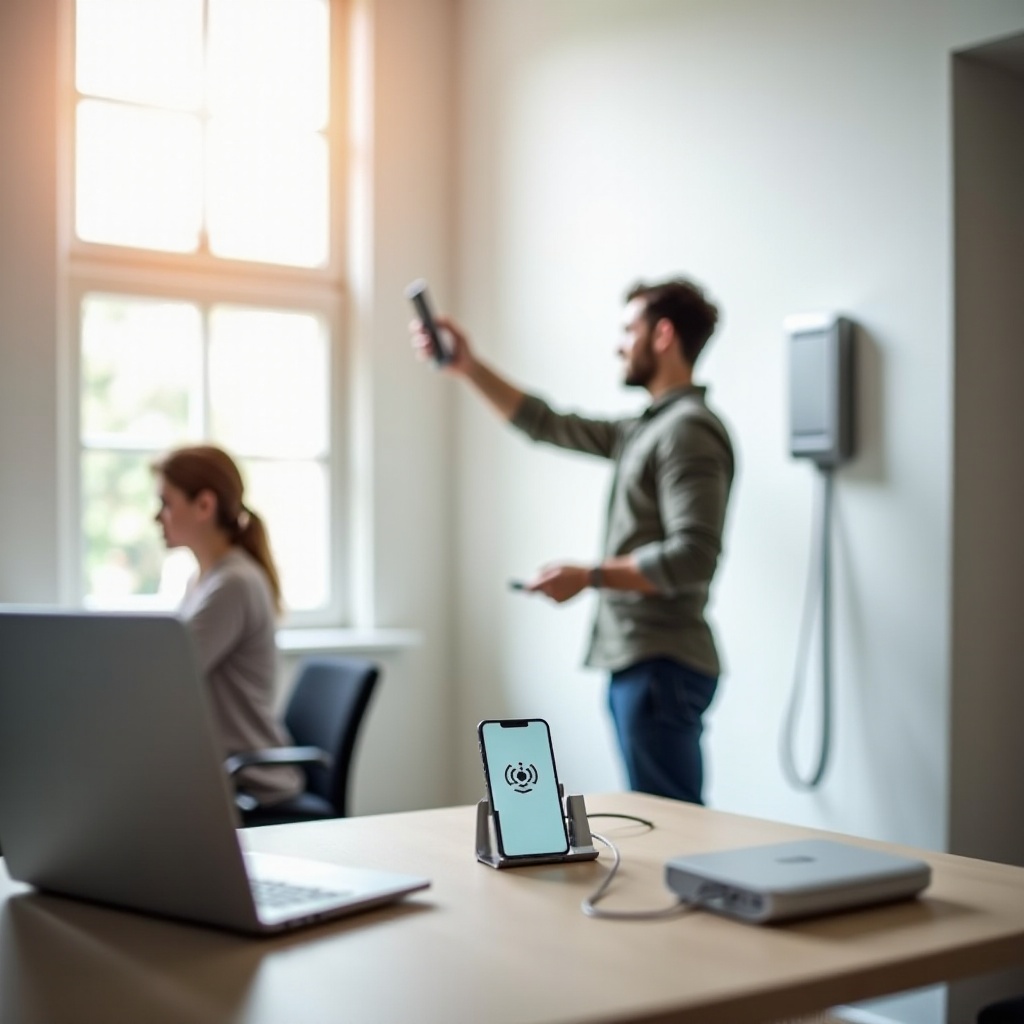
Attach a donor antenna to a suitable window with removable mounts. Run a thin coax neatly along the frame to a small booster unit.
Compact plug‑and‑play boosters and placement tips
Choose a compact booster with a built‑in or small indoor antenna. Place it close to your main call spot. Test positions in small steps to find the sweet zone.
Relying on Wi‑Fi Calling with a robust home network
If boosters are not allowed or helpful, harden your Wi‑Fi. Upgrade your router, place it centrally, and use mesh nodes to cover dead rooms. Stable internet creates stable calls.
Car, Truck, and RV Solutions
Mobility introduces metal, tinted glass, and constant handoffs. Tackle those with the right antenna and booster choices. Keep navigation and calls reliable on the move.
Vehicle boosters: cradle vs multi‑user kits
Cradle boosters serve one phone with strong gain. Multi‑user kits cover the cabin for several devices. Choose based on how many devices you need to support.
External antennas: mag‑mount, glass‑mount, and whip
A roof mag‑mount usually beats glass‑mount options. Whip antennas add range in rural zones. Place the antenna high and away from roof racks.
Cable routing, power, and safe installation
Route coax without sharp bends and secure it well. Power the booster from a fused 12V port. Keep cables clear of airbags and moving parts.
Dealing with tinted or metalized glass and roof racks
Metalized tint blocks signal. Use a roof‑mounted antenna or choose an untinted area. Keep the antenna away from racks that shadow the sky.
Rural and Remote Strategies
After vehicle tips, plan for static rural sites. Distance and terrain limit coverage. Focus on range, elevation, and clean line‑of‑sight.
Favor low‑band carriers and plans for range
Low‑band spectrum travels farther and penetrates buildings better. Trial carriers known for rural coverage in your area before you switch.
Directional high‑gain antennas and line‑of‑sight
At cabins or farms, mount a directional antenna on a mast aimed at the nearest tower. Elevate above trees and terrain. Use a booster indoors if needed.
Fixed wireless and satellite as primary or backup
If cellular remains weak, use 4G or 5G fixed wireless or satellite internet for data and Wi‑Fi Calling. Keep a basic cellular plan for mobility and emergencies.
Urban Congestion Playbook
Rural zones fight distance; cities fight crowding. Peak times load cells until speeds crawl and calls clip. Work around congestion with smart choices.
Symptoms of congestion: bars up, speeds down
If dBm looks good but latency spikes and speeds fall at busy hours, the cell is saturated. Calls may stutter even with many bars.
Use Wi‑Fi Calling in crowded venues
At stadiums, malls, and transit hubs, enable Wi‑Fi Calling. It bypasses the busy cell. Carry a power bank to keep a steady Wi‑Fi link.
Off‑peak calling and avoiding overloaded bands
Move big uploads and video calls to off‑peak hours when possible. If your phone allows, prefer a less crowded LTE band when 5G underperforms indoors.
Troubleshooting: A Step‑by‑Step Checklist
With all options covered, use a repeatable process to isolate issues. A simple checklist reduces guesswork and speeds results.
Verify SIM or eSIM and carrier settings first
- Confirm VoLTE or VoNR is active
- Check and apply carrier updates
- Reseat SIM or redownload eSIM
If problems remain, continue.
Test each change and record dBm before and after
Apply one change at a time. Record dBm, SINR, and a short call test after each tweak. Keep what helps. Revert what hurts.
Escalate to carrier or pro install when needed
If drops continue, contact your carrier for reprovisioning. For complex homes or offices, hire a pro to place antennas and ensure isolation.
Myths to Avoid
Some tips waste time or cause trouble. Skip these and stick to proven steps.
Signal booster apps do not boost radio power
Apps cannot change your radio. At best, they free memory or toggle settings. Use certified hardware and proper phone settings.
Constant manual network switching can backfire
Band or tech locks may stop your phone from roaming to a cleaner option. Use locks for testing only, then remove them.
Illegal DIY repeaters create interference
Uncertified repeaters can harm networks and break the law. Use certified boosters and register them if required.
When to Switch Carriers and How to Test
If your home or office sits in a dead zone, a different carrier may solve it fast. Test before you commit.
Use trial eSIMs and short prepaid plans
Run a trial for a week in your real routines. Compare call stability and data during peak hours.
Compare bands, low‑band coverage, and indoor performance
Check which bands each carrier uses nearby. Favor low‑band for better indoor reach. Pick the carrier that gives clean calls where you live and work.
Porting tips and keeping your number safe
Have your account number and port‑out PIN ready. Keep the old line active until the port completes. Never share one‑time codes.
Safety and Emergency Calling
Before you finish, make sure emergency calls work even when signal dips. Good prep can save minutes when they matter most.
Ensure Wi‑Fi Calling supports 911 at your address
Update the emergency address in Wi‑Fi Calling settings. Follow carrier guidance on test calls if allowed in your area.
Keep battery health and thermal performance in check
Weak signal makes phones work harder and heat up. Keep the phone cool and charged. Avoid thick cases that trap heat during long calls.
Offline maps and satellite messaging as backup
Download offline maps for navigation during outages. If your phone supports satellite messaging, enable it for SOS in remote spots.
Conclusion
You can get better cell signal with a simple plan. Start with fast resets and smart placement. Measure dBm to see real gains. Tune network settings and enable VoLTE or VoNR. Make Wi‑Fi Calling solid to bypass weak indoor coverage. If walls still block signal, install a compliant booster with careful antenna placement. Use vehicle antennas and boosters on the road. In rural areas, add directional antennas and pick low‑band carriers. In cities, work around congestion with Wi‑Fi and timing. If a carrier simply cannot reach you, test and switch. Track results, keep what works, and drop what does not. This approach turns dead zones into reliable spaces and keeps every call clear.
Frequently Asked Questions
Why do I have full bars but slow speeds?
Full bars show strong signal but not free capacity. At busy times, many users share the same cell, so speeds fall and latency rises. Use Wi‑Fi Calling for voice and schedule big uploads off‑peak. Prefer a cleaner LTE band if 5G struggles indoors.
Is 5G better than LTE for call quality?
Not always. Voice quality depends on stable coverage and clean air. VoLTE and VoNR both sound great with good dBm and SINR. If 5G is weak in your building, LTE may deliver steadier calls. Keep both enabled and let the phone choose, or prefer LTE in tough rooms.
Do cell signal boosters work with all carriers?
Certified boosters support common LTE and 5G bands, but models differ. Check your carrier bands before you buy. A booster needs some outdoor signal to work and may need registration with your carrier to stay compliant.