16 Oct 2026
Post by Aurorina
Introduction
Remote Desktop speeds up sign-in by storing your username and password for each host you connect to. That convenience can expose your accounts on shared or managed PCs, or when you typed the wrong credentials once and Windows keeps offering them. If you want a clean slate, you need to clear saved passwords, recent hosts, and cached data across several places in Windows 11. This guide shows you how to remove saved RDP credentials in Windows 11 using Credential Manager, the cmdkey command, a few safe registry edits, and cache cleanup. It also covers the Microsoft Remote Desktop app and policy settings that stop Windows from saving new passwords.
You will start with the quickest method, then move through deeper cleanup for lingering history. After the removals, you will lock down the device so the same issue does not return.
What Are Saved RDP Credentials in Windows 11?
Remote Desktop Protocol, or RDP, lets you sign in to another PC and control it. To save time, Windows can store your username and password for each remote host. These stored secrets live in your profile as Windows Credentials and appear with names that start with TERMSRV followed by a hostname or IP. When you launch the classic client, mstsc.exe, it reads those entries and auto-fills credentials so you can connect with a single click. Windows also keeps a list of recent servers and last-used usernames that the client shows as suggestions.
On Windows 11 you may use two clients. The first is the classic Remote Desktop Connection app, mstsc.exe, which ships with Windows. The second is the Microsoft Remote Desktop app from the Store, which syncs its own list of PCs and user accounts. Both can hold sign-in data, and they store it in different places. That is why a thorough cleanup includes both the credentials store and the app lists.
Removing these entries restores prompts for passwords and clears host history. Before you start, make a quick backup and confirm you have the necessary permissions.
Before You Start: Safety, Backups, and Admin Requirements
Deleting saved credentials and history is safe when you follow basic precautions. Create a system restore point or export any registry keys you plan to change so you can roll back if something goes wrong. You can remove user-level credentials without admin rights. However, editing Group Policy or certain registry locations requires an administrator account.
Close any active Remote Desktop sessions before you clean up, because open sessions may hold files open, block edits, or write new entries again. If this is a work or school device, check with IT first. Many organizations use policies that allow or block password saving, or even roam credentials between devices. You can still clear local entries, but they may reappear until the policy changes. Gather a list of the hostnames or IPs you want to target so you can remove only what you need.
With this preparation done, begin with the easiest and most visual method: Credential Manager.
Method 1: Remove RDP Credentials Using Credential Manager
Credential Manager offers a straightforward way to remove saved RDP passwords for specific hosts without touching anything else.
Steps
1) Press Windows + R, type control, and press Enter to open Control Panel.
2) Select Credential Manager, then choose Windows Credentials.
3) Scroll to find TERMSRV entries, for example TERMSRV\server01 or TERMSRV\192.0.2.10.
4) Click the entry you want to remove, then select Remove.
5) Repeat for any other TERMSRV entries you no longer need.
6) Launch Remote Desktop Connection and connect to the host. You should see a password prompt again.
Tips
- Remove all duplicates for a host to stop autofill quirks.
- Do not delete unrelated credentials such as web passwords or MicrosoftAccount unless they relate to RDP.
- If multiple user profiles on the same PC used RDP, sign in to each profile and repeat these steps.
Credential Manager purges the passwords but keeps the list of recent hosts and usernames. If you want to wipe that history from the client, move on to the registry cleanup after you learn the command-line option for bulk work.
Method 2: List and Delete RDP Credentials with cmdkey
If you manage many hosts or prefer automation, cmdkey gives you quick control from the terminal. It lists and deletes the same Windows Credentials you see in Credential Manager.
Steps
1) Open Windows Terminal, Command Prompt, or PowerShell.
2) List saved credentials: cmdkey /list
3) Review entries with Target that begin with TERMSRV, such as TERMSRV/server01.
4) Delete a specific entry by hostname: cmdkey /delete:TERMSRV/server01
5) Delete by IP address: cmdkey /delete:TERMSRV/192.0.2.10
6) Reconnect with mstsc.exe to confirm the password prompt returns.
Notes
- You do not need admin rights to remove your own user-level credentials.
- Run cmdkey in the same Windows account that saved the credentials, or you will not see them.
- For automation, you can parse cmdkey /list and loop through TERMSRV entries to remove many hosts.
Cmdkey removes saved secrets immediately. If entries return after a reboot or a new sign-in, policy may allow password saving or sync credentials. In that case, plan to set a no-save policy later. First, clear the history that lives outside the credentials store.
Method 3: Clear RDP History and Usernames in the Registry Editor
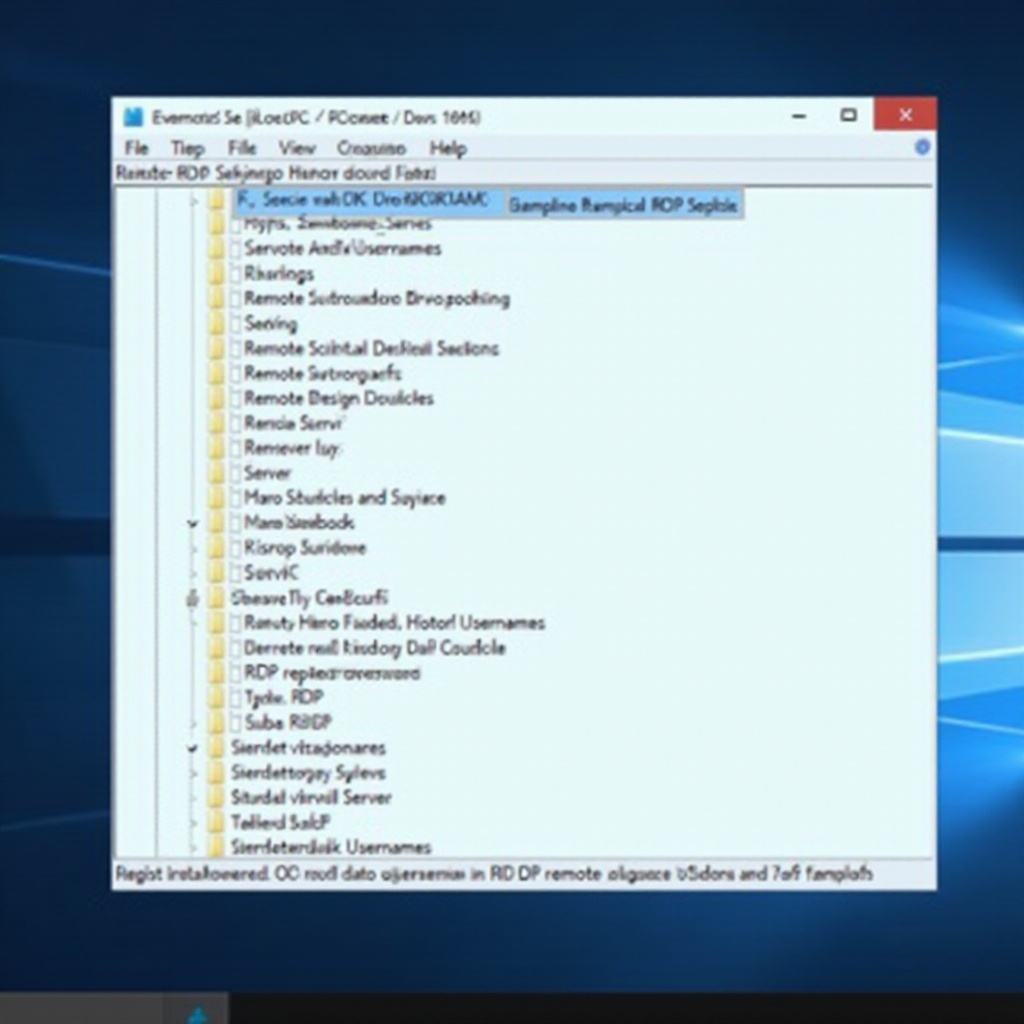
Remote Desktop also remembers recent hosts and last-used usernames in your profile. These items are not passwords, but they appear as suggestions and may expose hostnames or account hints. Cleaning them removes old entries from the client UI.
Steps
1) Press Windows + R, type regedit, and press Enter to open the Registry Editor.
2) Navigate to HKEY_CURRENT_USER\Software\Microsoft\Terminal Server Client\Servers
3) Right-click the Servers key and select Export to save a backup, then delete child keys for hosts you no longer need.
4) Go to HKEY_CURRENT_USER\Software\Microsoft\Terminal Server Client\Default
5) In the right pane, delete MRU entries such as MRU0, MRU1, and any saved usernames.
6) Close the Registry Editor and restart mstsc.exe.
Why this matters
This cleanup erases the drop-down list of computers and username hints in the classic client. It does not affect saved passwords in Credential Manager, so pair this with Method 1 or 2 when you want a full reset. If you also use the Microsoft Remote Desktop app, remember that it keeps separate lists you must clear inside the app.
With the registry history gone, you may still see traces from files that the client creates. Remove those next for a full reset of client options.
Method 4: Delete default.rdp and Remote Desktop Cache Files
The classic client stores session preferences in a file named default.rdp in your Documents folder and keeps bitmap caches in your local app data. Deleting these files resets options and clears lingering UI traces.
Steps
1) Close the Remote Desktop Connection app.
2) Open File Explorer and browse to Documents.
3) Delete the file named default.rdp.
4) Go to %LocalAppData%\Microsoft\Terminal Server Client\Cache and delete the files inside the Cache folder.
Notes
- Removing default.rdp resets client settings like display and redirection but does not remove passwords.
- Bitmap caches improve performance but do not store secrets.
- If Windows reports the files are in use, close mstsc.exe from Task Manager or sign out and back in.
If you use the Microsoft Remote Desktop app, the cache and history above will not affect it. Clean that app next to ensure there are no saved accounts or PCs left there.
Method 5: Remove Saved Accounts and PCs in the Microsoft Remote Desktop App
The Microsoft Remote Desktop app from the Store keeps its own list of PCs and saved user accounts. Removing these entries prevents the app from auto-filling sign-in details or reconnecting to old hosts.
Steps
1) Open the Microsoft Remote Desktop app.
2) Select the gear icon, then choose User accounts.
3) Remove accounts you no longer use.
4) On the main screen, remove PCs and Workspaces you no longer need.
5) Restart the app to verify the lists are clear.
Notes
- Removing an account in the app does not delete Credential Manager entries. Use Method 1 or 2 for that.
- If your device is managed, Workspaces or accounts may sync back until IT removes the assignment.
Now that you have erased stored passwords, histories, and app entries, prevent the same data from being saved again. Use policy settings to block future password storing.
Method 6: Block Saving RDP Passwords via Local Group Policy
If you do not want Windows to store RDP passwords anymore, set a policy that forces a prompt every time. This is ideal for shared or high-risk devices.
Steps
1) Press Windows + R, type gpedit.msc, and press Enter.
2) Go to Computer Configuration > Administrative Templates > System > Credentials Delegation.
3) Open the setting named ‘Do not allow passwords to be saved’ and set it to Enabled.
4) Open the classic client, click Show Options, and clear the checkbox ‘Allow me to save credentials.
5) Run gpupdate /force or reboot to apply the policy.
Alternatives for Windows 11 Home
Windows 11 Home does not include the Local Group Policy Editor. You can apply a similar control via the registry. Set DisableDomainCreds to 1 under HKLM\System\CurrentControlSet\Control\Lsa. Always back up the registry before changes, and confirm with IT if this is a managed device. Some organizations use Intune or domain Group Policy that overrides local settings.
With password saving blocked, Windows will not create new TERMSRV entries for RDP. Continue to close any gaps with broader security practices.
Extra Security and Compliance Tips for Work and School Devices
Cleaning credentials is part of a larger security posture. Combine these steps with protections that guard your profile and your connections.
- Use a standard account for daily work and a separate admin account only when required.
- Turn on Windows Hello or a strong password to protect your local sign-in.
- Enable BitLocker to encrypt your drive so cached data is unreadable if the device is lost.
- Restrict RDP access by network rules and VPN. Prefer Network Level Authentication and strong firewall scopes.
- Rotate passwords when roles change or staff leave. Never reuse admin passwords across hosts.
- Audit for TERMSRV entries periodically with cmdkey /list, especially on shared or lab machines.
These practices reduce risk, meet compliance requirements, and keep your cleanup effective over time. If you still see unexpected behavior, work through common causes in the next section.
Troubleshooting: When Credentials Reappear or Options Are Grayed Out
Sometimes credentials return or you cannot change settings. These checks help you diagnose and fix the root cause.
- Entries keep coming back: Your company may sync credentials or allow password roaming. Delete TERMSRV entries, then confirm that the ‘Do not allow passwords to be saved’ policy is enabled. Ask IT to remove credential roaming for RDP if it is in place.
- Nothing shows in cmdkey but auto sign-in continues: The Microsoft Remote Desktop app may still hold a saved account. Remove accounts and PCs in the app as shown earlier.
- The checkbox ‘Allow me to save credentials’ is grayed out: A Group Policy enforces the setting. Run gpresult /h report.html to see applied policies and verify the path under Administrative Templates.
- Cannot delete default.rdp or cache files: Close mstsc.exe in Task Manager, sign out and back in, or boot to Safe Mode and delete the files there.
- Cannot open gpedit.msc: You are likely on Windows 11 Home. Use the registry method to set DisableDomainCreds or discuss options with IT.
If none of these steps work, create a new Windows user profile and test from a clean environment. Persistent issues usually trace back to policy or Sync/MDM settings that reapply credentials.
Conclusion
You can remove saved RDP credentials in Windows 11 fully by clearing passwords in Credential Manager or with cmdkey, wiping history from the registry, and deleting default.rdp and cache files. Do the same cleanup in the Microsoft Remote Desktop app if you use it. Finally, enforce a no-save policy so new passwords are not stored. These steps take only a few minutes and restore control over who can connect to your remote systems. With periodic checks and sound security practices, you can keep Remote Desktop clean, predictable, and secure on every PC you manage.
Frequently Asked Questions
How do I remove RDP credentials for a single server only?
Open Credential Manager, select Windows Credentials, find the TERMSRV entry for that host or IP, and remove it. Or run cmdkey /delete:TERMSRV/hostname. If the host still appears in the drop-down list, clear the registry MRU entries under HKEY_CURRENT_USER\Software\Microsoft\Terminal Server Client.
Why do my RDP credentials keep coming back after I delete them?
A policy or cloud profile may re-sync them. Enable the policy ‘Do not allow passwords to be saved’ via Group Policy or registry, remove TERMSRV entries again, and delete accounts in the Microsoft Remote Desktop app. If the device is managed, ask IT to disable credential roaming for RDP.
Is it safe to delete default.rdp and Remote Desktop cache files?
Yes. Removing default.rdp resets client options and history but does not erase passwords. Cache files under %LocalAppData%\Microsoft\Terminal Server Client\Cache contain display bitmaps, not secrets. Close the RDP client first. If files are locked, sign out or use Safe Mode.