26 Oct 2026
Post by Aurorina
Introduction
You use a Chromebook to browse, work, learn, and relax. That often means saving PDFs from a portal, invoices from email, images for a presentation, or videos to watch offline. This guide explains how to download files on Chromebook with simple, reliable steps. You will learn where ChromeOS stores your files, how to change the default save location, and how to work with Android and Linux apps. You will also learn how to save files directly to Google Drive or an external USB drive, and how to avoid errors.
We start with the fastest way to save a file from the web. Then we explore where downloads go so you can find them fast. From there, you will customize the save location, learn file type best practices, and handle email and cloud downloads. Later sections show how to manage Android and Linux downloads, use external storage, and organize your files. You will also get proven fixes for common download errors and tips to keep your Chromebook safe. Each section builds on the last so you can move from basics to power user with confidence.
Quick Start: Download Files from the Web with Chrome
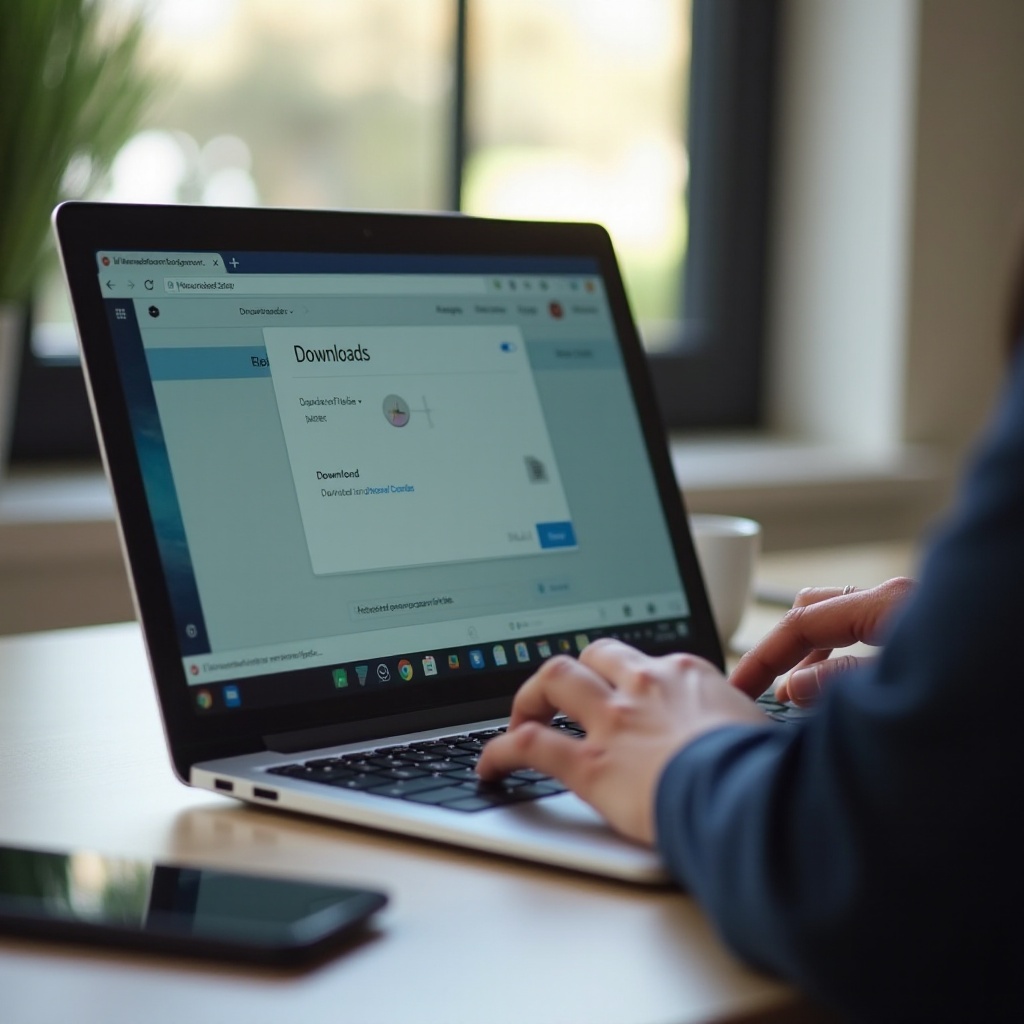
The Chrome browser handles most downloads on a Chromebook. Follow these steps to save a file from any website:
1) Click the link or button labeled Download, Save, or Export.
2) If Chrome prompts for a location, pick a folder and confirm. If it does not ask, Chrome saves to the default Downloads folder.
3) Watch the download bubble near the bottom right. Click it to see progress. Pause, resume, or cancel if you need to.
4) When finished, click the file name to open it. Or choose Show in folder to open the Files app right at that file.
Helpful tips:
– Right‑click or two‑finger tap any link and choose Save link as to pick a folder before the download starts.
– For images, right‑click and select Save image as to store a full‑resolution copy.
– To save a complete web page for offline reading, press Ctrl+S and choose Webpage, Complete. Or press Ctrl+P and choose Save as PDF.
– If a file opens in a new tab instead of downloading, press Ctrl+S to save a copy.
That covers quick wins. Now learn where ChromeOS puts files and how its folders work so you can find downloads quickly and manage space wisely.
Understand Where Your Files Go on ChromeOS
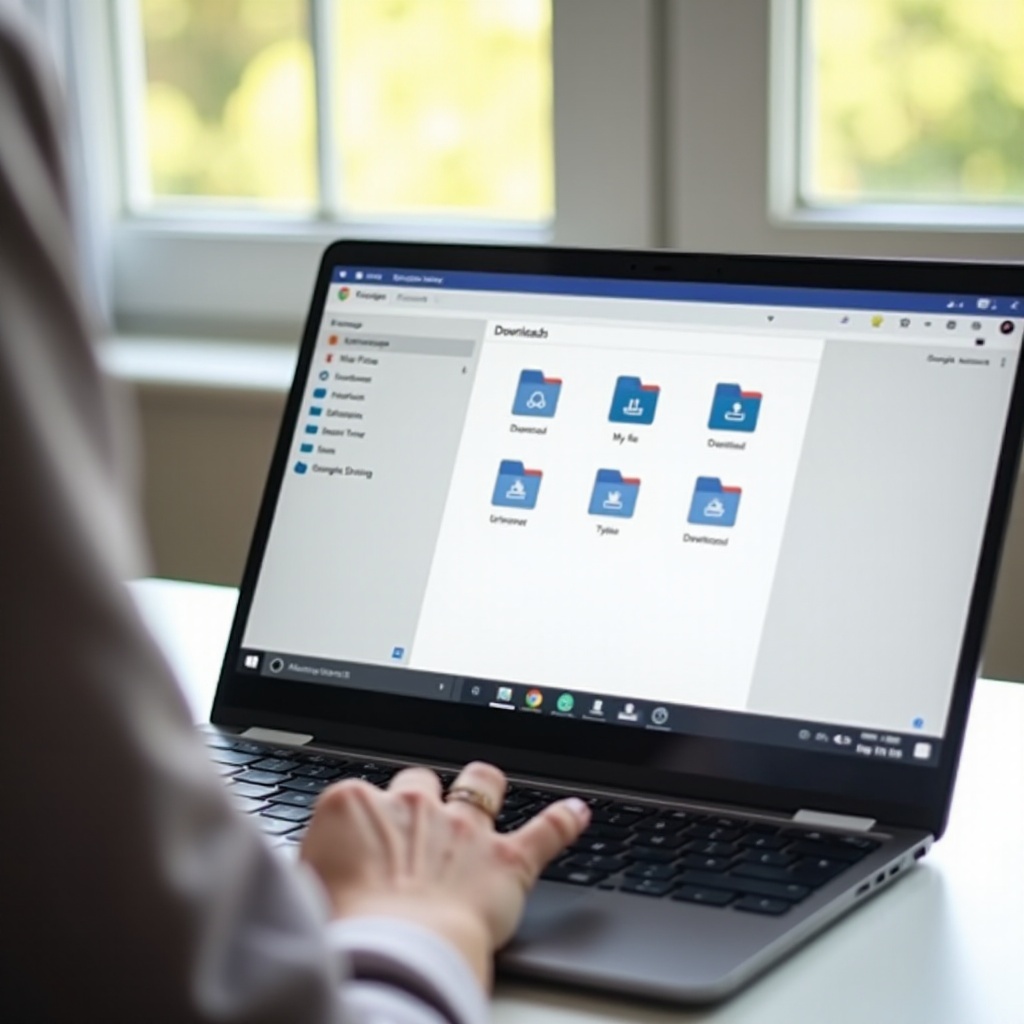
ChromeOS keeps storage simple with clear folders in the Files app:
- Downloads under My files: This is the default location for browser downloads. It lives on your device and counts against internal storage.
- Play files: Android apps save here by default. You can see Play files in the Files app and move items into My files or Drive.
- Google Drive: Your Drive appears in the sidebar. Files here sync to the cloud. Mark files as available offline if you want them when you do not have internet.
- Linux files: If you enabled Linux, you will see Linux files in the sidebar. This is the home directory for your Linux apps.
- Recent, Starred, and Trash: Recent shows your latest items, Starred lets you pin favorites, and Trash stores deleted files until you empty it.
Internal storage can be limited on many Chromebooks. Keep an eye on free space in Files > three‑dot menu > Storage. Move old downloads to Drive or an external drive to free space. Understanding these locations prepares you to control where new downloads go next.
Change Your Default Download Location
You can make Chrome ask where to save each file or set a new default folder. This simple change brings a big boost in organization.
Change the default folder:
1) Open Chrome and select Settings.
2) Click Downloads in the left panel.
3) Next to Location, select Change and choose a folder in My files, Google Drive, or on an external drive.
Ask where to save every file:
1) In Chrome Settings > Downloads, toggle Ask where to save each file before downloading.
Tips for smarter saves:
– Choose a Drive folder to back up files automatically without extra steps.
– Choose a folder on a USB or SD card if you often handle large media files.
– Turn on Ask where to save if you work on many projects and prefer to file each download immediately.
With location control in place, the next step is learning file type best practices so every save goes to the right spot and stays useful.
Save Specific File Types the Right Way
Small differences in how you save each file type can prevent clutter and broken files later. Use these best practices:
Images and screenshots:
– Right‑click a web image and choose Save image as to store the original file.
– Capture full‑screen: Press Ctrl+Show windows (or Ctrl+F5 on older keyboards). ChromeOS saves a PNG in Downloads by default.
– Capture a region: Press Ctrl+Shift+Show windows and drag to select the area.
– If you need JPG instead of PNG, open the image in Gallery and export as JPG.
PDFs and web pages:
– To save a PDF from a site, click the download icon in Chrome’s built‑in PDF viewer or right‑click the link and save.
– To print any page to PDF, press Ctrl+P and choose Save as PDF, then pick a folder.
– To save a complete web page with assets, press Ctrl+S and choose Webpage, Complete. Chrome stores an HTML file with an assets folder.
Audio and video files:
– If a site provides a download link, click it and choose a folder with enough free space.
– Some services stream without a direct download option. Use the service’s provided export or offline feature if available.
– For large media, save to a USB drive, SD card, or Drive to preserve internal storage.
Office files and Google Docs Editors:
– In Google Docs, Sheets, or Slides, select File > Download and pick Microsoft Office formats or PDF.
– Use Drive to keep a cloud source of truth, then mark files available offline rather than downloading duplicates.
Compressed archives and installers:
– ChromeOS opens ZIP files natively. Double‑click to mount and drag files out to a folder.
– For RAR or 7z, install a trusted Android app from the Play Store to extract.
With file type basics in hand, your next common download source is email and cloud drives. You will see similar buttons but with different outcomes.
Download Email Attachments and Cloud Files
Email and cloud apps offer download and save‑to‑cloud options. Pick one system to reduce duplicates and confusion.
Gmail and Outlook on the web:
1) Open the email with the attachment.
2) Choose Download to save a local copy. Or choose Save to Drive or Save to OneDrive to keep it in the cloud.
3) If you download, file it right away. For example, Downloads > Invoices > 2024 to keep things tidy.
Google Drive, OneDrive, and Dropbox:
– Download a single file: Right‑click and choose Download.
– Download a folder: Right‑click the folder and choose Download. Services usually create a ZIP you unpack in Files.
– Avoid duplicates: Keep the source in cloud and mark offline, or download a single local copy and avoid re‑downloading. Consistency prevents version conflicts.
Choosing a cloud‑first or local‑first system makes the next steps with Android apps much easier, because you will know exactly where to send exported files.
Download Files from Android Apps on Chromebook
Android apps from the Play Store can save and export files on your Chromebook. By default, many apps write to Play files, but you can move or redirect them.
Grant storage permissions:
1) Open the Android app and accept prompts for file and media access.
2) If the app cannot save, check ChromeOS Settings > Apps > Manage your apps, select the app, and allow Files and media.
Choose a save location:
– Many apps let you choose Files when you tap Save as or Export. Select Files to open the ChromeOS picker and save directly to My files, Google Drive, or an external drive.
– If the app shows a Share button, pick Save to Drive or Files to route the export where you want.
Find and move Play files:
– Open the Files app and select Play files to see downloads and exports from Android apps.
– Drag items into My files or Drive to match your organization system.
If you handle developer tools or specialized downloads, Linux on ChromeOS adds more flexibility. Here is how to download there and move files between environments.
Download with Linux (Crostini) on Chromebook
Linux on ChromeOS runs in a secure container and plays well with the Files app. You can download via a Linux browser or terminals tools.
Browser downloads in Linux:
1) Enable Linux in Settings if you have not already.
2) Install a Linux browser such as Firefox from the terminal or the Linux Software app.
3) Save files to your Linux home directory. They appear under Linux files in the Files app.
Terminal basics for downloading:
– Use wget URL to download a file quickly.
– Use curl -O URL to save with the original filename.
– Use cd and ls to move around and verify files.
Move files between Linux and ChromeOS:
1) In the Files app, open Linux files to view your Linux home.
2) Drag files to My files, Google Drive, or an external drive.
3) From the terminal, use the shared Downloads folder or /mnt/chromeos to reach ChromeOS storage if you prefer command‑line moves.
Linux is ideal for developers and power users who script downloads or need package files. If those files are large, external storage can prevent your internal disk from filling up.
Use External Storage: USB Drives and SD Cards
A USB drive or microSD card gives you more room for big downloads. You can even set external storage as the default save location.
Format and compatibility:
– exFAT supports large files and works well across platforms. Use this for video or large archives.
– FAT32 is widely compatible but limits single files to 4 GB.
– NTFS or HFS+ may mount read‑only on ChromeOS. Reformat to exFAT if you need to write files from your Chromebook.
How to format a drive in Files:
1) Insert the USB drive or SD card.
2) In the Files app, right‑click the drive name and choose Format device.
3) Pick exFAT for large files or FAT32 for broad compatibility.
Save directly to external media:
1) Insert the drive and confirm it appears in the Files sidebar.
2) In Chrome Settings > Downloads, set Location to a folder on the external drive. Or enable Ask where to save and choose the drive per download.
3) Keep a simple folder structure on the drive, such as Media, Projects, and Backups.
Safely eject every time:
– In Files, click the eject icon next to the drive before unplugging. This prevents data loss and corruption.
After you start saving in more than one place, a little organization goes a long way. The next section shows how to keep your downloads tidy and easy to find.
Organize, Search, and Share Your Downloads
A clear system saves you time and keeps storage under control. Build a routine with the Files app and Google Drive.
Rename clearly and consistently:
– Right‑click any file and choose Rename. Use names like 2024‑07‑invoice‑acme.pdf or project‑logo‑v2.png so you can find them later.
Sort, filter, and search:
– In Files, click column headers such as Name, Date, or Size to sort.
– Use the search bar to find files by keyword or extension. Prefix with a dot for file type search, like .pdf or .png.
Folders, stars, and colors:
– Group files by project or deliverable. Create folders such as Invoices, Proposals, or Video.
– Star important folders for quick access. Add color to folders to spot them fast.
– In Drive, add shortcuts to frequently used folders instead of duplicating files.
Share fast and securely:
– Right‑click a file in Drive and select Share to create a link with view or edit permissions.
– Use Nearby Share to send files to nearby ChromeOS or Android devices without cables.
Good organization makes large and tricky downloads easier to handle. Next, learn how to prevent interruptions and keep big jobs running until they finish.
Handle Large or Interrupted Downloads
Large files fail for two common reasons: weak connections and sleeping devices. A few tweaks improve reliability.
Resume and reliability:
– Many servers support resuming. If a download pauses, open chrome://downloads or click the download bubble and choose Resume.
– If a download keeps failing, try saving to a different location, such as Drive or an external drive with more space.
Speed and stability:
– Move closer to your router or switch to the 5 GHz band for faster, more stable Wi‑Fi.
– Keep your Chromebook awake during big downloads. Go to Settings > Device > Power and prevent sleep when lid is closed or while plugged in.
– Pause bandwidth‑heavy apps and streaming during the download.
Workarounds for huge files:
– Ask for split archives when possible so you download multiple smaller parts.
– Use cloud transfer instead. Add the file to Drive or Dropbox and mark it available offline rather than downloading directly in one session.
If you still hit errors, a quick checklist can get Chrome and the Files app back on track.
Troubleshoot Common Chromebook Download Errors
Most download issues fall into a few categories. Work through this checklist and test after each step.
Blocked by security or policy:
– You may see a message like ‘Download blocked’ if Safe Browsing flags a file or if a school or work admin blocks it.
– If you trust the source and the warning allows it, select Keep. On managed devices, contact IT to allow the site or file type.
Network error:
1) Confirm Wi‑Fi or Ethernet is connected. Reconnect or switch networks if needed.
2) Reload the tab. Try an Incognito window to rule out extensions.
3) Clear Chrome cache: Settings > Privacy and security > Clear browsing data > Cached images and files.
4) Restart the Chromebook and retry.
Disk full or low storage:
1) Open Files > three‑dot menu > Storage to check free space.
2) Delete or move large items from Downloads and Play files to Drive or an external drive.
3) Empty Trash and remove offline files you no longer need in Drive.
Permissions and app issues:
– For Android apps, grant storage permissions and clear app cache if saves fail.
– For external drives, confirm the file system is exFAT or FAT32 for write support.
Extension conflicts:
– Disable download‑related extensions temporarily and retry. Remove any that inject fake download buttons.
Last‑resort resets:
– Create a fresh Chrome profile and test.
– Back up important files and perform a Powerwash if persistent problems remain.
Once downloads work again, adopt a few safety habits so future saves stay clean and risk‑free.
Keep Downloads Safe and Your Chromebook Secure
ChromeOS provides strong protection, but smart choices reduce risk further and keep your files safe.
Verify sources and links:
– Download only from trusted sites. Check the domain and look for HTTPS.
– For sensitive tools or firmware, compare checksums if the publisher provides them.
Use cloud scanning and sandboxed viewers:
– Upload suspicious files to Google Drive or a reputable online scanner for a quick check.
– Open unknown files in web‑based apps first to limit exposure.
Avoid risky add‑ons and keep software updated:
– Do not install extensions that promise faster downloads or free converters without clear reputations.
– Keep ChromeOS and Android apps up to date so you have the latest security patches and bug fixes.
With safety covered, a few shortcuts can speed up your daily workflow and reduce clicks.
Keyboard Shortcuts and Power User Tips
Shortcuts and small habits save time when you download and file content.
Files app shortcuts:
– Open Files: Press the Search key, type files, and press Enter.
– Rename: Ctrl+Enter. New folder: Ctrl+E. Delete: Alt+Backspace.
– Select multiple items: Hold Shift for ranges or Ctrl for non‑adjacent selections.
Chrome downloads shortcuts:
– Open the Downloads page: Ctrl+J.
– Save the current page: Ctrl+S.
– Print to PDF: Ctrl+P, then Save as PDF.
Quick actions that stick:
– Two‑finger tap to open the context menu and share or move files fast.
– In Drive on the web, press the slash key to search, N to rename, and Shift+Z to add a shortcut to another folder without duplicating.
Conclusion
You now know how to download files on Chromebook with speed and confidence. Start with simple web saves, then tailor where files go by changing the default location or turning on the prompt to ask where to save. Apply best practices for images, PDFs, media, and archives so files stay usable and organized. Pull down email attachments and cloud files without creating duplicates by picking a cloud‑first or local‑first system.
Move downloads from Android apps into clear folders, and use Linux tools when you need command‑line power. Point big downloads at external drives, keep an eye on storage, and use the Files app to rename, sort, search, and share in seconds. If problems appear, work through the troubleshooting list to fix policy blocks, network errors, and low storage. Finally, stick to safe sources and keep your system up to date.
Set one or two high‑priority folders, enable Ask where to save, and start filing each download as it arrives. With a few smart defaults and habits, your Chromebook stays fast, your downloads remain tidy, and you find what you need right away.
Frequently Asked Questions
Can I download directly to an external USB or SD card on a Chromebook?
Yes. Insert the drive and confirm it appears in the Files app. In Chrome Settings > Downloads, set the location to a folder on the external drive or enable Ask where to save. Choose the drive when saving, format as exFAT for large files, and always eject before unplugging.
Where do my Android app downloads go, and how do I find them?
Most Android apps save to Play files. Open the Files app and click Play files in the sidebar to see them. Drag items into My files, Google Drive, or an external drive to organize. When exporting, choose Files and pick your target folder to avoid extra moves.
Why does my Chromebook say Download blocked, and how can I fix it?
Safe Browsing may flag risky files, or an admin policy may block downloads on school or work devices. Read the message. If you trust the source and the option is available, select Keep. On managed devices, contact IT to allow the site or file type. Verify sources before bypassing warnings.