31 Oct 2026
Post by Aurorina
Introduction
Connecting two monitors to a single CPU can transform your daily work, gaming, and creative projects. With the right ports, cables, and settings, the process is fast and reliable. This guide shows you exactly what to check, how to connect the screens, and how to configure Windows 11 for a smooth experience. You will learn which ports to use, how to pick the best cable for each monitor, and how to tune resolution, scaling, refresh rate, color, and HDR. We also cover advanced methods like DisplayPort MST daisy-chaining and USB-C Alt Mode, plus practical troubleshooting when a screen shows no signal or only runs at 30 Hz. After you complete the steps, your desktop will feel larger, your workflow will be more efficient, and your system will remain stable. Let us start by confirming your hardware supports a dual-display setup before you plug in any cable.
What You Need Before You Start: Ports, GPU, Cables, and Monitor Support
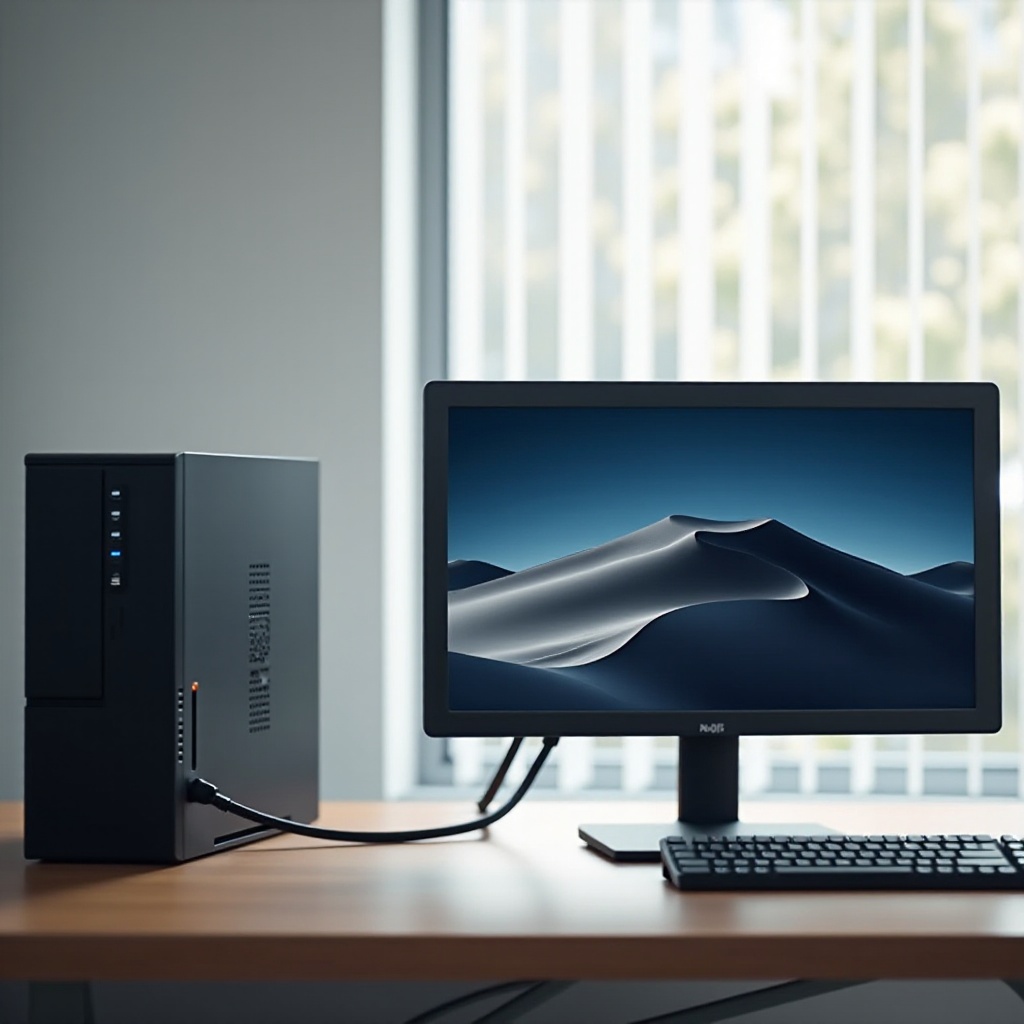
A successful dual-monitor setup starts with a quick hardware audit. Check whether you have a dedicated graphics card or integrated graphics on the CPU. Many modern integrated solutions can drive two displays, but a dedicated GPU often offers more outputs and higher bandwidth.
Check graphics capability
- Look up your CPU or GPU model on the manufacturer site.
- Confirm the number of displays supported and the maximum resolution and refresh rate.
- Update GPU drivers to the latest version before you begin.
Check ports and inputs
- Inspect the back of your PC for DisplayPort, HDMI, USB-C, Thunderbolt, or DVI.
- Count how many outputs you have and note the standards (for example, HDMI 2.0, DP 1.4).
- On each monitor, confirm the available inputs and their best capabilities.
Choose the right cables
- Prefer certified DisplayPort cables for high refresh and high resolution.
- Use HDMI 2.0 or 2.1 for 4K and higher refresh rates.
- When you must convert DisplayPort to HDMI, use an active adapter for 4K/60 or 1440p/144.
- Avoid low-quality splitters that only duplicate a signal and limit performance.
With the essentials checked, you can select the best connection for each display and avoid common bottlenecks. Next, pick the right standard for your hardware: DisplayPort, HDMI, USB-C, or Thunderbolt.
Identify and Choose the Right Connections: HDMI, DisplayPort, USB-C, and Thunderbolt
Each video standard has strengths. Match the output of your PC to the input of your monitor to reduce adapters and maintain maximum quality.
DisplayPort
DisplayPort is flexible and widely used on PCs. It supports high refresh rates, adaptive sync, and MST daisy-chaining on supported hardware. Use DP 1.4 for 1440p/144 and 4K/60. For ultra-high refresh or 4K/120, consider DP 2.0 when available.
HDMI
HDMI is common on monitors and TVs. HDMI 2.0 handles 4K/60 and many 1440p options. HDMI 2.1 pushes higher bandwidth for 4K/120 on compatible screens. If your GPU offers both DP and HDMI, assign DP to your highest-spec monitor and HDMI to the secondary display.
USB-C and Thunderbolt
USB-C with DisplayPort Alt Mode can carry video, data, and power through one cable. This is ideal for modern desktops, small form factor PCs, and laptops that rely on a dock. Thunderbolt adds more bandwidth and often supports multiple displays through a single cable and dock. If you work with high-resolution screens, Thunderbolt docks can simplify cable runs and improve reliability.
Once you pick the right connection, position your displays for comfort and prepare your desk for clean cable routing.
Physical Setup and Ergonomics: Positioning, Power, and Cable Management
Good placement and tidy cables improve comfort and make troubleshooting easier.
Positioning and height
- Place both monitors at arm’s length and keep the top edge around eye level.
- Align screen centers to cut neck strain.
- Angle the side monitor toward you to maintain a consistent viewing distance.
- Use VESA mounts or arms to adjust height and save desk space.
Power and cable routing
- Connect each monitor to a surge protector or UPS.
- Route cables loosely and avoid tight bends to protect the connectors.
- Keep video cables away from large power bricks to reduce interference.
- Label each cable and port so you can trace connections quickly.
With the hardware set and powered, it is time to connect the monitors to your CPU and configure the system.
Step-by-Step: How to Connect Two Monitors to a Single CPU (Desktop PC)
Follow these steps to connect and configure two monitors on a desktop PC:
1) Shut down the PC to protect ports while you plug in cables.
2) Connect the first monitor to a GPU or motherboard video port with the best cable available. Prefer DisplayPort, then HDMI.
3) Connect the second monitor to a different output on the PC. Avoid passive splitters unless you use DisplayPort MST.
4) Power on both monitors and set the correct input in the monitor menu.
5) Boot the PC and sign in.
6) Open Settings > System > Display. Select Identify to confirm which screen is 1 and which is 2.
7) Drag the display thumbnails to match your physical arrangement.
8) Under Multiple displays, choose Extend to gain more desktop area. Use Duplicate only when you need mirroring.
9) Select which monitor is your main display to place the taskbar and Start menu.
10) Open Advanced display to set refresh rate for each monitor.
11) Open Scale and layout to set resolution and scaling per monitor.
12) Apply changes and move windows across screens to test the arrangement.
If you have only one video port
Use a USB-C or Thunderbolt dock that supports dual displays, or a DisplayPort MST hub on a DP output. Connect both monitors to the dock or hub, then repeat the steps above.
After the physical hooks are set, adjust Windows 11 display options to refine workspace behavior.
Windows 11 Display Settings: Extend vs Duplicate, Arrangement, and Taskbar Behavior
Windows 11 makes multi-display management clear and fast.
Choose display mode
Open Settings > System > Display. Use Extend to create a larger desktop surface for side-by-side work. Use Duplicate for presentations or quick demo setups. Most users should pick Extend for daily work.
Arrange screens and window behavior
Select Identify to show numbers on each monitor. Drag the monitor icons until the on-screen layout matches your desk. Choose your main display so the taskbar and Start menu appear where you expect. Turn on Remember window locations to keep apps opening on the same screen they were on before.
Taskbar and shortcuts
Show the taskbar on all monitors if you want quick access to apps across the workspace. Use Windows key plus arrow keys to snap and move windows across screens. Snap Layouts help you organize groups of apps in defined zones. With layout set, you should optimize resolution, scaling, refresh rate, color, and HDR for clear text and smooth motion.
Optimize Resolution, Scaling, Refresh Rate, Color, and HDR per Monitor
Tuning each screen ensures sharp text, balanced color, and fluid animation.
Resolution and scaling
Set each monitor to its native resolution, such as 1920×1080 or 2560×1440. Adjust scaling so text looks clear and comfortable. Common values include 100 percent, 125 percent, and 150 percent. You can use different scaling on each monitor to match size and viewing distance.
Refresh rate and sync
Open Advanced display to set refresh rate for each screen, such as 60 Hz, 120 Hz, or 144 Hz. If your monitor and GPU support adaptive sync, enable FreeSync or G-Sync in the relevant control panel. Borderless window mode in games pairs well with dual displays and makes alt-tab smoother.
Color calibration and HDR
Run the Windows color calibration tool or a hardware calibrator to balance gamma, brightness, and contrast. Apply ICC profiles when available. Set identical color temperature on both monitors, often 6500K, to reduce mismatched hues. Enable HDR only on panels that handle it well, and then adjust brightness, local dimming, and black levels in the monitor menu. With core tuning complete, consider advanced connection methods for systems with limited ports.
Advanced Options: DisplayPort MST Daisy-Chaining and USB-C Alt Mode
If your PC has few outputs, advanced connection options can help add a second monitor without a new GPU.
DisplayPort MST daisy-chaining
MST allows multiple displays on one DP output. You need a GPU that supports MST, a monitor with DP Out, and DP 1.2 or newer. Connect the PC DP Out to monitor 1 DP In, then monitor 1 DP Out to monitor 2 DP In. Enable MST in the monitor menu. Stay within bandwidth limits; for example, pairing a 4K/60 panel with a high-refresh 1440p screen may exceed DP 1.2.
USB-C Alt Mode and Thunderbolt docks
A single USB-C port with Alt Mode can drive one or more displays depending on dock capability. Thunderbolt docks add bandwidth and often offer two or more video outputs. These work well for compact PCs and laptops that rely on one cable for power and peripherals.
DisplayLink docks
DisplayLink sends compressed video over USB. It is solid for productivity apps and office work. It is not ideal for high-refresh gaming because of latency and bandwidth limits. Pick the method that matches your performance needs and your available ports.
With connectivity options covered, refine your day-to-day use so your dual-monitor setup feels natural and efficient.
Dual-Monitor Tips for Gaming, Creation, and Productivity
Two screens can boost focus and speed when you use them with intent.
Gaming setup
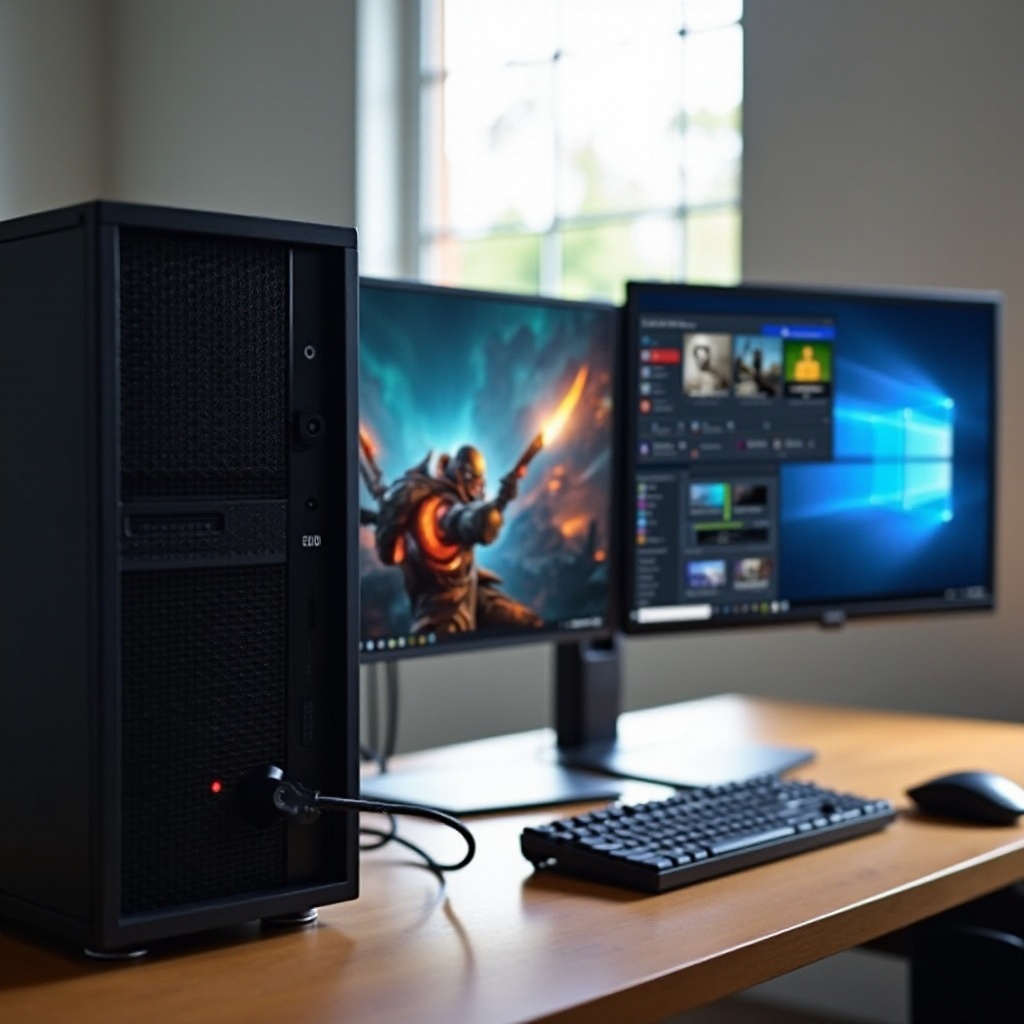
Use borderless window mode to keep the second monitor accessible for chat or streaming tools. If the mouse drifts off the game screen, enable a cursor lock in your game or GPU utilities. Place performance overlays on the secondary display to track frame rates and temperatures.
Creation workflow
Pin tool panels, file browsers, or timelines on one screen and use the other for full-screen previews. Match color profiles between monitors to keep edits consistent. Turn off dynamic picture modes that change color over time.
Productivity tactics
Group apps with Snap Layouts, and use keyboard shortcuts to move windows fast. Keep email or project management on the secondary display while you focus on documents or code on the main screen. Align scaling so text remains crisp on both screens.
Even with careful setup, issues can arise. The next section offers a clear path to diagnose and fix common dual-display problems.
Troubleshooting Dual-Monitor Issues: No Signal, Not Detected, Bandwidth and Adapter Limits
When a screen does not work as expected, isolate the fault in a few quick steps.
Quick fixes
- No signal: Verify power on both monitors, confirm the input setting, and reseat cables. Try another cable and another port.
- Not detected: Press Detect in Settings > Display. Power-cycle the monitor and the PC. Test the monitor on a different device to rule out a hardware fault.
- Wrong layout: Use Identify to confirm screen numbers, then drag to reposition in the Display settings.
Adapter and bandwidth limits
- 30 Hz cap or low resolution: Use certified DP 1.4 or HDMI 2.0/2.1 cables. Replace passive adapters with active ones for high-resolution or high-refresh setups.
- Flicker or dropouts: Shorten cable runs, avoid cheap splitters, and route video cables away from large power supplies.
- Mixed refresh rates: Confirm each monitor’s refresh rate in Advanced display and in the monitor menu.
Dock, Alt Mode, and EDID issues
- USB-C Alt Mode: Make sure your USB-C port supports video. If it does not, switch to a Thunderbolt dock or a GPU output.
- Dock bandwidth: Confirm the dock supports dual displays at your target resolution and refresh rate.
- EDID and handshake: Power on monitors first, then the PC. Disable deep sleep modes in the monitor menu. Try different GPU ports.
If problems continue, test with only one monitor connected. Verify it works at the desired resolution and refresh rate. Then add the second monitor and retest. This narrows the issue to a specific cable, adapter, port, or monitor setting.
Conclusion
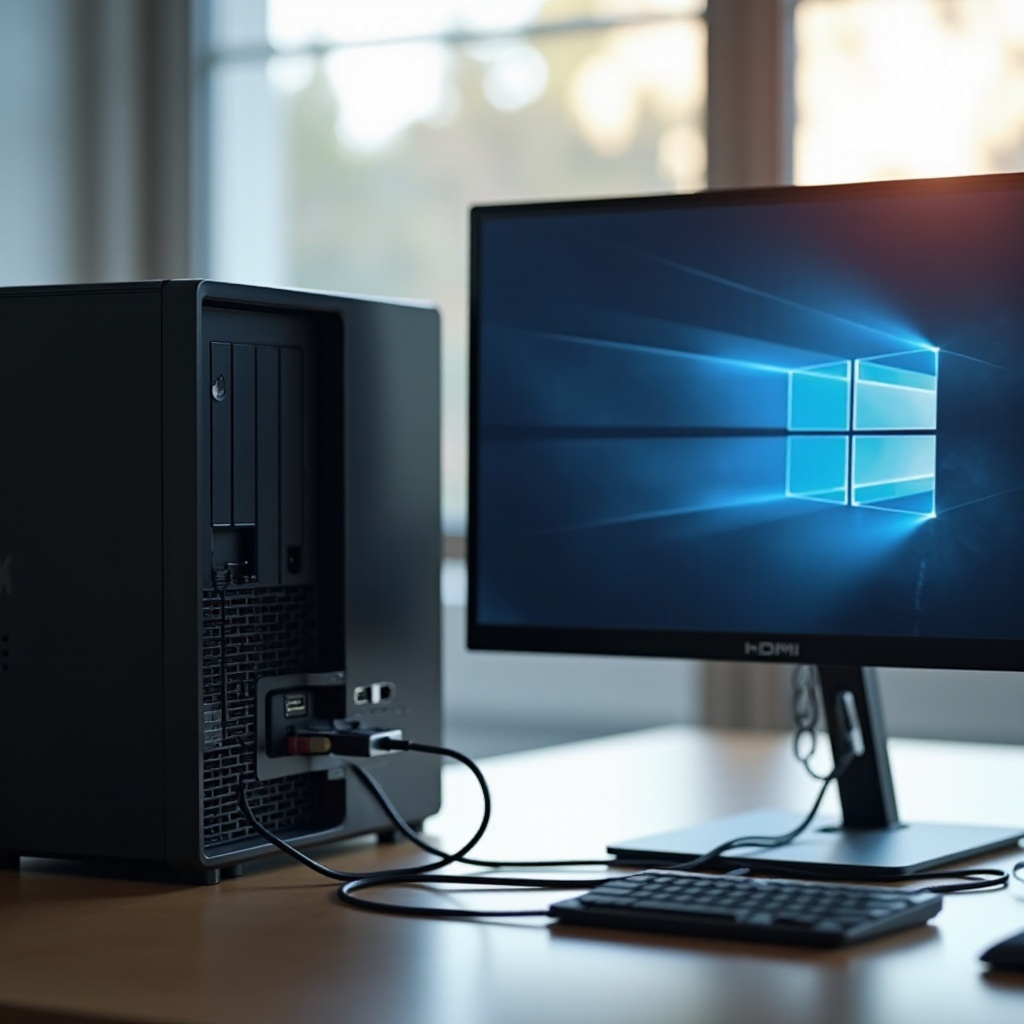
You can connect two monitors to a single CPU with confidence when you plan the ports, pick proper cables, and use Windows 11 display tools. Prefer DisplayPort or HDMI 2.0 and newer, and match each monitor to its best input. Optimize resolution, scaling, refresh rate, and color to keep text sharp and motion smooth. Use HDR only on panels that handle it well. If ports are limited, try DisplayPort MST or a USB-C or Thunderbolt dock. When issues arise, work through detection, cable quality, and adapter limits step by step. With this approach, your dual-display setup will feel consistent, look clean, and stay reliable for work, games, and creative tasks.
Frequently Asked Questions
Can I connect two monitors if my CPU only has one video port?
Yes. Use a DisplayPort MST hub if your GPU and monitor support it, or connect a USB-C or Thunderbolt dock with dual video outputs. Avoid basic HDMI splitters that only mirror. Update drivers and dock firmware for better detection.
Do I need a graphics card to run two monitors, or will integrated graphics work?
Integrated graphics can drive two displays on many modern systems. Check your CPU and motherboard specs for supported outputs and limits. For multiple 4K screens, high refresh rates, or advanced gaming features, a dedicated GPU is recommended.
Why is my second monitor stuck at a lower resolution or refresh rate?
The cause is often cable or adapter bandwidth. Use certified DP 1.4 or HDMI 2.0/2.1 cables. Replace passive DP-to-HDMI adapters with active ones for 4K/60 or 1440p/144. Set refresh in Advanced display and confirm the monitor input and firmware.