10 Nov 2026
Post by Aurorina
Introduction
Lose the mouse and keep your workflow moving. You can open context menus, manage files, and trigger extra actions on any laptop using built-in gestures, keyboard shortcuts, or touch. This guide shows practical, fast methods on Windows, macOS, and ChromeOS. You will set up the best gesture for your device and learn reliable backups when a trackpad fails to register a click.
We start with quick answers you can use right now. After that, you will learn the meaning of a secondary click so the settings you change make sense. Then we go platform by platform. You will see how apps behave, how to fix common issues, and how to use accessibility features and remote tools without losing speed. By the end, you will know exactly how to answer the question many users ask: how do you right click without a mouse.
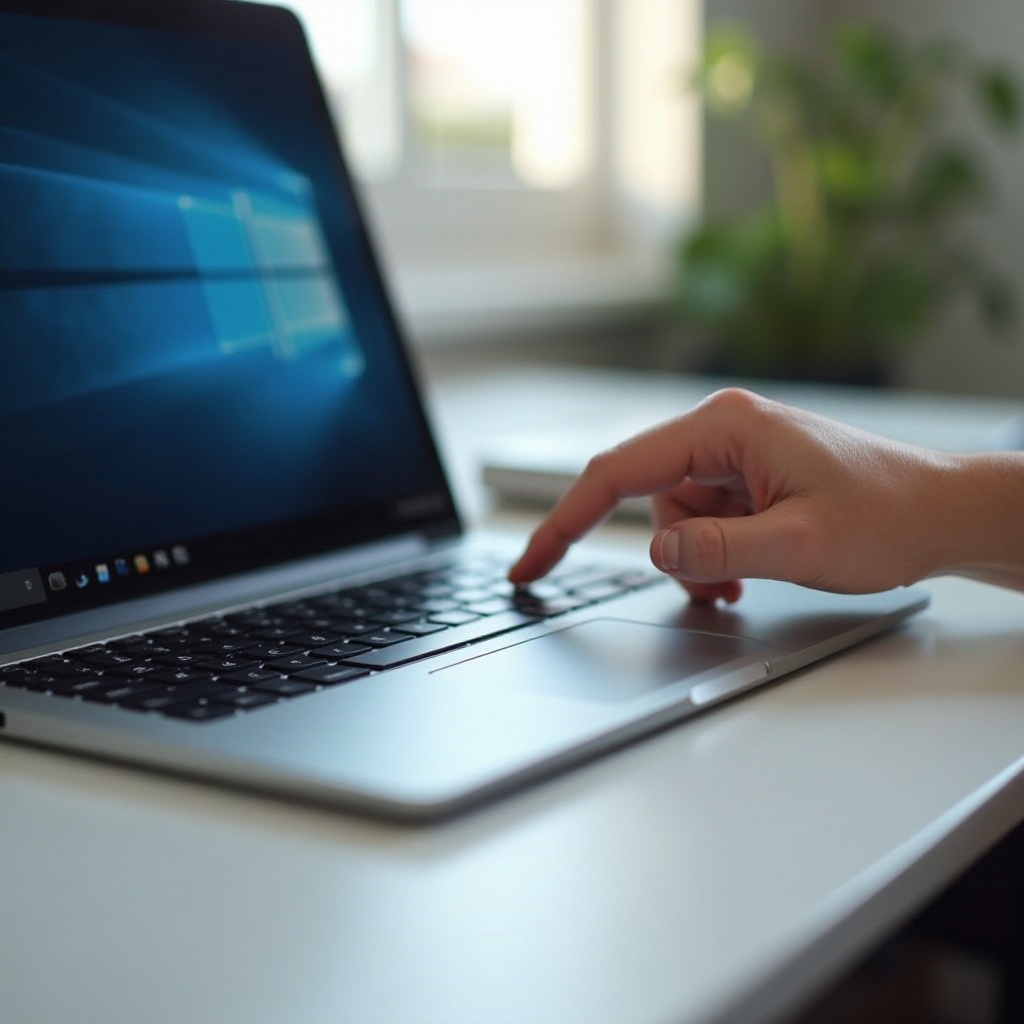
Quick Answer: Fastest Ways to Right-Click Without a Mouse
Need to open a context menu right now? Use these quick methods, then fine tune them in settings.
- Windows
- Press Shift + F10 to open the context menu for the focused item.
- Press the Context Menu key if your keyboard has one near the right Ctrl or Alt.
-
Tap or click with two fingers on a precision touchpad when enabled.
-
macOS
- Hold Control and click the trackpad or built-in button.
-
Tap or click with two fingers on the trackpad if you turned on the gesture.
-
ChromeOS
- Tap or click with two fingers on the touchpad.
- Hold Alt and click to open the menu.
Touchscreens on any platform: press and hold until the menu appears. If the menu does not show, the system may have the gesture disabled or mapped differently. Up next is a short explanation of what a right click actually does and why settings call it a secondary click.
What Right-Click Means: Secondary Click and Context Menus Explained
A right click is a secondary click. It tells the system to open a context menu for the item, text, or area under the pointer. Laptops often label this action as secondary click in settings. The common trackpad version is a two-finger click or tap. On touch screens, a long press works the same way.
Context menus change based on where you click. Right clicking a file shows Open, Rename, Copy, and Properties. Right clicking text shows Cut, Copy, Paste, and formatting options. Right clicking a web page background shows browser tools. If the menu looks different than you expect, you probably clicked a different element. Make sure the target item is focused, then try again.
Knowing the action and its name helps you find the correct toggle in settings. You will also know when a site or app intentionally blocks right click. With that foundation, let us configure and use every option on Windows laptops.
Windows Laptops: All the Ways to Right-Click Without a Mouse
Windows gives you several reliable paths to trigger a context menu without a mouse. Start with the method that feels natural, then add backups for when gestures fail.
Two-Finger Click or Tap on a Precision Touchpad
- Place two fingers on the touchpad and click or tap. This is the default on many modern laptops.
- Go to Settings > Bluetooth & devices > Touchpad. Turn on tap to click and enable two-finger tap for secondary click. Adjust sensitivity to reduce missed taps.
- If taps feel inconsistent, try a firm two-finger click instead of a light tap.
Shift + F10 and the Menu Key
- Press Shift + F10 to open the context menu for the focused file, link, or control. If your function row is in media mode, hold Fn as well.
- Many keyboards include a dedicated Context Menu key near the right Alt or Ctrl. Press it to open the menu without moving your hands.
- In browsers and some apps, Shift + F10 may open an accessibility menu for the focused element. This is useful when sites block pointer right clicks.
Bottom-Right or Bottom-Left Corner Click
- Some touchpads support a corner click as secondary click. In Touchpad settings, enable right click on the bottom right or bottom left corner.
- Click the chosen corner with one finger to trigger a secondary click, which helps if two-finger taps are hard to register.
Press and Hold on a Touchscreen or with a Pen
- On touch PCs, touch and hold until you see a visual cue, then release to show the context menu.
- Many pens map a button to right click. Check your pen or Bluetooth settings to confirm or customize the mapping.
Configure and Optimize Gestures in Windows Settings
- Open Settings > Bluetooth & devices > Touchpad. Turn on tap with two fingers, set corner actions, and adjust palm rejection.
- If your device shows limited options, it may not have a precision touchpad. Install the latest OEM drivers from Dell, HP, Lenovo, Asus, or the device maker to unlock more reliable gestures.
- Power users can remap a spare key to the context menu with Microsoft PowerToys or create a custom shortcut with AutoHotkey. This gives you a failsafe when gestures act up.
Once you have a dependable Windows setup, you can apply the same ideas to macOS. The next section shows every MacBook method and where to enable it.
MacBooks: Every Way to Right-Click Without a Mouse
MacBooks call the right click a secondary click. You can choose a gesture that fits your style and use it across apps.
Control-Click Anywhere
- Hold Control and click with one finger. This works even when gestures are off and is the fastest fallback when the trackpad misbehaves.
Two-Finger Click or Tap
- Most Mac users prefer a two-finger click or a two-finger tap. It is quick and consistent.
- Open System Settings > Trackpad > Point & Click. Turn on secondary click and choose click or tap with two fingers.
- If the gesture feels inconsistent, try a click instead of a tap, and adjust tracking speed for better control.
Bottom-Right or Bottom-Left Secondary Click
- In Trackpad settings, choose click in bottom right corner or click in bottom left corner if you like a fixed target.
- This is great for users who struggle to sync two fingers.
Enable Tap to Click and Tune Trackpad Options
- Turn on tap to click if you prefer light taps instead of firm clicks.
- Adjust click pressure on models that simulate a click with haptics. Set tracking speed to balance accuracy and speed.
- Note: Force Click is a deeper press used for lookups and previews. It is not the same as a right click.
With your Mac gesture tuned, practice in Finder and Safari. If you also work on a Chromebook, the next section covers ChromeOS methods that mirror what you now know.
Chromebooks: Right-Click Without a Mouse in Laptop and Tablet Modes
ChromeOS keeps secondary click simple, and 2-in-1 devices add touch and pen options. The setup is fast and works across the system.
Two-Finger Tap or Click
- Tap or click with two fingers on the touchpad. This is the default gesture on most Chromebooks and feels similar to macOS and Windows.
Alt + Click for Context Menus
- Hold Alt and click with one finger to open a context menu. Use this when two-finger taps do not register or when your posture makes a two-finger gesture awkward.
Long Press on Touchscreens and Stylus Options
- In tablet mode, press and hold until a menu appears.
- Many stylus models support a long press or a side button mapped to right click. Check the pen maker app or ChromeOS stylus settings when available.
Tune Touchpad in ChromeOS Settings
- Go to Settings > Device > Touchpad. Enable tap to click, set sensitivity, and test palm rejection.
- If taps fail, reduce sensitivity and practice a firmer, clear two-finger click.
Now that you can produce a secondary click on any platform, the next step is to predict what each app does with it. That way, you can move faster without guessing.
App-Specific Behaviors and Productivity Tips
Context menus depend on the app and the object you click. With a few habits, you can get the exact command you want every time.
File Managers: File Explorer, Finder, and Files
- In File Explorer, a secondary click on a file shows Open, Rename, Copy, and Properties. On recent Windows versions, some options hide under Show more options. Use Shift + F10 or pick that entry to see the classic list.
- In Finder, Control-click and use Get Info to see details, tags, and permissions. You can customize toolbars to keep frequent actions close.
- In the ChromeOS Files app, a two-finger tap gives quick access to Open with, Share, and Move to.
Browsers: Tabs, Links, and Images
- Right click a tab to pin, duplicate, mute, or close it.
- Right click a link to open in a new tab or copy its address.
- Right click an image to save, copy, or open it in a new tab. Some sites block right click with scripts. Use keyboard shortcuts like Ctrl or Cmd combinations or Shift + F10 as a fallback.
Office and Creative Apps: Text vs Object Menus
- Right click selected text for formatting, spelling, and link tools.
- Right click shapes, charts, and images for layer, alignment, and formatting menus.
- In web apps, Shift + F10 often opens the element menu even when pointer gestures are blocked.
If menus stop appearing or the wrong menu shows, you may need to adjust system settings or fix a driver. The following section walks you through reliable fixes in order of speed and impact.
Troubleshooting When Right-Click Does Not Work
When a secondary click fails, use a clear process. Start with quick checks, then move to drivers and settings.
Confirm Focus, Gesture, and Function Row
- Click once to focus the item before you trigger a menu. The menu follows focus.
- Try a firm two-finger click if taps are not detected. Clean, dry hands help sensors read gesture edges.
- If Shift + F10 fails on Windows, your F-keys may be in media mode. Hold Fn or change the keyboard row setting in BIOS or vendor software.
Update the OS, Drivers, and Firmware
- Windows: Run Windows Update. In Device Manager, update your touchpad driver. Visit your laptop maker site for the latest touchpad and firmware packages.
- macOS: Open System Settings > General > Software Update and install updates.
- ChromeOS: Go to Settings > About ChromeOS > Check for updates and restart.
Reset or Reconfigure Trackpad and Touchpad Settings
- Windows: Settings > Bluetooth & devices > Touchpad. Toggle two-finger tap, corner right click, and tap to click off and on. Test with both tap and click.
- macOS: System Settings > Trackpad. Toggle secondary click and tap to click. Adjust click pressure or haptic feedback. Reboot to clear stale states.
- ChromeOS: Settings > Device > Touchpad. Reset, change sensitivity, and retest.
Rule Out Conflicts and Hardware Issues
- Disable third party gesture tools and overlays to see if they intercept clicks.
- Clean the touchpad or trackpad. Oils and moisture reduce sensor accuracy.
- Boot into Safe Mode on Windows or macOS, or use Guest mode on ChromeOS. If right click works there, a startup item is likely at fault.
- On some Windows laptops, check BIOS or UEFI for touchpad mode options such as Advanced or Basic and pick the mode recommended by the vendor.
Workarounds When Policies or Apps Block Menus
- In managed environments, IT may limit context menus. Use keyboard paths like Shift + F10 or the Context Menu key to access allowed commands.
- In remote clients or sandboxed apps, enable trackpad passthrough or use the platform shortcut that the client expects. The next section covers these remote situations in more detail.
If you need more comfort, repeatable gestures, or alternate controls, accessibility features and external devices can help. Let us look at those options next.
Accessibility and Alternate Input Methods
When a standard gesture is tough to perform or causes strain, use accessible controls or remap actions to keys and devices.
On-Screen Controls and Dwell Actions
- Windows: Enable accessibility tools such as Mouse Keys or an on-screen keyboard to reach context menus. Some utilities add a floating context button that appears on hover.
- macOS: System Settings > Accessibility > Pointer Control. Use alternate pointer actions or dwell to trigger clicks after a short hover.
- ChromeOS: Open Settings > Accessibility. Turn on the on-screen keyboard or automatic clicks, then set the action to right click.
External Trackpads and Remapped Keys
- A Bluetooth or USB trackpad gives you a larger surface and more consistent gestures.
- Windows: Use PowerToys to map a custom key combination to open a context menu.
- macOS: Tools like BetterTouchTool can assign a dedicated gesture or keyboard shortcut to secondary click.
Scripts and Power User Tweaks
- Windows: AutoHotkey can map a spare key such as Caps Lock with a modifier to send a right click.
- macOS: Shortcuts or Automator paired with a gesture tool can emulate a context menu on demand.
- These tools provide strong fallbacks when system gestures are unreliable or when you need a one-handed setup.
If you often use remote desktops, virtual machines, or browser-based desktops, right click may need special handling. The next section explains how to keep menus working across those environments.
Remote Work and Virtualization: Right-Click in RDP, VMs, and Web Apps
Remote tools sometimes translate gestures in different ways. A few small tweaks ensure your secondary click reaches the remote system.
Windows Remote Desktop and Browser-Based Desktops
- Most RDP clients pass two-finger clicks through by default. If a menu does not appear, try Shift + F10 inside the remote session.
- In browser-based desktops and VDI portals, enable trackpad support or gesture passthrough in the client settings if available.
macOS and ChromeOS Shortcuts in Virtual Machines
- On a Mac host using Parallels, Fusion, or UTM, set the VM to recognize the secondary click from the trackpad. If that fails, map Control-click to a VM action.
- On ChromeOS with Linux containers, two-finger click works in most apps. Use Alt + Click as a backup when toolkits ignore gestures.
General Tips for Remote Sessions
- If the client interprets two-finger tap as scroll or zoom, switch to a firm two-finger click or use a mapped key like the Context Menu key.
- Reduce touchpad gestures on the host when they conflict with the client, and prefer keyboard shortcuts for consistency.
With remote and accessibility options in place, you can keep right click working in almost any context. Let us bring everything together with a simple plan.
Conclusion
You do not need a mouse to work fast on a laptop. Pick one or two secondary click methods that feel natural and set them as defaults. On Windows, two-finger click and Shift + F10 cover most needs. On Mac, Control-click and a two-finger click are dependable. On ChromeOS, a two-finger tap and Alt + Click form a quick pair. If a menu does not appear, verify focus, adjust settings, update drivers, and test in a clean mode. Add a remapped key or an external trackpad for comfort and reliability.
Once you practice your chosen gesture across file managers, browsers, and productivity apps, you will feel the speed boost. When you jump into a remote desktop or a VM, lean on keyboard shortcuts or enable gesture passthrough. With these habits, you can answer the question many users ask every day: how do you right click without a mouse, and do it in seconds.
Frequently Asked Questions
Is there a universal keyboard shortcut for right click on every laptop?
No single shortcut works on all platforms. On Windows, Shift + F10 and the Context Menu key are reliable. On Chromebooks, use Alt + Click. On a Mac, Control-click is the standard fallback.
Why does Shift + F10 not work on my laptop or in some apps?
You may need to hold Fn for the function row. The app might intercept the shortcut, or the target element may not have focus. Try the Context Menu key, a two finger click, or Alt + Click on ChromeOS.
Does Force Click on a Mac equal a right click?
No. Force Click is a deeper press for previews and lookups. A right click is a secondary click. Use Control click, a two finger click or tap, or a corner click for context menus on macOS.