15 Dec 2025
Post by Aurorina
Introduction
Nothing is more frustrating than an SSD that doesn’t show up in Windows 10 when you need it most. Whether it’s for work or personal use, an SSD that goes undetected can halt productivity and access to important data. Diagnosing the issue is crucial, and this guide aims to help you identify the root causes and provide effective solutions to make your SSD visible again.
Common Causes of SSD Visibility Issues
There are multiple reasons why your SSD may not appear in Windows 10, and understanding these causes can lead you to the right solution.
-
Connection Problems: Loose or faulty connections can be the simplest explanation. Ensure all SATA or PCIe cables are securely connected to both the SSD and the motherboard.
-
Incorrect BIOS Settings: Sometimes, your BIOS settings can cause recognition issues. Enter the BIOS settings to verify it’s configured to recognize your drive.
-
Driver Issues: Outdated or incompatible drivers hinder recognition. Ensuring your drivers are up-to-date is essential for SSD functionality.
After diagnosing these common causes, proceed with the initial troubleshooting to see if the problem can be resolved with basic checks.
Initial Troubleshooting Steps
Before exploring more advanced solutions, start with these straightforward steps:
-
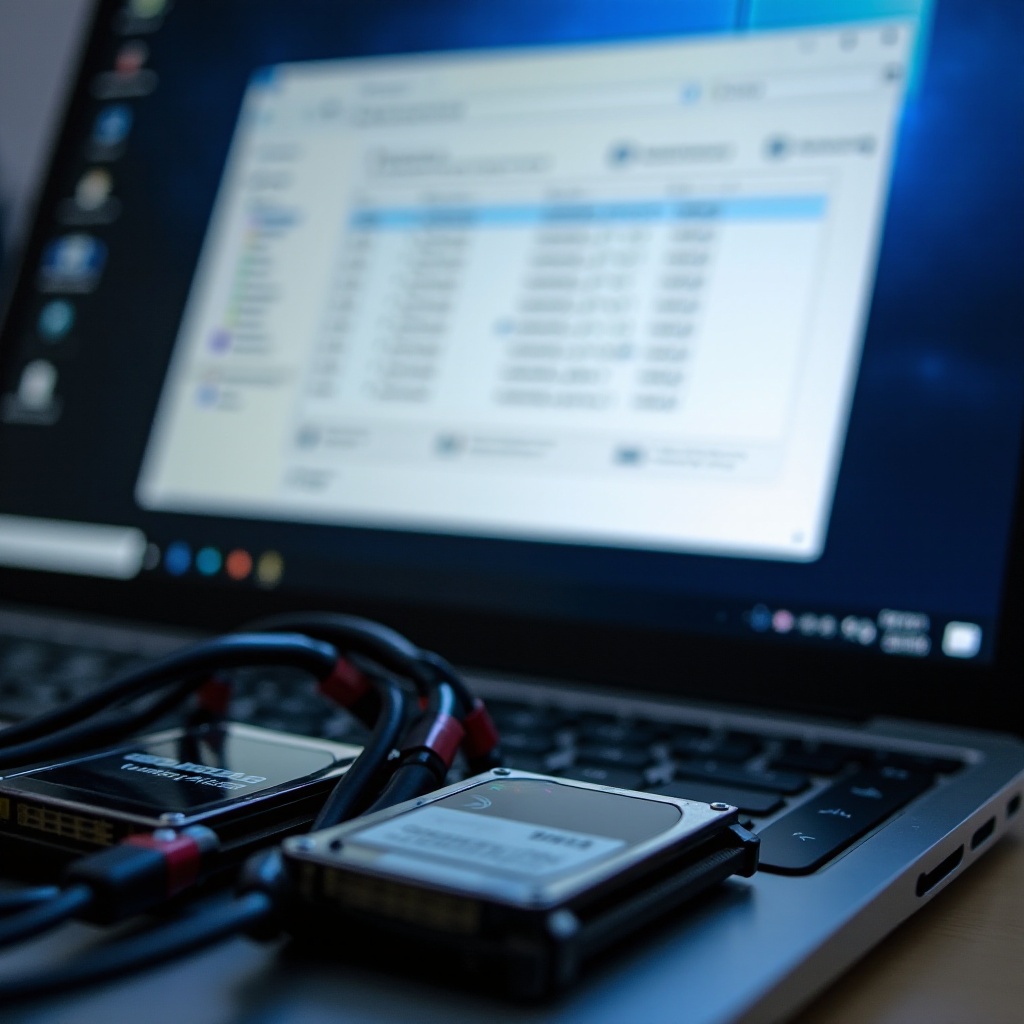
Verify Physical Connections: Shut down your computer and check the cable connections between your SSD and motherboard. Make sure everything is firmly attached.
-
Power Cycle Your Computer: Avoid a simple restart. Completely power off your machine for at least 30 seconds before turning it back on.
-
Check BIOS Settings: Restart your PC and enter BIOS/UEFI settings to confirm that your SSD is listed and enabled. Adjust storage configurations if the SSD is undetected.
These initial steps can often resolve detection issues. If your SSD is still not recognized, consider advanced software solutions.
Advanced Software Solutions
If basic troubleshooting doesn’t work, exploring software solutions becomes necessary:
-
Update SSD Drivers: Open Device Manager, locate the SSD, right-click, and select ‘Update Driver’. Follow the prompts to find and install driver updates.
-
Initialize Disk in Disk Management: Right-click on the Start button, open Disk Management. If your SSD shows as ‘Not Initialized’, right-click and select ‘Initialize Disk’, then follow the wizard instructions.
-
Use Command Prompt for Disk Recognition: If Disk Management fails, open Command Prompt as an administrator. Type ‘diskpart’ followed by ‘list disk’ to check if your SSD appears. If missing, the issue might be hardware-based.
These software solutions should address any ongoing recognition problems. If not, it may be time to inspect hardware-related issues.
Hardware Checks and Solutions
When software fixes fail, hardware issues might be at the core. Here’s how to diagnose and tackle such problems:
-
Identifying Hardware Failures: Consider testing your SSD on another device to check its functionality. This can help you determine if the fault lies with your SSD or the host device.
-
Testing SSD on Another Device: If your SSD works on a different device, the issue may be with your original motherboard or connections. If it doesn’t work elsewhere, consult the manufacturer regarding replacement or repair options.
Determining hardware problems is crucial. If your SSD is operational again, regular maintenance should help extend its lifecycle.
Preventive Measures and Maintenance
To avoid future recognition problems, it’s important to maintain your SSD well. Follow these tips:
-
Maintain SSD Health: Regularly use the manufacturer’s health monitoring tools to check the SSD’s status and perform necessary firmware updates.
-
Importance of Regular Backups: Consistently back up critical data using cloud services or external storage. This minimizes data loss in case of unexpected SSD failures.
Routine maintenance helps prevent issues, ensuring your SSD remains reliable for everyday use.
Conclusion
By following this comprehensive guide, troubleshooting your SSD recognition issues in Windows 10 should become more manageable. From checking connections to employing software and hardware solutions, these strategies offer a holistic approach to getting your SSD recognized. Practicing regular maintenance and updates will safeguard against future complications.
Frequently Asked Questions
Why is my SSD not detected in BIOS?
This could be due to incorrect BIOS settings or a hardware connection issue. Ensure your SSD is properly connected and the BIOS is configured to detect it.
Can a faulty SSD be repaired?
It depends on the specific issue. Software-related problems can often be fixed, but physical damage generally requires professional repair or replacement.
What are the signs of SSD failure?
Symptoms include frequent crashes, slow performance, and error messages. Recognizing these signs early allows for timely intervention and data backup.