25 Dec 2025
Post by Aurorina
Introduction
For Minecraft enthusiasts eager to bridge the divide between Xbox and Nintendo Switch, cross-platform play offers an enticing solution. Allowing players to unite across these popular consoles, this functionality is reshaping the multiplayer gaming landscape. In this guide, we’ll delve into the necessary steps to enable Xbox and Switch players to explore Minecraft worlds together, enhancing their gaming experience without platform barriers.

Understanding Cross-Platform Play in Minecraft
Cross-platform play in Minecraft is possible thanks to the Bedrock Edition, which supports various devices. To leverage this, players on Xbox and Switch need to use a Microsoft account, fostering connectivity and social interaction across consoles. This feature not only broadens your multiplayer options but also cultivates a larger community and allows for spontaneous gaming sessions without being limited by hardware.
The advantages of cross-platform play are multifaceted. Not only does it allow you to unite with friends regardless of their console choice, but it also encourages an inclusive gaming culture. This feature enables you to connect with a wider network, making your multiplayer experience more engaging and dynamic.
Preparing for Cross-Platform Gaming
Before embarking on your cross-platform adventure, certain preparations are necessary to ensure a seamless experience across Xbox and Switch.
-
Account Requirements: A Microsoft account is essential for both Xbox and Switch users. Setting this up is straightforward on the Microsoft website, with a confirmation email to finalize the process.
-
Necessary Subscriptions: Xbox players require an active Xbox Live Gold or Game Pass Ultimate subscription, while Switch users need a Nintendo Switch Online subscription to enable cross-platform play.
-
Update to the Latest Game Version: Ensure both consoles have the latest Minecraft version installed, as synchronization of game versions is crucial for cross-platform functionality.
Once equipped with these essentials, you’re ready to configure each console for a unified gaming journey.
Setting Up Cross-Platform Play on Xbox
Setting up your Xbox for cross-platform play involves a few straightforward steps:
-
Configuring Network Settings: Ensure a robust internet connection is established with your Xbox, vital for a smooth online experience.
-
Privacy and Cross-Platform Permissions: Within the Xbox settings, access ‘Privacy & Online Safety’ to adjust settings and permit cross-platform play through the ‘Xbox Live Privacy’ options.
-
Inviting Friends and Joining Sessions: Via Minecraft, sign in with your Microsoft account. Utilize the Friends tab to locate friends by their Microsoft usernames, then create or join worlds to collaborate.
With these configurations, Xbox players are ready to join and create immersive Minecraft sessions alongside Switch users.
Setting Up Cross-Platform Play on Nintendo Switch
Nintendo Switch players can join the cross-platform fun by following these steps:
-
Linking Your Microsoft Account: Upon launching Minecraft on your Switch, select ‘Sign In for Free’ and input Microsoft account credentials.
-
Adjusting Multiplayer Settings: Access the ‘Profile’ settings and enable multiplayer options, ensuring you can join friends’ games without hassle.
-
Troubleshooting Connection Issues: Should any connection issues arise, verify your console and game updates. Restart your router if necessary to stabilize connectivity.
Following these guidelines ensures Switch players are primed to engage with their Xbox counterparts in vibrant Minecraft realms.
Enhancing Your Multiplayer Experience
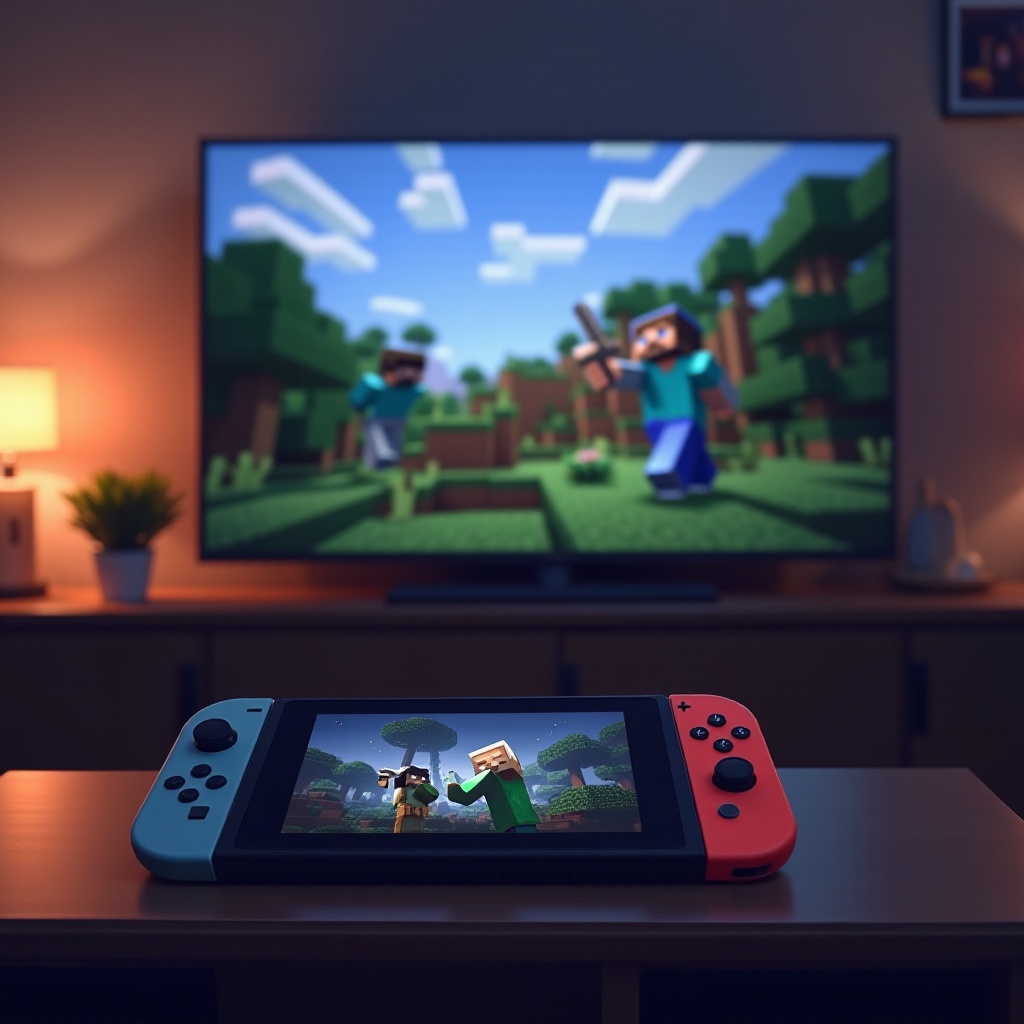
A seamless multiplayer experience is pivotal for enjoyment. To maintain fluidity in gameplay, consider the following:
-
Tips for Stable Connectivity: Opt for Ethernet connections where possible, reducing latency and enhancing stability.
-
Server Selection and Management: Be mindful of server regions, choosing a common or nearby region to all involved players to minimize lag.
These strategies enhance your multiplayer sessions, ensuring that players on both Xbox and Switch can enjoy Minecraft to the fullest.
Common Challenges and Solutions
Despite thorough preparation, players might encounter challenges. Here’s how to address common issues:
-
Technical Glitches: For any crashes or failed load attempts, restart the game and console, and check for updates that might fix the problem.
-
Incompatibility Problems: Confirm all players are using the Bedrock Edition, as other editions do not support cross-platform play.
-
Language and Communication Barriers: Employ voice communication tools like Discord or Xbox Live party chat for effective in-game coordination.
By swiftly addressing these hurdles, players can focus on the creative and adventurous aspects of Minecraft.
Conclusion
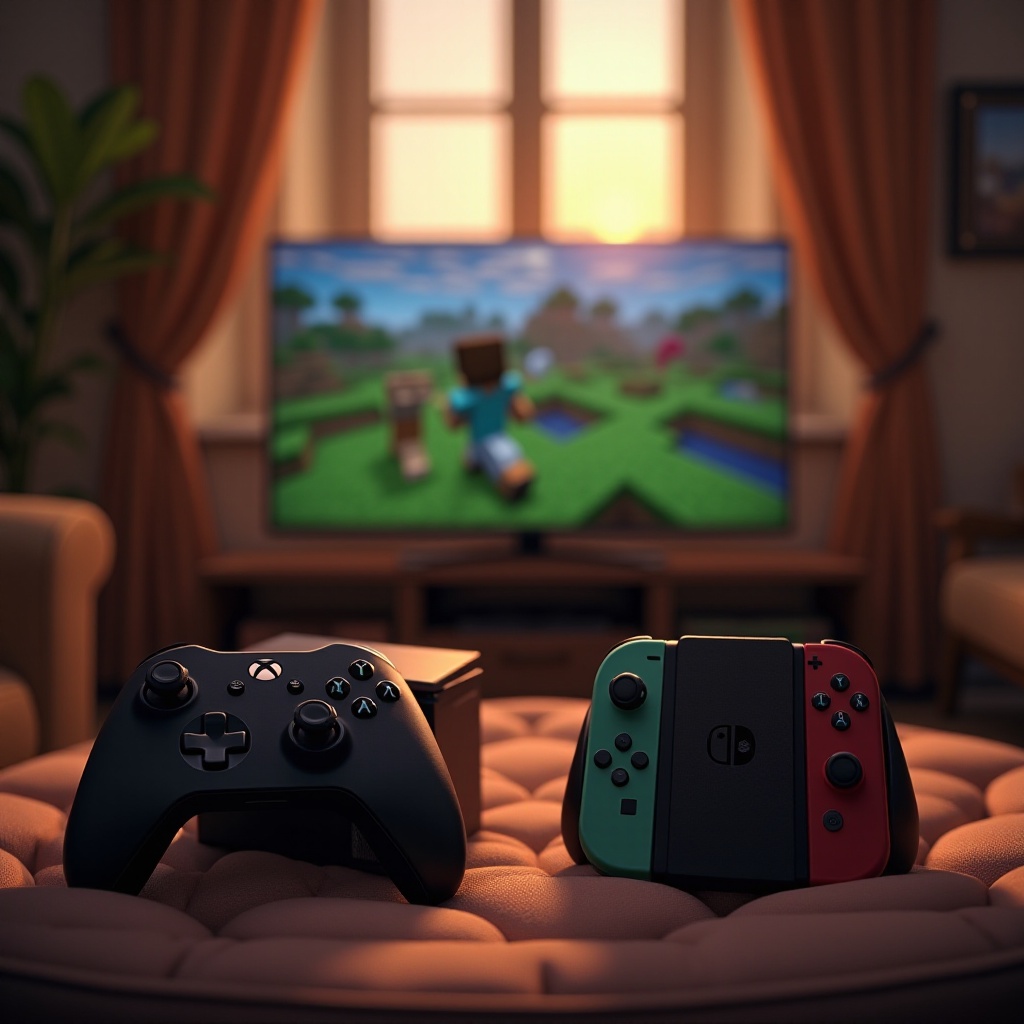
Cross-platform play between Xbox and Nintendo Switch broadens the horizon for Minecraft players, offering a richer, more interconnected gaming experience. Following the steps outlined above empowers players to effortlessly collaborate across devices, making shared adventures in the vast Minecraft universe a delightful reality.
Frequently Asked Questions
What do I do if I can’t connect with friends on different platforms?
Check that all players have a Microsoft account and are using the same version of Minecraft. Verify that cross-platform play is enabled in settings.
Is an internet connection always required for cross-platform play?
Yes, a stable internet connection is essential for cross-platform play, as the game relies on servers to connect players from different platforms.
Can I use mods during cross-platform sessions?
Unfortunately, mods are not supported in cross-platform play since they may vary between systems and can lead to compatibility issues.