22 Oct 2025
Post by Aurorina
Introduction
Transferring photos from an Android phone to a Mac might seem challenging, but with the right guidance, the process becomes seamless and efficient. Whether you’re utilizing a USB cable, leveraging cloud storage, or exploring wireless options, there’s a method that suits your needs. This guide will introduce various techniques to ensure all your memorable moments captured on your Android device are safely transferred to your Mac.
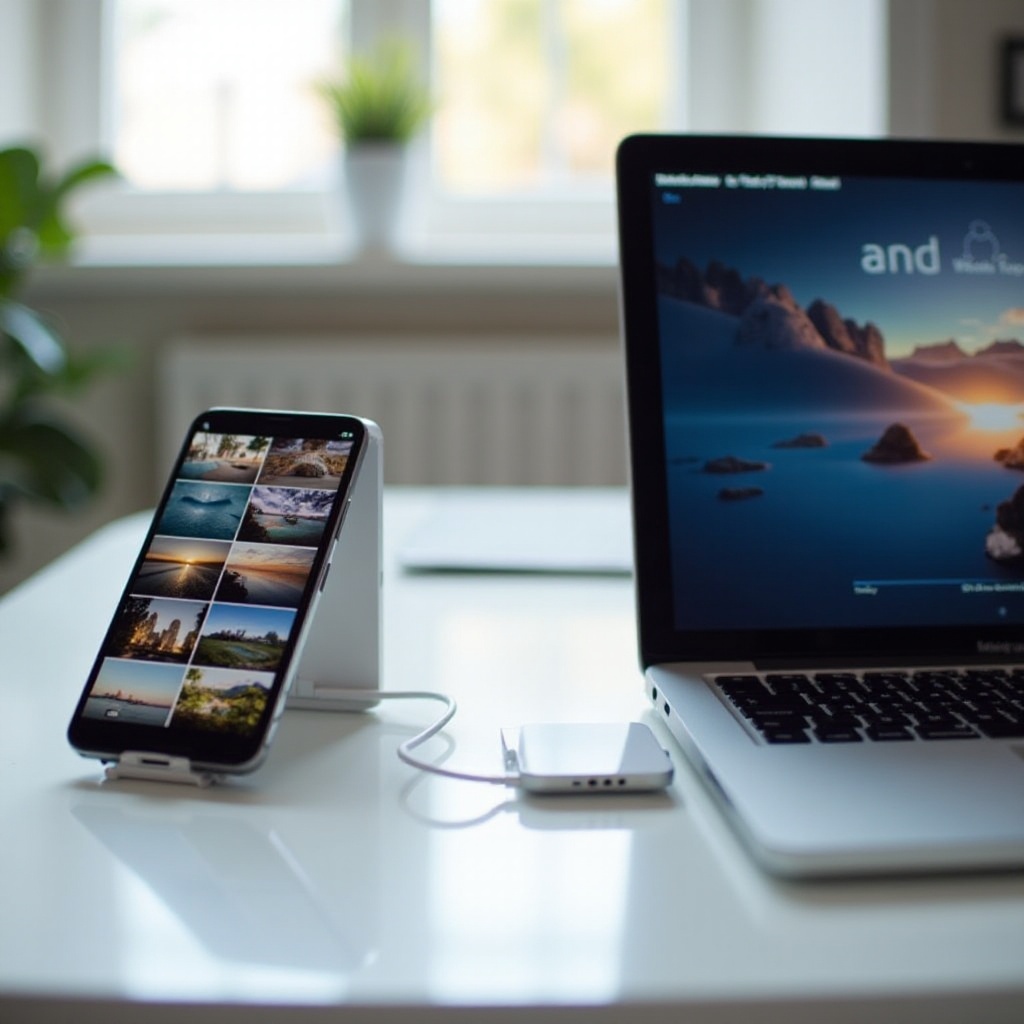
Using a USB Cable and Android File Transfer
For a straightforward approach, using a USB cable paired with Android File Transfer is a reliable solution:
- Connect with a USB Cable: Start by connecting your Android device to your Mac using a USB cable. Ensure your device is unlocked to establish a proper connection.
- Download Android File Transfer: If not already installed, download and install the Android File Transfer application on your Mac. This tool provides easy access to files on Android devices.
- Access and Transfer Files: Open Android File Transfer, navigate to the ‘DCIM’ or ‘Pictures’ folder on your Android, and drag and drop your photos onto your Mac.
Now that we’ve explored a wired transfer option, let’s dive into how cloud services can offer a cable-free experience.
Transferring Photos via Google Photos
Google Photos is a popular service that provides a simple way to store and transfer photos:
- Install Google Photos: Download and install the Google Photos app on your Android device.
- Upload Photos: Open the app to back up your photos to the Google Photos cloud. Connect to Wi-Fi to avoid excessive data charges.
- Access on Mac: Visit the Google Photos website on your Mac and log in with the same Google account to access and download your photos.
This method not only saves space on your device but also allows easy access across platforms. If you’re looking for additional storage options, cloud storage services might be your next best bet.
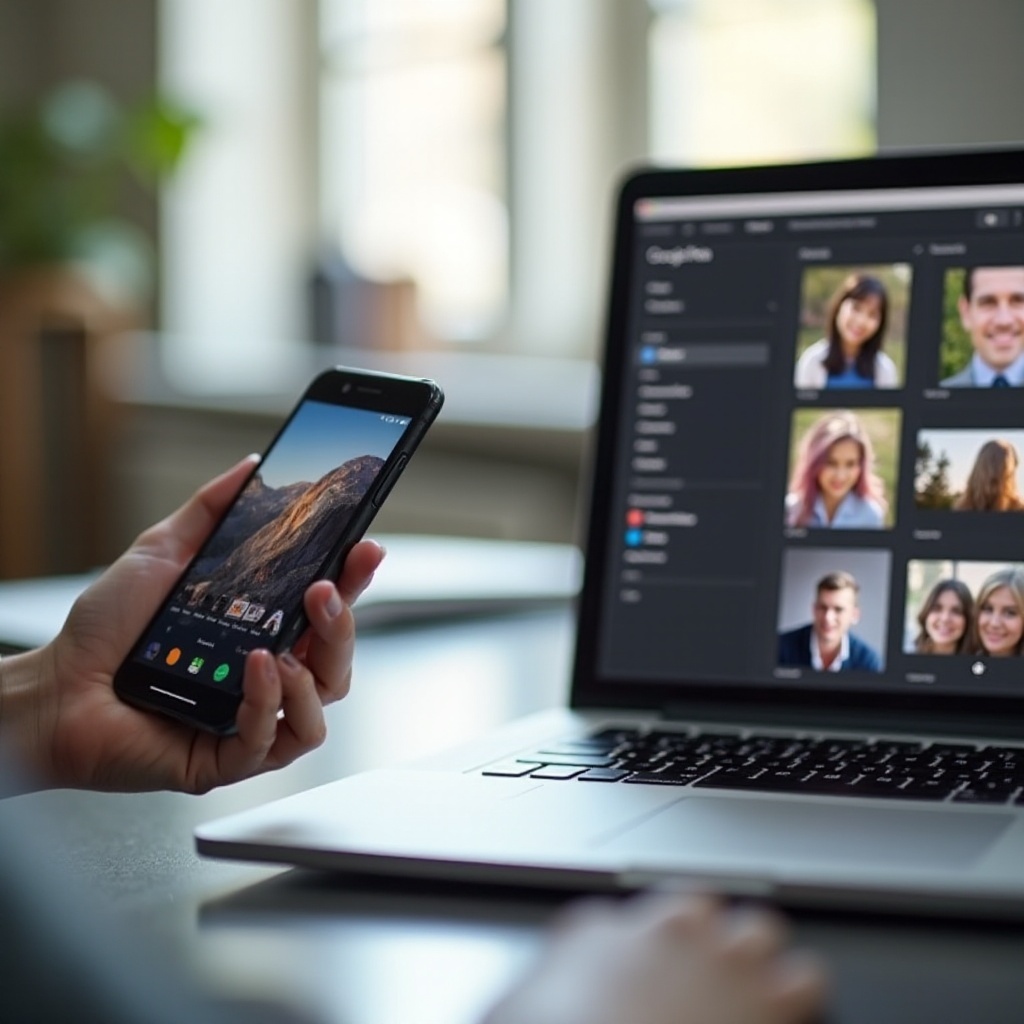
Utilizing Cloud Storage Services
Dropbox
- Sign Up and Install: Create a Dropbox account and install the Dropbox app on both your Android device and Mac.
- Upload Photos: Use the Dropbox app to upload selected photos from your Android. Tap ‘Upload’ to store them in the cloud.
- Download on Mac: Access Dropbox on your Mac through the app or a browser to download your photos.
OneDrive
- Set Up OneDrive: Download the OneDrive app on both your Android and Mac devices.
- Sync Photos: Use OneDrive to select and upload photos for synchronization.
- Access Files: On your Mac, navigate to OneDrive using the app or browser to retrieve your photos.
After covering cloud-based solutions, let’s discuss wireless transfer methods that offer additional convenience.
Wireless Transfer Methods
Bluetooth Transfer
- Activate Bluetooth: Enable Bluetooth on both your Android phone and Mac.
- Pair Devices: Allow your Mac and Android to detect each other and establish a connection.
- Transfer Files: Select the photos and transfer them to your Mac via Bluetooth.
AirDroid Setup
AirDroid offers a reliable wireless option to transfer files:
- Install AirDroid: Install the AirDroid app on your Android device.
- Connect and Transfer: Open the browser on your Mac, access AirDroid Web, and connect your Android device by following on-screen instructions. Transfer your photos quickly without using cables.
While wireless methods offer convenience, explore third-party applications which provide additional functionalities.
Using Third-Party Applications
Third-party applications offer varied features and ease-of-use to enhance the transfer experience:
- SHAREit: This app is known for fast transfers and group sharing features.
- Send Anywhere: Renowned for not compromising on quality, Send Anywhere ensures a seamless transfer of photos.
Download these applications from the Google Play Store, along with their corresponding tools for Mac. Follow the in-app instructions for an efficient transfer process.
As you navigate these methods, it’s not uncommon to encounter issues. Let’s address some common problems and their solutions.
Troubleshooting Common Issues
- Device Not Connecting: Verify the USB cable is functional, ensure your Android device is powered on, and select the File Transfer mode.
- Slow Transfer Speeds: Reconnect devices if necessary, and ensure a stable network connection when using wireless methods.
- Photo Quality Loss: For preserving quality, choose direct USB transfers or use apps like Send Anywhere. Avoid compressive cloud options if quality retention is critical.
In conclusion, transferring photos doesn’t need to be complicated. Here’s a summary.
Conclusion
From cables to clouds and wireless wonders, transferring photos from Android to Mac has become more accessible than ever. Each method offers unique advantages tailored to different needs. Whether you prefer the directness of wired connections, accessibility through cloud services, or the convenience of wireless methods, a solution awaits to match your preferences.
Frequently Asked Questions
What if my Android device doesn’t connect to my Mac?
Ensure you’re using a working USB cable and that your Android device is unlocked. Download and install Android File Transfer to establish a proper connection.
Can I transfer photos without using the internet?
Yes, you can use methods such as a USB cable or Bluetooth for a seamless offline transfer experience.
How can I ensure the photo quality isn’t affected during transfer?
To retain quality, use USB transfers or apps like Send Anywhere. Avoid compressive cloud storage options if quality retention is crucial.