6 Nov 2025
Post by Aurorina
Introduction
To fully understand the capabilities of your computer, especially if you’re involved in gaming, video editing, or graphics-intensive tasks, knowing how to check your video card is essential. This fundamental component plays a pivotal role in how your system handles graphics and interacts with various software applications. Our guide is designed to provide you with straightforward steps and valuable insights, ensuring that you’re well-equipped to manage or upgrade your system as necessary.
Understanding Video Cards
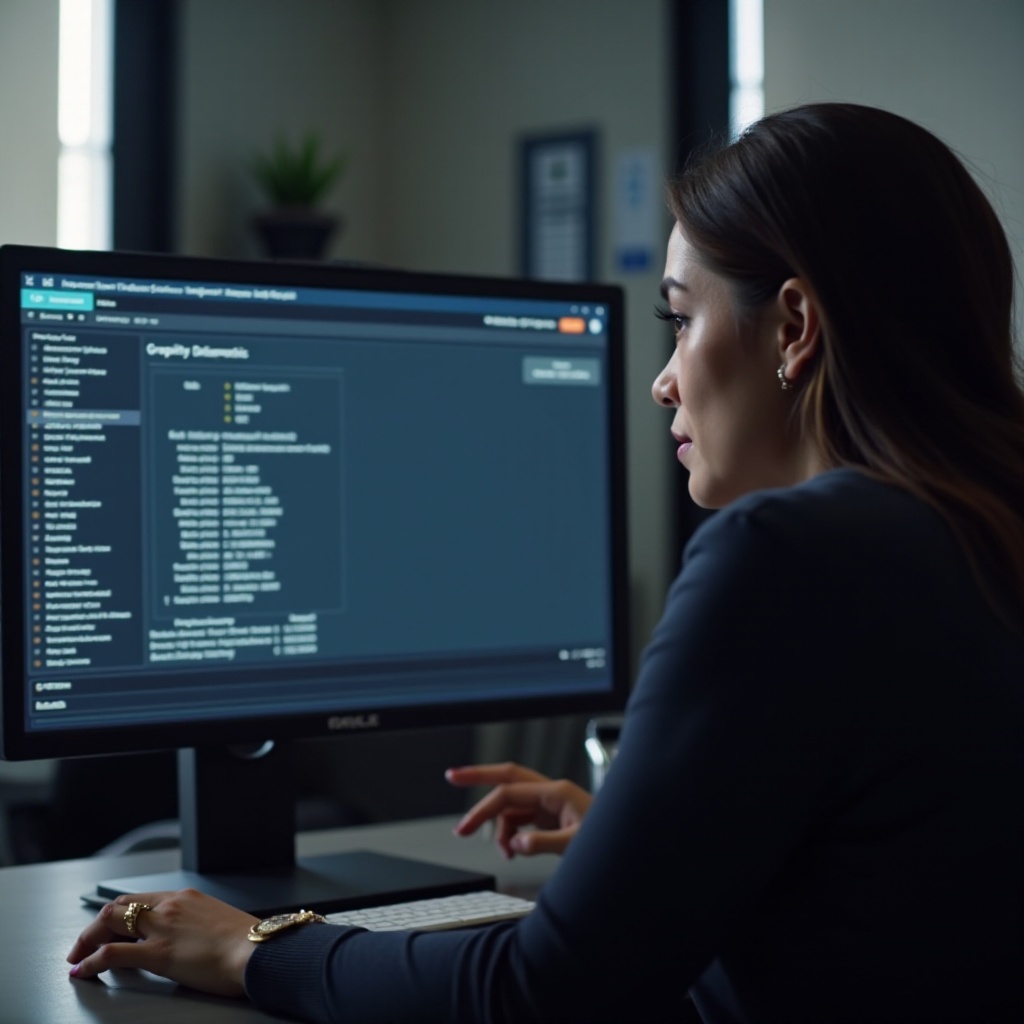
Video cards, also known as graphics cards, are integral parts of modern computing systems. They process graphical data and render images, making them indispensable for graphics-heavy applications. Video cards come in two main types: dedicated and integrated. Dedicated cards are standalone components providing enhanced power and performance, ideal for gaming and rendering tasks. Integrated cards, on the other hand, are part of the CPU or motherboard, offering adequate performance for everyday tasks but are not optimal for demanding applications. Knowing the differences and specifications of your video card helps in planning for current and future needs regarding software compatibility and performance upgrades.
Methods to Check Your Video Card
Checking your video card details can be accomplished through several methods, providing insights into its specifications and performance. Here’s how you can explore them further:
Using Device Manager
Device Manager is a convenient Windows utility allowing you to oversee all hardware components connected to your computer. By using this tool, you can easily find out the make, model, and driver status of your video card.
Checking Through System Information
System Information offers a comprehensive overview of your computer’s hardware components, including your video card. This tool presents an extensive display of resource details, key for evaluating your computer’s capabilities and setup.
Using DirectX Diagnostic Tool
The DirectX Diagnostic Tool is useful for extracting data about the DirectX components and drivers on your computer, especially relevant for video cards. This tool is excellent for diagnosing graphic and sound hardware problems, ensuring your system runs smoothly.

Step-by-Step Guide for Each Method
Armed with knowledge of the methods available, here’s how you can go about using each tool to check your video card.
Checking Video Card via Device Manager
- Press
Windows + Xand select ‘Device Manager. - In the window that appears, expand the ‘Display adapters’ section.
- Here, the make and model of your video card will be displayed.
Checking Video Card via System Information
- Press
Windows + Rto open the Run dialog, typemsinfo32, and then press Enter. - In the System Information window, navigate to the ‘Components’ section.
- Choose ‘Display’ to view detailed information about your video card, including its name and manufacturer.
Using the DirectX Diagnostic Tool
- Open the Run dialog by pressing
Windows + R, then enterdxdiagand press Enter. - Select the ‘Display’ tab for information about your video card, including model and driver details.

Recommended Third-Party Software Options
In addition to built-in methods, you might consider using third-party software solutions for more detailed analyses. Programs like GPU-Z and Speccy are popular choices among tech enthusiasts, providing advanced details about video card performance such as temperature, clock speed, and memory usage. When opting for these solutions, ensure you download from reputable sources to protect your system from potential security threats.
Troubleshooting Common Video Card Issues
Upon reviewing your video card, discovering areas needing attention is common. Typical issues include outdated drivers, performance lags due to overheating, or incompatibilities with new software. Solutions can often be found through driver updates from the manufacturer, optimizing system cooling, or examining software compatibility before installation. For persistent issues, consulting with professional services is advisable to prevent hardware damage or performance hindrances.
Conclusion
Knowing how to check your computer’s video card is a significant aspect of performance management and future system upgrades. By employing either built-in tools or exploring third-party software, you gain crucial information to ensure your graphics capabilities meet your needs. Keep this guide as a reference to maintain system efficiency and make informed decisions regarding upgrades and enhancements.
Frequently Asked Questions
How can I tell if my video card needs an upgrade?
Consider upgrading if your video card struggles with new games or software requirements, or if it lacks compatibility with updated drivers and technology.
What should I do if my video card isn’t detected?
Check connections, ensure the card is properly seated, update drivers, and inspect for damage. If issues persist, seek professional help.
Are there any risks in using third-party software to check my video card?
Downloading from unverified sources can expose your system to malware. Always use reputable software providers to mitigate security risks.