29 Jan 2026
Post by Aurorina
Introduction
Understanding the wattage of your PC is crucial for keeping optimal performance and ensuring energy efficiency. By knowing the full wattage, you can troubleshoot power issues effectively and plan any future system upgrades. This guide will explore various methods to determine your PC’s wattage, alongside tips for optimizing power use and troubleshooting common problems.
Understanding PC Wattage
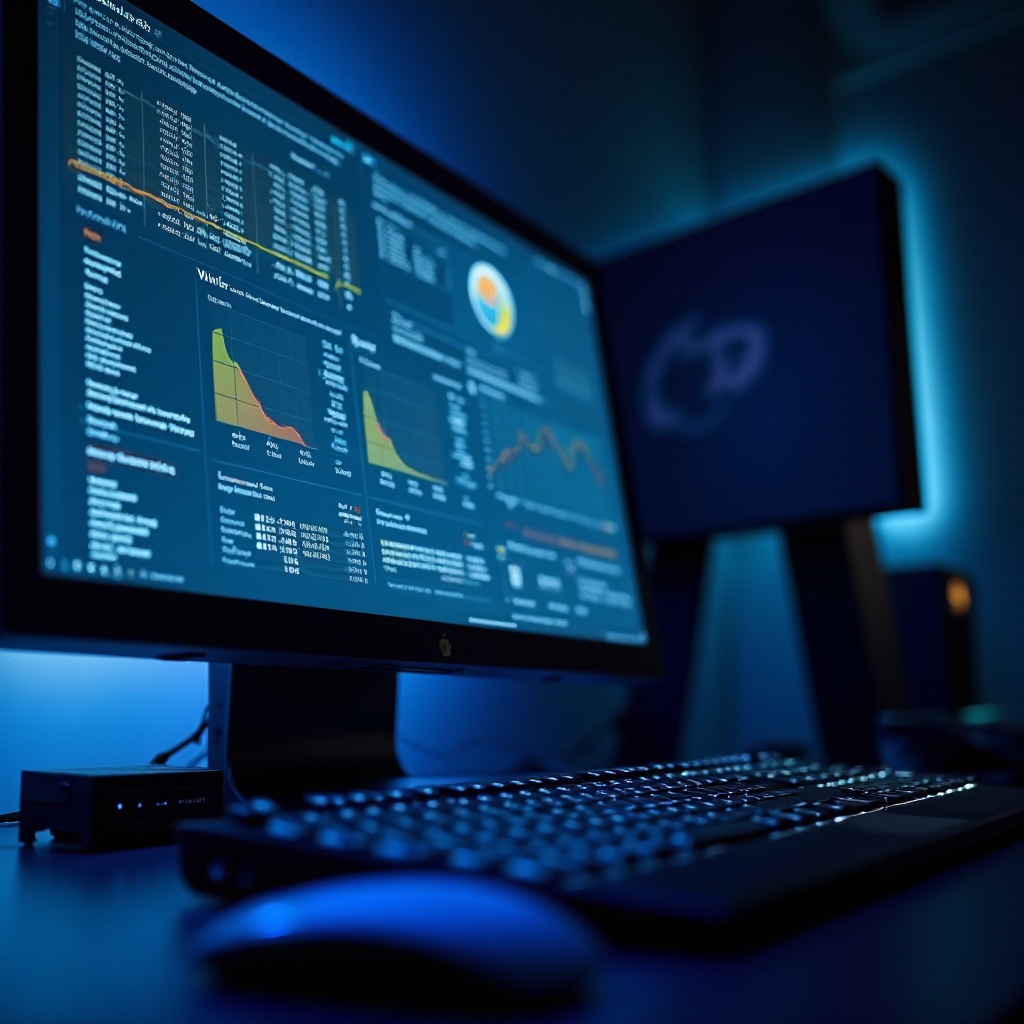
PC wattage measures the energy your computer uses. It directly affects performance and helps prevent overloading the power supply. Monitoring this helps maintain a balance between power supply capacity and your system’s needs, especially crucial if you’re using high-demand components like gaming GPUs or multiple drives. Understanding these basics is essential as we delve into specific methods for determining your PC’s wattage.
Methods to Determine Your PC’s Full Wattage
There are several methods to learn your PC’s full wattage. Here are some effective techniques:
Using Software Tools
-
CPUID HWMonitor: This free tool displays detailed info about your PC’s power usage. After downloading and installing HWMonitor, simply open it, and navigate to the watts section for a comprehensive summary.
-
Open Hardware Monitor: Another excellent choice, this software should be installed and run to check the power section for your system’s component wattage.
These user-friendly tools provide real-time monitoring, crucial for proactive maintenance.
Calculating Wattage Manually
For those preferring a hands-on approach:
-
Identify Component Wattage: Look up the manufacturer’s website or your product manual to find each component’s wattage, such as CPU, GPU, motherboard, and RAM.
-
Use Online Calculators: Input details for each component into an online power supply calculator to get a total wattage estimate.
This method requires precise data entry but is quite accurate when done carefully.
Checking the Power Supply Unit (PSU)
-
PSU Labels: Examine the labels on your PSU that indicate maximum wattage capacity. Match your system’s needs to this capacity.
-
Efficiency Ratings: Seek out PSUs with 80 PLUS certification, which confirms high energy efficiency and lower energy waste.
Selecting a PSU that accommodates your components ensures efficiency and reliability.
The Role of Each Component in Power Consumption
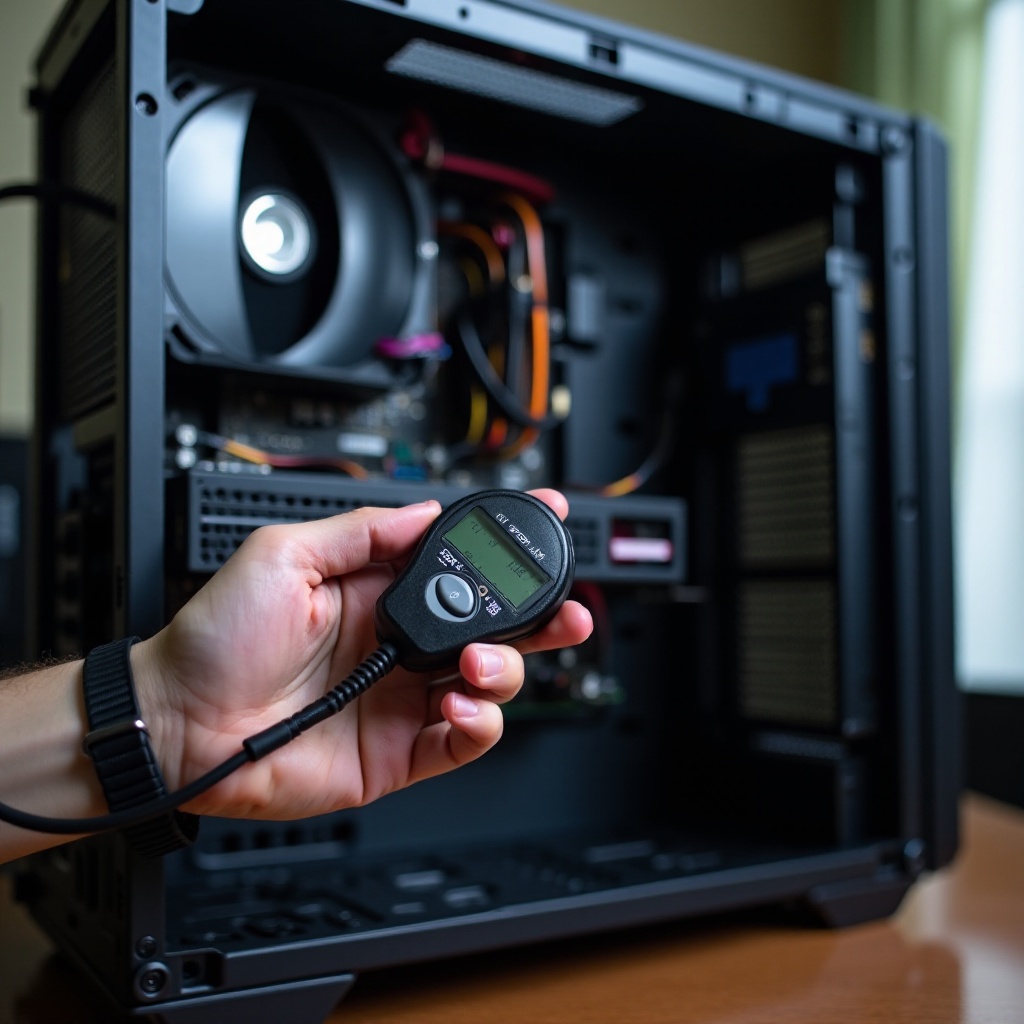
Various components contribute differently to power usage:
CPU and GPU
These are major power consumers. Your CPU handles processing tasks, while the GPU takes care of graphics-heavy processes. Consider settings such as dynamic voltage management to mitigate power use, or choose models known for efficiency.
Motherboard, RAM, and Storage
These components typically use less power but remain important. Ensure your motherboard compatibility with CPU and RAM to prevent unnecessary energy draw. Opt for SSDs over HDDs for improved efficiency.
Additional Peripherals
Peripherals, including monitors and external drives, add to total power usage. Consider these when planning your system’s energy requirements, particularly if using multiple devices.
Recognizing power use across components helps manage overall consumption effectively.
Tips for Optimizing Power Usage
There are several strategies to reduce power draw and extend component life:
-
Upgrade Components: Replace older, inefficient parts with newer models that offer better energy efficiency ratings.
-
Power Management: Utilize your operating system’s power management tools to set plans that minimize energy usage during inactivity.
-
Maintenance: Regularly clean and dust your system to prevent overheating that may cause increased power consumption.
These tips significantly lower your power usage, contributing to efficiency and reliability.
Troubleshooting Common Wattage Issues
Power issues can manifest as slow performance or random shutdowns. Here are troubleshooting steps:
-
Monitor Symptoms: Be alert to signs such as overheating or unusual noise that indicate power stress.
-
Verify Connections: Ensure all PSU-related cables are secure and undamaged.
-
Test Components: If suspecting a specific component, use a spare PSU for testing to isolate the power draw issue.
Effective troubleshooting maintains system stability and prevents damage.
Conclusion
Knowing your PC’s full wattage is key to maintaining efficiency and operational success. From software tools to manual calculations, tracking power usage is straightforward. Regular monitoring and optimizations enhance your PC’s performance and longevity.
Frequently Asked Questions
What software can I use to check my PC’s wattage?
Programs like CPUID HWMonitor and Open Hardware Monitor are excellent tools for monitoring system wattage.
Why does my PC wattage seem higher than expected?
Unexpected high wattage could be due to power-hungry components or incorrect power settings. Verify each component’s requirements and optimize settings.
Can upgrading components reduce my PC’s energy consumption?
Yes, selecting newer, more efficient components can reduce overall power consumption and improve performance through better efficiency ratings and certifications.