20 Dec 2025
Post by Aurorina
Controlling your Samsung phone remotely transforms your interaction with the device. Whether you need to manage settings or access files from afar, understanding remote control functionality unlocks numerous conveniences. This guide explores how to efficiently set up and leverage these capabilities.
Understanding Remote Control for Samsung Phones
Remote control for Samsung phones is a practical feature offering both convenience and peace of mind. Imagine accessing documents or troubleshooting issues remotely with ease. These features are incredibly beneficial for busy professionals and tech-savvy users, enhancing the smartphone experience by providing remote access to critical data and settings.
Built-in Samsung Remote Management Tools
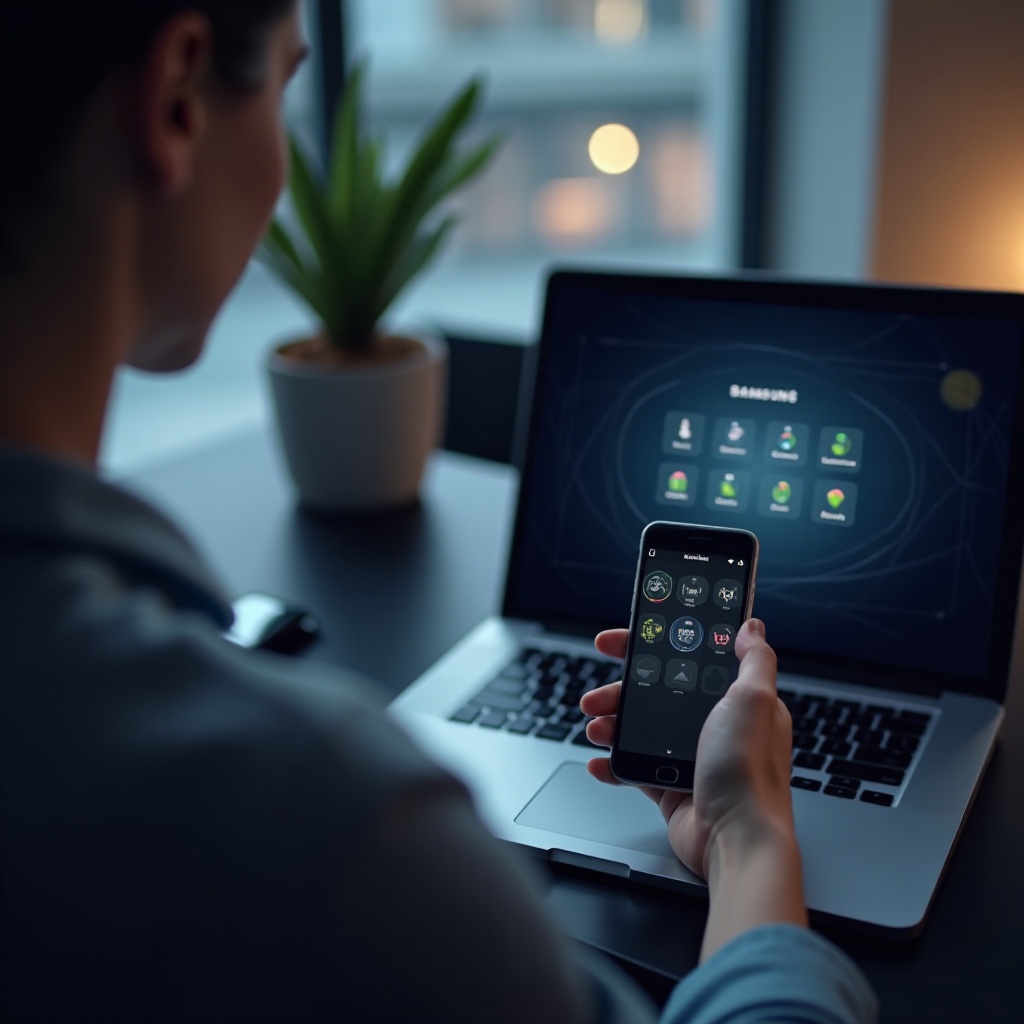
Samsung offers robust built-in tools for remote management. Primarily, these include Samsung Smart Things and Find My Mobile. These tools ensure you can control your device seamlessly from any location.
Using Samsung Smart Things
Samsung Smart Things connects your phone to compatible smart devices:
- Install the Smart Things app on your Samsung phone.
- Create or log into your Samsung account.
- Add and manage smart devices via the app.
- Control these devices remotely with the app.
Setting Up Find My Mobile
Find My Mobile is crucial for locating and managing your phone remotely:
- Activate Find My Mobile in Settings > Biometric and security > Find My Mobile.
- Use Samsung’s Find My Mobile website to track, lock, or erase the phone.
These built-in tools simplify remote management and offer essential control features, enhancing the overall functionality of your Samsung device.
Popular Third-Party Apps for Remote Access
While Samsung provides comprehensive solutions, third-party apps can enhance remote management capabilities further.
TeamViewer Setup and Features
TeamViewer is renowned for its robust remote control capabilities:
- Install TeamViewer QuickSupport on your Samsung phone.
- Share the Partner ID with the device you wish to control from.
- Use TeamViewer software on your PC or another device for control.
AirDroid Configuration Guide
AirDroid offers a user-friendly interface for remote access:
- Download AirDroid from the Google Play Store.
- Sign up for an AirDroid account.
- Link your Samsung phone with other devices.
- Manage files, send messages, and install apps remotely.
These applications expand the functionality offered by Samsung, enabling comprehensive control over your phone.
Remote Control via PC and Other Devices
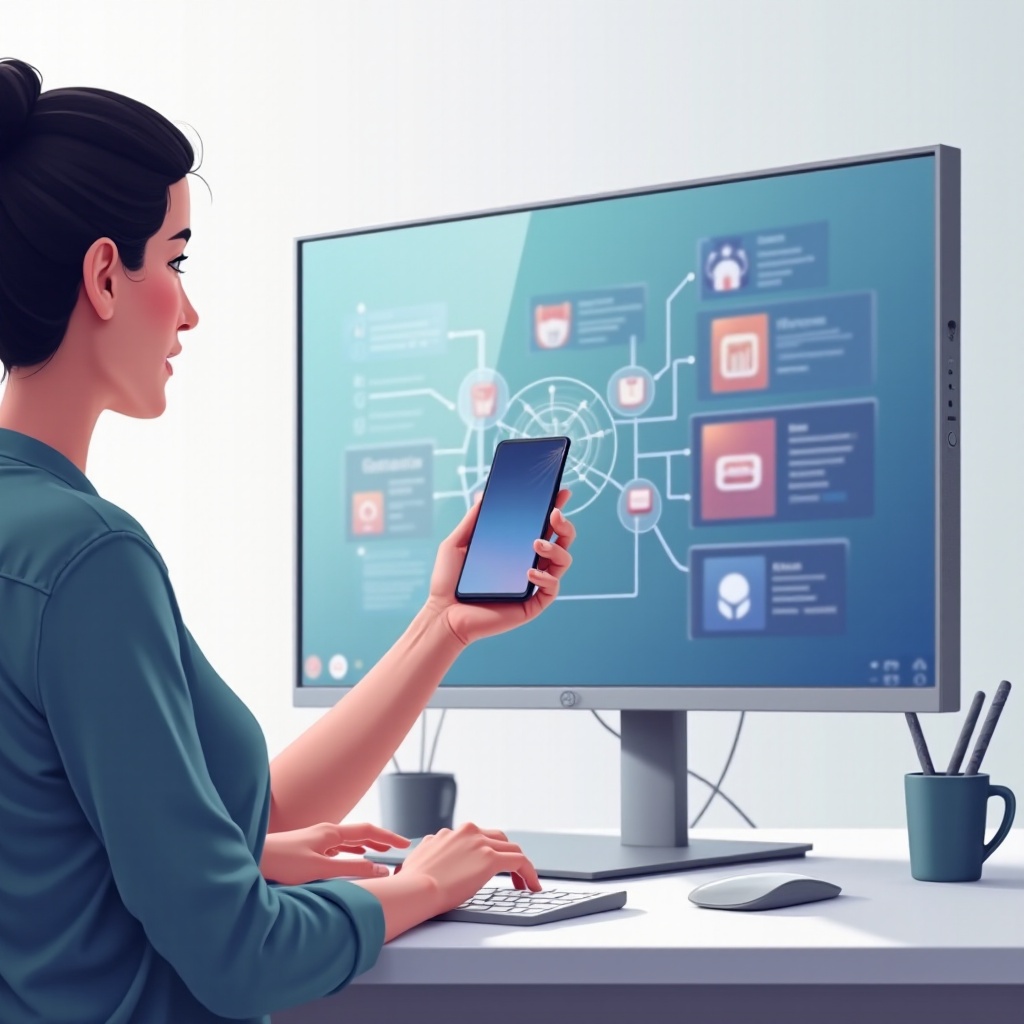
Using your PC or other devices to access your Samsung phone offers versatility, enabling a larger screen for work or entertainment. By using Smart Things, Find My Mobile, or apps like TeamViewer and AirDroid, you can seamlessly connect your devices. Set up the essential software on both your phone and PC, ensuring they are network-linked or connected via account IDs for efficient management across platforms.
Troubleshooting Common Issues
Sometimes, remote access encounters challenges. Most issues can be resolved with simple troubleshooting steps.
- Ensure devices are network-linked or properly configured through app settings.
- Keep applications updated to prevent crashes.
These solutions make your remote connection reliable and efficient, ensuring continuous connectivity without interruption.
Security and Privacy Considerations
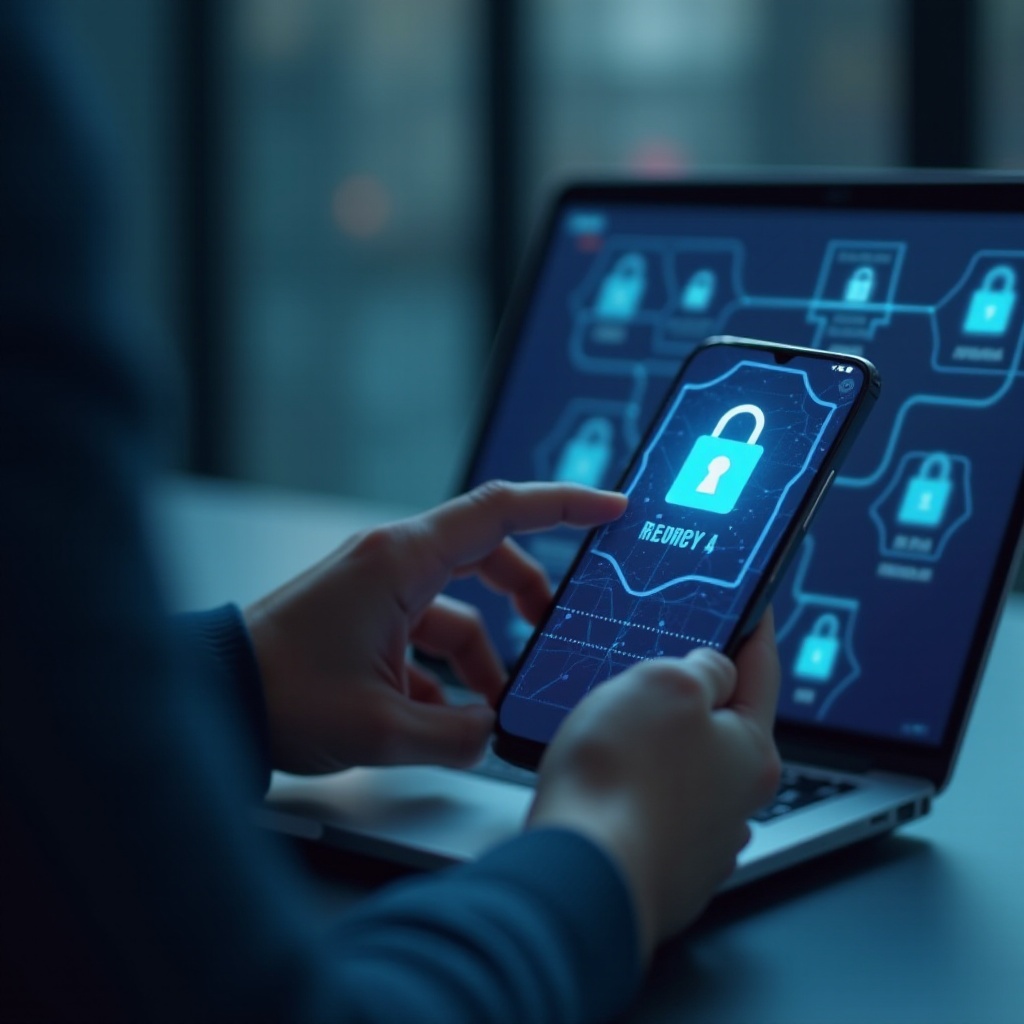
Protecting your data while using remote features is crucial for preventing unauthorized access.
- Use secure and private networks whenever possible.
- Enable two-factor authentication on accounts for added security.
- Create strong, unique passwords for applications and services.
Following these security best practices ensures your data and privacy remain protected, providing peace of mind in using remote capabilities.
Advanced Tips for Optimizing Remote Access
Enhance your remote access experience by optimizing performance and efficiency:
- Maintain a robust internet connection and close unused applications for smoother remote interaction.
- Customize app settings to optimize functionality according to your needs.
These strategies improve your overall remote control experience, making it more reliable and functional.
Conclusion
Harnessing the ability to control your Samsung phone remotely offers substantial convenience in the digital age. This guide provides the necessary tools, knowledge, and confidence to explore and utilize these settings effectively. Embrace remote capabilities to enjoy unprecedented efficiency and convenience.
Frequently Asked Questions
How can I ensure my remote connection is secure?
Always use secure networks, enable two-factor authentication, and employ strong passwords to protect your connection.
What should I do if my Samsung phone won’t connect remotely?
Check for network connectivity, update the apps you are using, and ensure all devices are properly configured for remote access.
Can I use voice commands for remote controls on my Samsung phone?
Yes, you can integrate voice assistants like Bixby or Google Assistant to facilitate hands-free remote operations where supported.