24 Jan 2026
Post by Aurorina
Introduction
Live Photos capture moments dynamically, adding life to your photo collection. However, sharing these lively snippets requires converting them to a format like video. Whether you’re using an iPhone or an Android device, this guide offers clear steps to help you easily export those Live Photos as videos. Let’s dive in and explore how to turn your Live Photos into shareable videos.
What Are Live Photos and Why Convert Them?
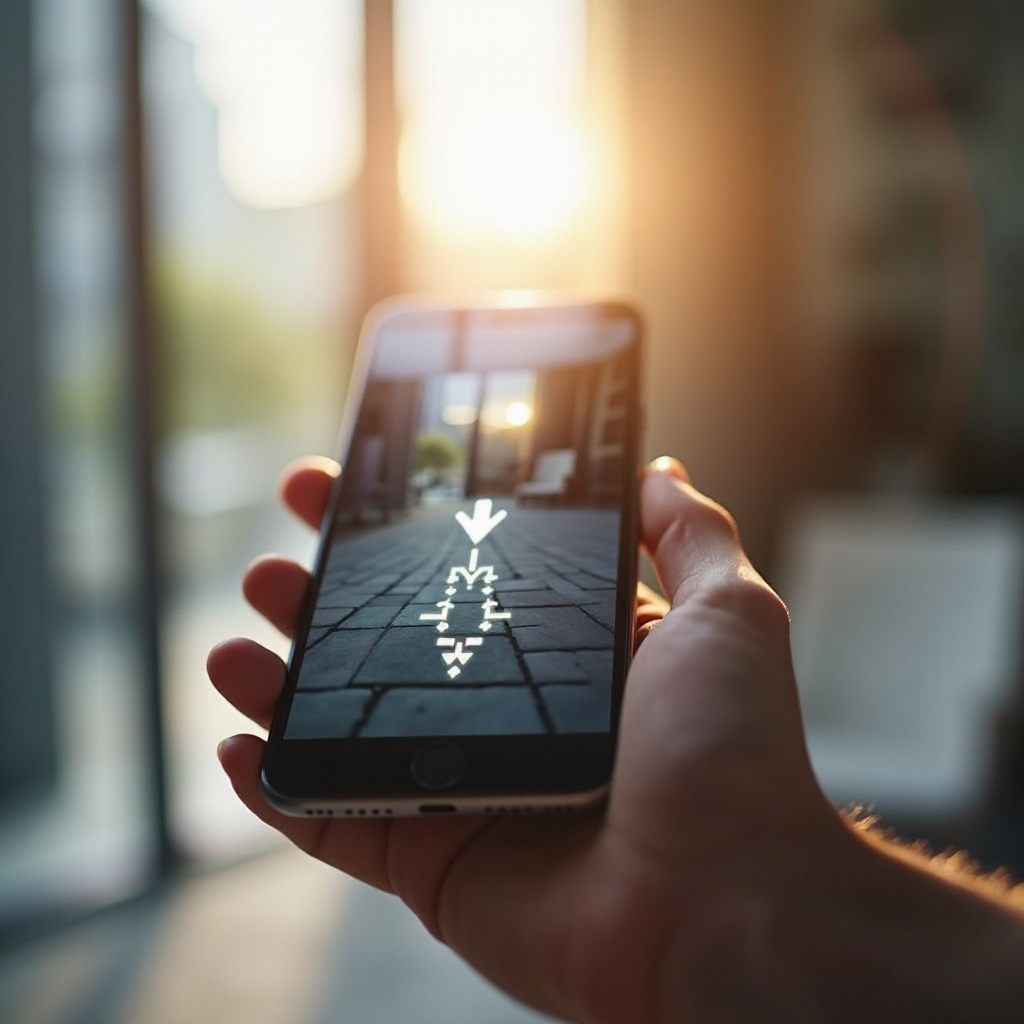
Live Photos combine still images and short video clips, capturing moments in motion and sound. While they add depth to your photo collection, sharing them outside Apple’s ecosystem can be tricky. Converting Live Photos to video format simplifies sharing across platforms. Videos are universally supported, making it easy to enjoy and share these moments anytime, anywhere.
Exporting Live Photos to Video on iPhone
If you’re an iPhone user, you can easily convert Live Photos to video with built-in features or third-party apps. Here’s how:
- Using the Photos App for Quick Conversion:
- Open the Photos app and locate the Live Photo you want to convert.
- Tap the photo for a full-screen view.
- Swipe up to access video effect options.
- Choose ‘Loop’ or ‘Bounce’ to convert your Live Photo into a looping video.
-
To save as a video, simply select the ‘Save as Video’ option available in the share menu.
-
Third-Party Apps for Enhanced Features:
- Apps like ‘Lively’ or ‘LivePix’ offer more features for converting and editing Live Photos.
- Install and open your chosen app.
-
Select the Live Photo, configure your export settings, and save it as a video.
-
Tips for Optimal Video Quality:
- Ensure your iPhone settings are set at the highest quality.
- Use editing tools to refine the video, adjusting settings like brightness and contrast.
For iPhone users seeking more than the basic conversion capabilities, third-party apps can provide advanced options. Transitioning from iOS, let’s see how Android users can enjoy similar photo conversion benefits.
Converting Live Photos to Video on Android
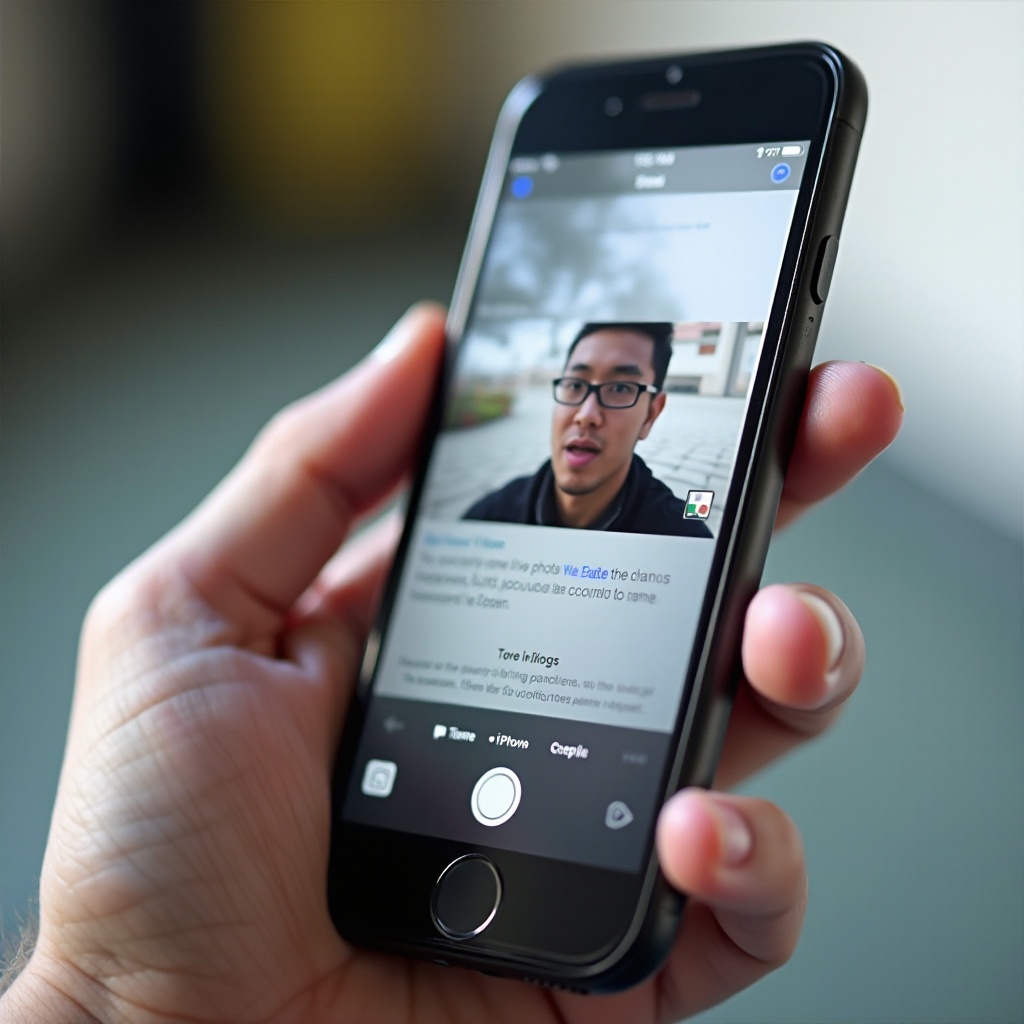
On Android, you can convert Live Photos using various apps designed to recreate this effect. Here’s how to do it:
- Understanding the Android Difference:
-
Android lacks native support for Apple’s Live Photos. However, third-party apps like ‘Google Photos’ and ‘PhotoDirector’ can help.
-
Recommended Apps for Conversion:
- Use apps such as ‘Motion Stills’ or ‘Camera MX’, which can create and convert dynamic photos to videos.
-
Open these apps and import your photo to convert.
-
Step-by-Step Conversion Process:
- Use ‘Google Photos’ to back up your Live Photo.
- Access ‘Google Photos’, find your Live Photo, and select the share/export feature.
- Choose the ‘Save as Video’ option to complete the conversion.
With the right tools, Android users can convert Live Photos into videos, allowing for seamless sharing and viewing, similar to the experience on iOS devices.
Editing and Enhancing Your Videos
After your Live Photo becomes a video, it’s time to enhance and edit it for the best presentation. Here’s how:
- Basic Video Editing Techniques:
- Utilize in-built editing tools in your phone’s photo app to trim, crop, and adjust.
-
Apps like ‘iMovie’ or ‘FilmoraGo’ offer more comprehensive editing capabilities.
-
Adding Filters and Effects:
- Experiment with filters in your editing app to match the video’s mood.
-
Apply effects like slow motion or adjust playback speed to emphasize critical moments.
-
Maintaining Quality During Export:
- Select high-quality export settings to preserve clarity.
- Avoid excessive compression, as it can degrade the video quality.
Optimized videos deserve to be shared, showcasing your captured moments with the vibrancy they deserve.
Sharing Your Videos on Social Media
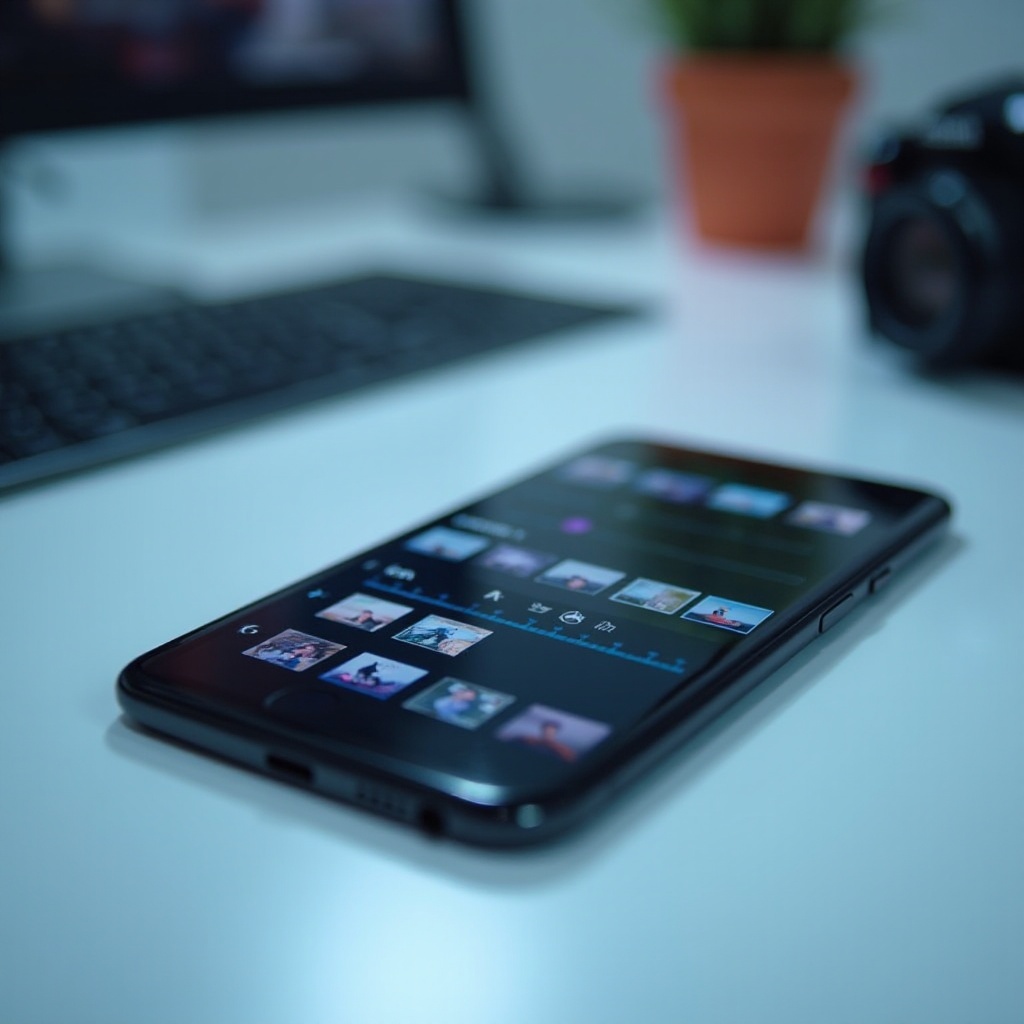
Your freshly exported videos can now be shared far and wide. Here are some best practices:
- Best Practices for Major Platforms:
- Upload videos directly through platform apps like Facebook or Instagram for optimal resolution.
-
Use relevant hashtags to increase visibility and engagement.
-
Ensuring Optimal Video Quality:
- Use WiFi when uploading to prevent quality loss caused by mobile network compression.
- Preview videos to ensure they meet your quality standards before sharing.
Sharing completes the journey from Live Photo to video, allowing friends and followers to experience your moments as vividly as you do.
Conclusion
Converting Live Photos into videos frees them from Apple’s constraints, enabling wider sharing and enjoyment. Whether you use an iPhone or Android, the tools and techniques we’ve covered give you the flexibility to manage and share your digital memories with ease. Dive into this dynamic way of capturing and sharing life’s most vibrant moments.
Frequently Asked Questions
How much storage do exported videos typically require?
Exported videos vary in size, generally between 5MB and 20MB depending on length and quality. Check your device’s storage capacity when converting multiple Live Photos.
Can I revert my live photo back to its original format after conversion?
Yes, once converted to video, the original Live Photo remains in your library. It can be viewed or converted again using different settings at any time.
What should I do if the video quality is poor after export?
Ensure high settings during export and adequate lighting when capturing the Live Photo. This helps in maintaining high-quality footage for your video.